
How to FIX Adobe Photoshop Error "Could not import the clipboard" (Solved)
One of the most frustrating issues encountered in Adobe Photoshop is the error message "Could not import the clipboard because an unexpected end-of-file was encountered." This error can occur when opening Photoshop, attempting to open a .JPG file, or performing a Copy-Paste operation. It typically indicates a problem with Photoshop's clipboard handling or its Preferences file. In this guide, we will explore various methods to resolve this issue effectively.
Adobe Photoshop: Could not import the clipboard because an unexpected end-of-file was encountered.

How to FIX: "Could not import the clipboard because an unexpected end-of-file" in Photoshop.
Method 1. Press "Print Screen" key with Photoshop closed.
This simple method involves refreshing the clipboard content to resolve the error:
1. Close Adobe Photoshop.
2. Press the Print Screen (PrtScn) key once to capture the screen. This action updates the clipboard contents, potentially clearing any corrupted data. By overwriting the clipboard, you eliminate any erroneous data that may be causing the import failure.
3. Open Photoshop and check if the problem is resolved.
Method 2. Reset Photoshop Settings.
Resetting Photoshop's preferences can often resolve issues caused by corrupted settings:
1. Close Photoshop.
2. Hold down the CTRL + ALT + SHIFT keys and launch Photoshop. This key combination triggers the reset of preferences.
3. Click Yes when prompted by the dialog "Delete the Adobe Photoshop Settings file?" This action restores default settings, potentially fixing the clipboard error by eliminating any misconfigured preferences that could be interfering with clipboard operations.

Method 3. Increase Virtual Memory (Paging file).
A lack of sufficient RAM can lead to clipboard errors. Increasing the virtual memory (paging file) can help:
1. Press Windows  + R keys to open the Run command box.
2. Type sysdm.cpl & click OK to access System Properties. This command opens the System Properties dialog, allowing you to modify system settings that affect performance.

3. In the Advanced tab, select Performance Settings.

4. In Performance Options, click the Advanced tab and then click Change under Virtual Memory.

5. In the "Virtual Memory" window:
- Uncheck the Automatically manage paging file size for all drives checkbox.
- Select the Custom Size option.

6. Enter a value for both "Initial size (MB)" and "Maximum size (MB)" that is at least twice the amount of RAM installed on your system. For example, if you have 4GB of RAM, set these values to 8192MB. This adjustment ensures that the system has enough virtual memory to compensate for any RAM shortages that could affect Photoshop's performance.
7. Click Set, then OK to apply changes, and restart your computer.

8. Open Photoshop and check if the error persists.
Method 4. Fix Photoshop "Could import the clipboard…" issue in Registry. *
* Note: This solution is applicable only to Photoshop CC 2014, CC 2015, CC 2017, and CC 2018 versions.
1. Open Registry Editor:
- Press Windows
 + R keys to open the 'Run' command box.
 - Type
regedit& click OK to open the Registry Editor. This tool allows you to modify the Windows Registry, which stores low-level settings for the operating system and installed applications.

2. Navigate to the following key based on your Photoshop version:
- Photoshop CC 2018:
HKEY_CURRENT_USER\SOFTWARE\Adobe\Photoshop\120.0 - Photoshop CC 2017:
HKEY_CURRENT_USER\SOFTWARE\Adobe\Photoshop\110.0 - Photoshop CC 2015.5:
HKEY_CURRENT_USER\SOFTWARE\Adobe\Photoshop\100.0 - Photoshop CC 2015:
HKEY_CURRENT_USER\SOFTWARE\Adobe\Photoshop\90.0 - Photoshop CC 2014:
HKEY_CURRENT_USER\SOFTWARE\Adobe\Photoshop\80.0
3. In the right pane, right-click on an empty space and select New > DWORD (32-bit) Value.
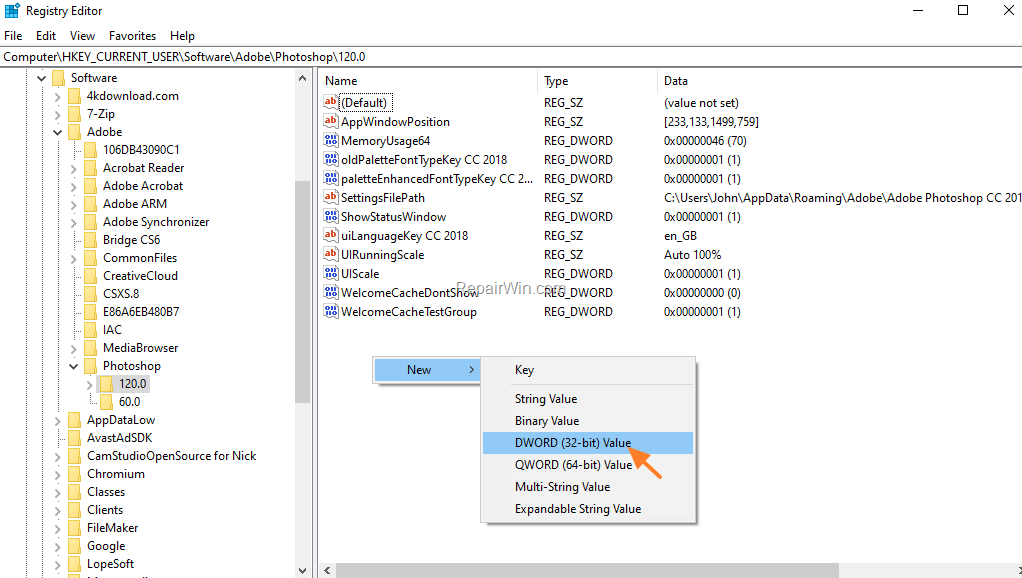
4. Name the new value OverridePhysicalMemoryMB and press Enter.
5. Open the new value and:
- Set Base to Decimal.
- In the Value Data field, enter a value that reflects your system's physical memory in Megabytes. For instance, enter 4096 for 4GB, 8192 for 8GB, etc. This registry modification allows Photoshop to recognize the correct amount of available memory, which can resolve memory-related issues.
6. Click OK to save changes, close the Registry Editor, and open Photoshop.

Additional Solutions
If the above methods do not resolve the issue, consider the following additional solutions:
- Run Disk Cleanup to remove temporary and unnecessary files that might be causing the issue. This utility helps free up space and remove potential conflicts from outdated or corrupted files.
- Ensure you have sufficient free space on the scratch disk used by Photoshop or change the scratch disk location via Edit > Preferences > Scratch Disks. The scratch disk is used by Photoshop as virtual memory, and insufficient space can cause performance issues.
- Update Photoshop to the latest version to benefit from bug fixes and improvements. Regular updates can resolve known issues and enhance compatibility with system resources.
Summary
Resolving the "Could not import the clipboard" error in Adobe Photoshop can be achieved through various methods, including refreshing clipboard content, resetting Photoshop preferences, increasing virtual memory, and making registry adjustments. If these solutions do not work, consider additional steps like running Disk Cleanup, managing scratch disks, and updating Photoshop. By following these steps, you can effectively troubleshoot and resolve this common issue.
Frequently Asked Questions
What is the 'Could not import the clipboard because an unexpected end-of-file was encountered' error in Adobe Photoshop?
This error typically appears when opening Photoshop, attempting to open a .JPG file, or trying to Copy-Paste. It indicates an issue with Photoshop's clipboard or Preferences file.
How can I fix the clipboard import error using the Print Screen key?
Close Adobe Photoshop, press the Print Screen (PrtScn) key to change the clipboard's content, then reopen Photoshop and see if the issue is resolved.
How do I reset Photoshop settings to fix the clipboard error?
To reset Photoshop settings, close Photoshop, hold the CTRL + ALT + SHIFT keys, launch Photoshop, and click Yes when prompted to delete the Adobe Photoshop Settings file.
What steps can I take to fix this error by increasing virtual memory?
To increase virtual memory, open the run command box with Windows + R, type sysdm.cpl, and adjust settings under Performance Options by specifying custom sizes for Initial and Maximum size in the Virtual Memory window.



