
FIX: Acrobat Reader 10:10 or 1014:1014 errors (Solved)
If you cannot open PDF documents in Internet Explorer 11 because or error " There is a problem with Adobe Reader. If it is running, please exit and try again. (10:10) or (1014:1014), continue reading below to fix the problem.
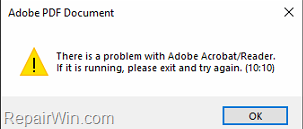
This tutorial contains instructions to fix Adobe Acrobat & Adobe Reader DC errors 10:10 & 1014:1014 on Windows 10 or Mac OS.
How to Fix: Adobe Reader DC & Adobe Acrobat 10:10 & 1014:1014 errors.
Method 1. Install Adobe's Hotfix to solve 10:10 & 1014:1014 errors.
The first method to fix errors 10:10 & 1014: 1014 in Acrobat Reader and Adobe Acrobat, is to download and install the Adobe's 21.005.20054 Optional update, June 23, 2021, from this link:*
- https://www.adobe.com/devnet-docs/acrobatetk/tools/ReleaseNotesDC/continuous/dccontinuousjunehotfix2021.html#dccontinuousjunehotfixtwentytwentyone
After installing the update, the 10:10 or 1014:1014 errors should be resolved. If not, continue reading below.
IMPORTANT: Before you continue to the methods below to fix errors 10:10 & 1014:1014 in Acrobat Reader, try the following and check if the problem persists:
-
Add to Trusted sites the Web site from which you want to open the PDF file. (To do that open the Internet Explorer's Tools > Options and in Security tab select the Trusted sites and click the Sites button).
-
If you have both Acrobat Reader DC and Adobe Acrobat Pro DC installed on your machine, proceed and uninstall the Acrobat DC. (If you have purchased Acrobat DC then uninstall the Acrobat Reader DC.)
-
Uninstall any third-party antivirus and uninstall & reinstall Adobe Reader.
Method 2. Fix Adobe Acrobat Reader 10:10 & 1014:1014 errors by Disabling Protected Mode.
1. Close all open applications.
2. Open Acrobat Reader DC.
3. From the Edit menu select Preferences.
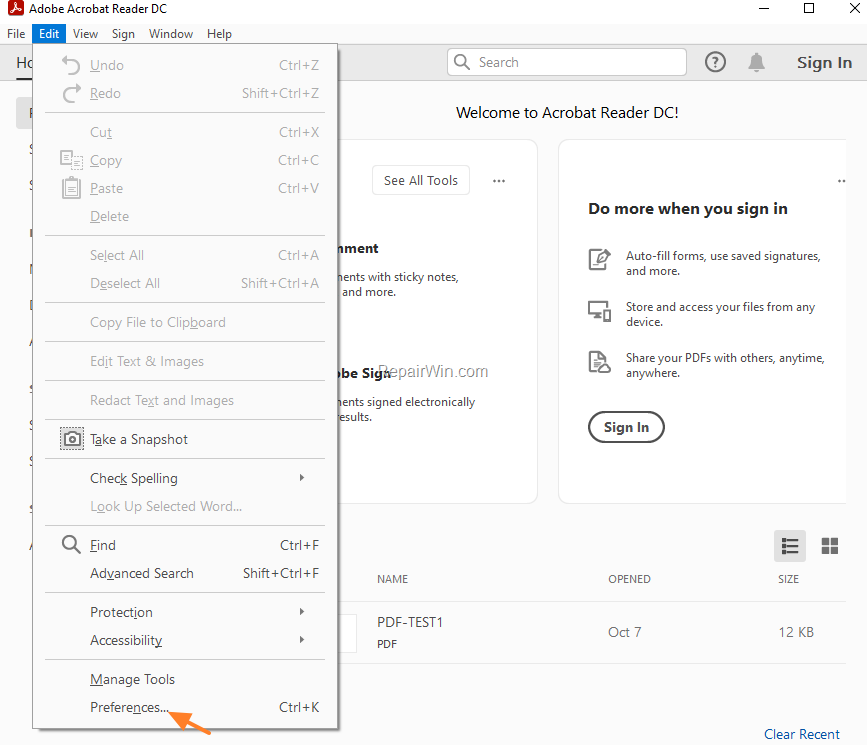
4. At Security (Enhanced) options, uncheck the options Enable Protected Mode at startup & Enable Enhanced Security.

5. Close Acrobat Reader DC and try to print the open the PDF file in Internet Explorer. If the problem persists, continue to method-2.
Method 3. Change Permissions on Acrobat Reader DC folder.
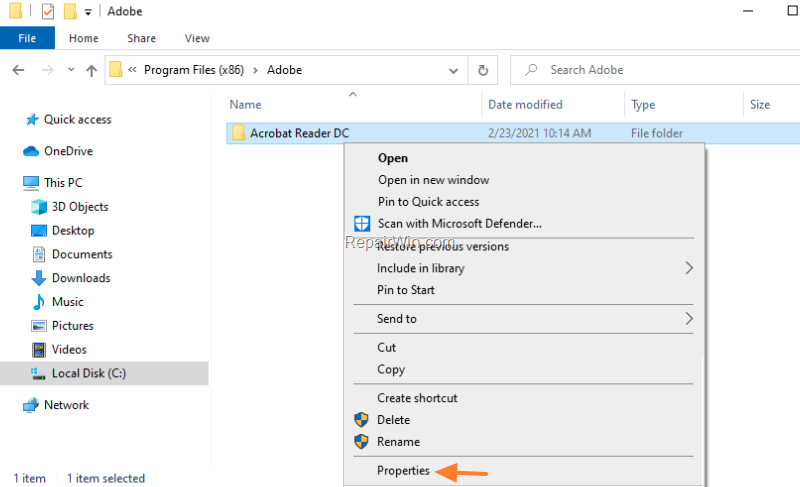
1. Open Explorer and navigate to this location on your disk:
- C:\Program Files (x86)\Adobe
3. Right-click at Acrobat Reader DC folder and select Properties.
4. At Security tab, click Edit.
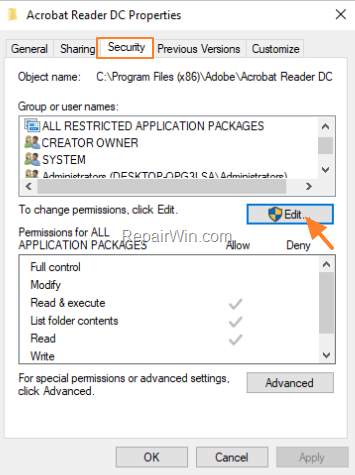
5. Click Add in 'Permissions in Acrobat Reader DC' window,
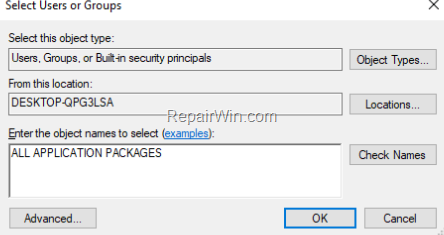
6. Type ALL APPLICATION PACKAGES and click OK
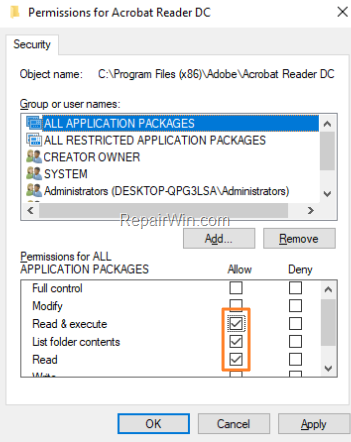
6. Check Read & Execute permissions (List folder contents & Read permissions will be selected automatically).
7. Click OK twice to close all open windows.
8. Check if the Acrobat Reader error persists.
Method 4. Completely Remove & Reinstall Adobe Reader.
The final method to resolve error 10:10 & 1014:1014 in Acrobat Reader is to completely uninstall & reinstall the product, by following the steps below:
Step 1. Uninstall Adobe Acrobat Reader.
1. Navigate to Programs and Features. To do that:
1. Press simultaneously the Windows
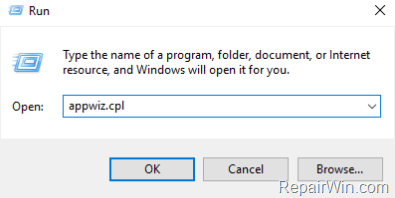
+ R keys to open the run command box.
2. Type: appwiz.cpl and click OK.

3. In Programs and Features, select and Uninstall all Adobe Acrobat software. (Adobe Acrobat Reader DC & Adobe Reader DC).

Step 2. Remove Acrobat Reader with Acrobat Cleaner Tool.
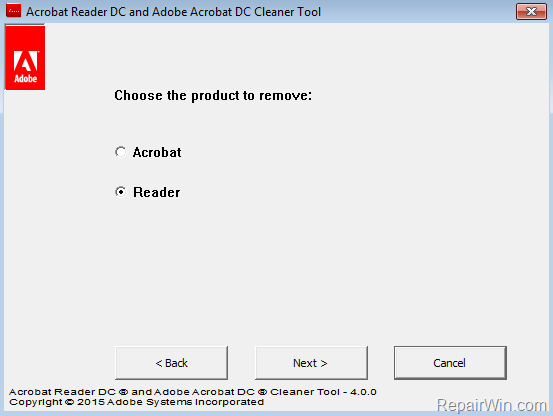
The next step to fix the installation problems of Adobe Reader DC, is to remove all previous installations of Adobe Acrobat & Adobe Reader, by using the Acrobat Reader DC & Adobe Acrobat DC Cleanup utility * and then to install Adobe Reader DC.
* The Adobe Reader and Acrobat Cleaner Tool is designed to clean Adobe Acrobat & Adobe Reader corrupted installations, including removing or fixing corrupted files, removing or changing permissions registry entries, etc.. Use the following link to download the Adobe Reader and Acrobat Cleaner Tool
- https://www.adobe.com/devnet-docs/acrobatetk/tools/Labs/cleaner.html
Step 3. Delete Adobe Folder.
1. Open Explorer and navigate to this location on your disk:
- C:\Program Files (x86)
2. Delete the Adobe folder.
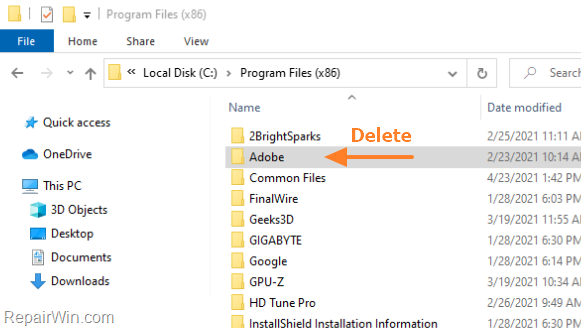
3. Restart you PC.
Step 4. Install Acrobat Reader..
1. Download and install Acrobat Reader. (https://get.adobe.com/reader/)
2. After installation, you should be able to open PDF documents in Internet Explorer.
That's all folks! Did it work for you?
Please leave a comment in the comment section below or even better: like and share this blog post in the social networks to help spread the word about this solution.
Frequently Asked Questions
Why can't I open PDF documents in Internet Explorer 11 using Adobe Reader?
This can happen due to errors like "There is a problem with Adobe Reader. If it is running, please exit and try again. (10:10) or (1014:1014)." These issues might be resolved by updating, adjusting settings, or reinstalling the application.
How can I fix the Adobe Reader errors 10:10 & 1014:1014?
You can fix these errors by installing Adobe's hotfix, adjusting trusted sites settings in Internet Explorer, disabling protected mode, modifying folder permissions, or completely uninstalling and reinstalling Adobe Reader.
What is the first step to resolve the Adobe Reader error 10:10?
The first step is to install Adobe's hotfix, specifically the 21.005.20054 Optional update. This update was released on June 23, 2021, and can be downloaded from Adobe's website.
What should I do if updating Adobe Reader doesn't solve the problem?
If updating Adobe Reader doesn't resolve the issue, try adding the website to trusted sites in Internet Explorer, disabling protected mode in Adobe Reader, altering folder permissions, or completely uninstalling and reinstalling the software using the Adobe Cleaner Tool.



