
FIX: Unable to Schedule Teams Meeting(s) in 15 or 10 minutes slots (Solved)
If you are experiencing difficulties scheduling a Microsoft Teams meeting in 15 or 10-minute increments, you are not alone. Many users have encountered this issue where the Teams app defaults to scheduling meetings at the top or bottom of the hour, such as 9:00 or 9:30, instead of the desired times like 9:10 or 9:40. This guide provides comprehensive solutions to overcome this problem.
How to Resolve Scheduling Issues in Microsoft Teams for 15 or 10 Minute Slots.
The root cause of this issue often lies in the mismatch between the regional format settings of your operating system and the language settings in Microsoft Teams. For instance, if your system is set to a "Greek" regional format, but Teams is using a different language, scheduling conflicts may arise. Here are several methods to address this:
Method 1. Use AM/PM Indicators in English
One effective way to schedule a Teams meeting in 15 or 10-minute slots is to specify the time using the English language's AM or PM indicators. This method helps Teams recognize the exact time input. For example, to schedule a meeting at 9:10 AM, enter "09:10 AM" or "9:10 am". This approach ensures that Teams correctly interprets the time, bypassing regional setting conflicts.
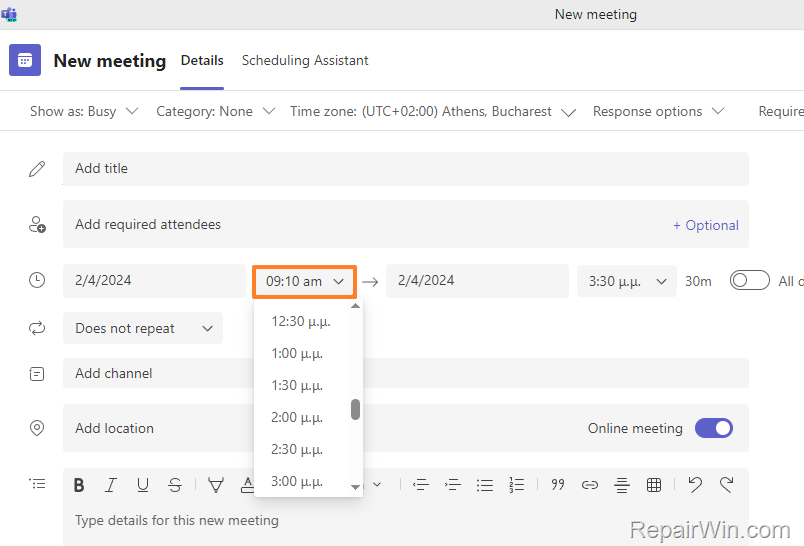
Method 2. Switch to 24-Hour Time Format
Another workaround is to switch your system's time format to a 24-hour clock, which does not use AM/PM indicators. This method can help avoid discrepancies caused by language-specific time formats. Follow these steps:
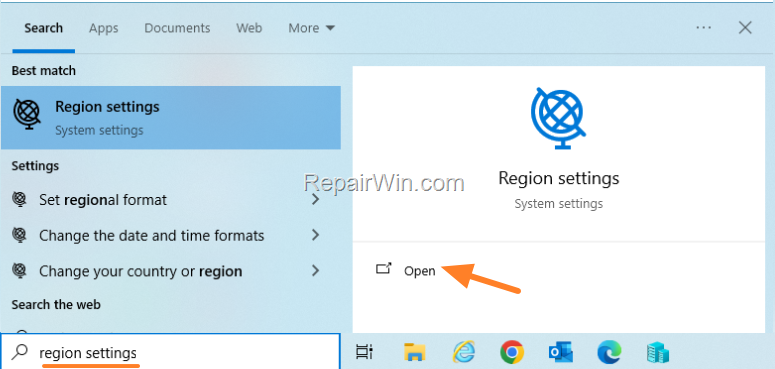
1. Open the Region Settings by typing "region settings" in the search bar.
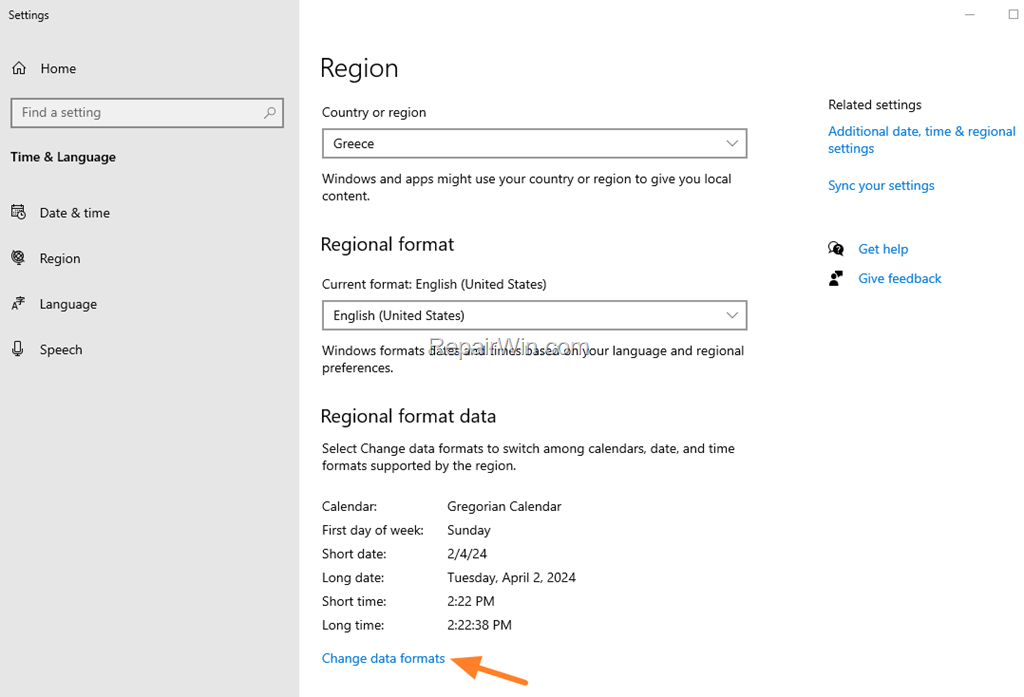
2. Click on Change data formats.
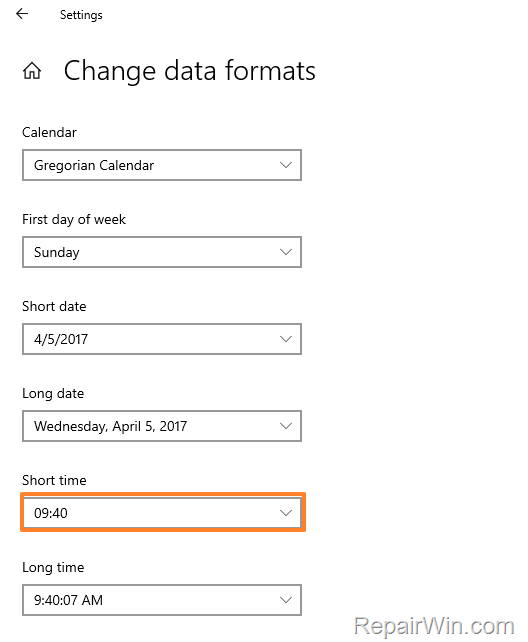
3. Set the Short time format to a 24-hour format.
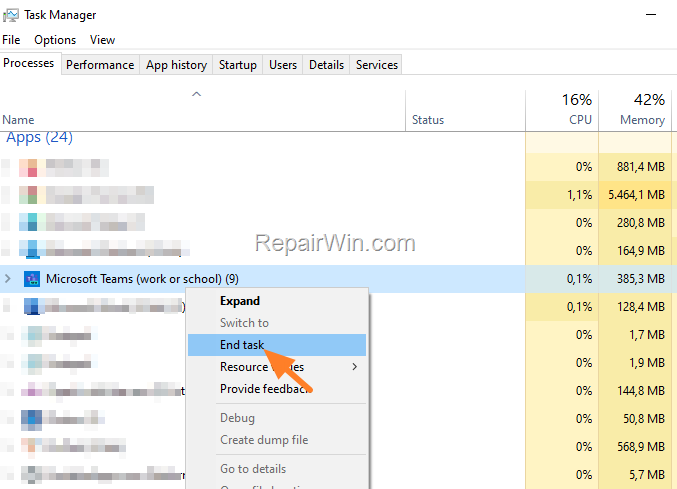
4. Open Task Manager by pressing CTRL + SHIFT + ESC.
5. End the Microsoft Teams task by right-clicking on it and selecting End Task.
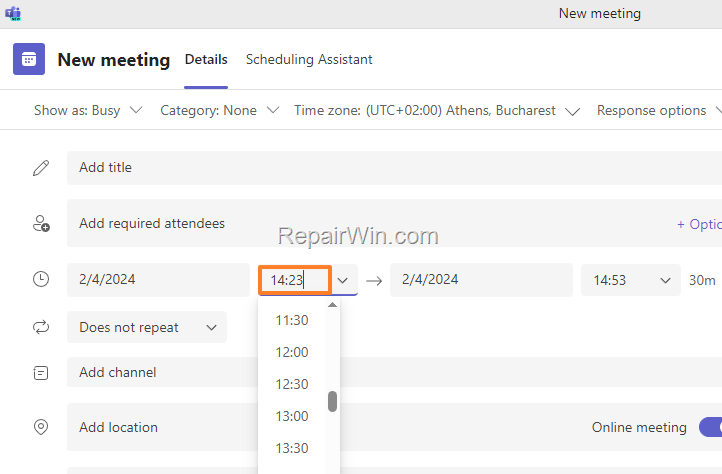
6. Restart Microsoft Teams and schedule your meeting using the 24-hour format, e.g., "14:23" for 2:23 PM.
Method 3. Adjust Regional Format to English (US/UK)
Changing your system's regional format to English (US) or English (UK) can resolve the time scheduling issue by aligning the system's language settings with Teams. Here's how you can do it:
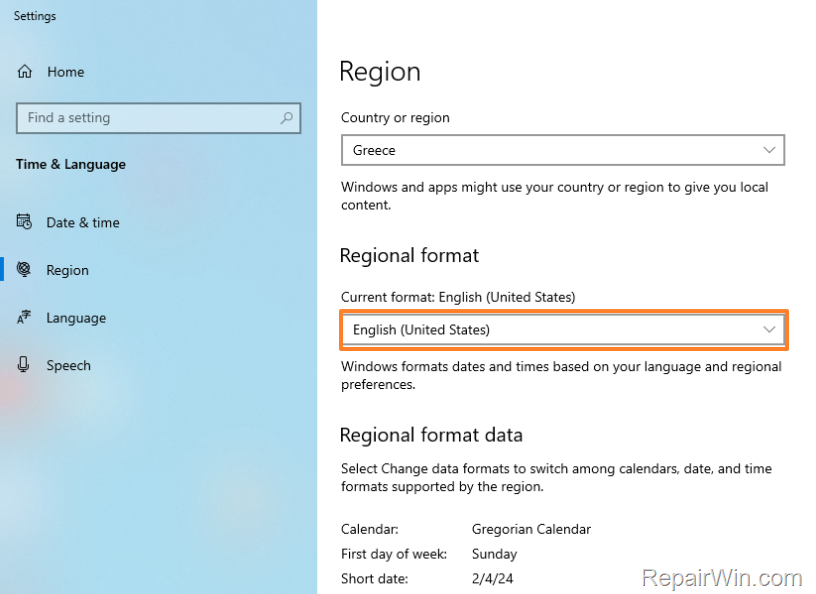
1. Access Region Settings through the search bar.
2. Set the Regional Format to English (United States) or English (UK).
3. Use CTRL + SHIFT + ESC to open Task Manager.
4. End the Microsoft Teams task and restart the application to apply changes.
5. Attempt to schedule your meeting again with the updated settings.
Method 4. Use the Teams Web App
If the above methods do not resolve the issue, consider using the Teams web app to schedule your meetings. The web version may not be affected by the same regional settings issues as the desktop app.
Summary
In summary, scheduling issues in Microsoft Teams can often be attributed to mismatched regional and language settings. By using AM/PM indicators, switching to a 24-hour format, adjusting the regional format to English, or utilizing the Teams web app, users can effectively resolve these problems and schedule meetings at their desired times.
Frequently Asked Questions
Why can't I schedule a TEAMS meeting in 15-minute intervals?
This issue occurs when the Regional Format of your operating system is in a different language than TEAMS. It doesn't allow setting exact times like :10 or :20, defaulting instead to :00 or :30.
How can I schedule a TEAMS meeting in 10-minute slots?
You can overcome this by typing the exact time with AM/PM indicators in the English language (e.g., '09:10 AM'). This method helps in setting TEAMS meetings at desired intervals.
What if my Regional Format mismatch prevents me from scheduling TEAMS meetings at specified times?
You can choose to change the time format to a 24-hour format without AM/PM indicators or adjust the Regional Format to English (US/UK) to align with the TEAMS language setting.
Can I use the TEAMS web app to solve this scheduling problem?
Yes, if other methods don't work, you can schedule your meeting using the TEAMS web app, which may bypass the regional format issue.



