
How to Reset Windows 11 to its Default State.
Like its predecessor, Windows 11 offers a robust built-in feature known as "Reset this PC," which empowers users to restore their operating system to its original state. This feature provides flexibility by allowing users to either retain or remove personal files while reinstalling Windows, all without the need for external media.
This "Reset this PC" functionality is engineered to assist users in resolving system issues efficiently, bypassing the necessity for external installation media. Additionally, it offers the convenience of deciding whether to keep personal files on the computer, eliminating the need for external backup solutions.
How to Restore Windows 11 to a Clean State using the 'Reset this PC' feature.
Method 1. Restore Windows 11 using 'Reset this PC' option.
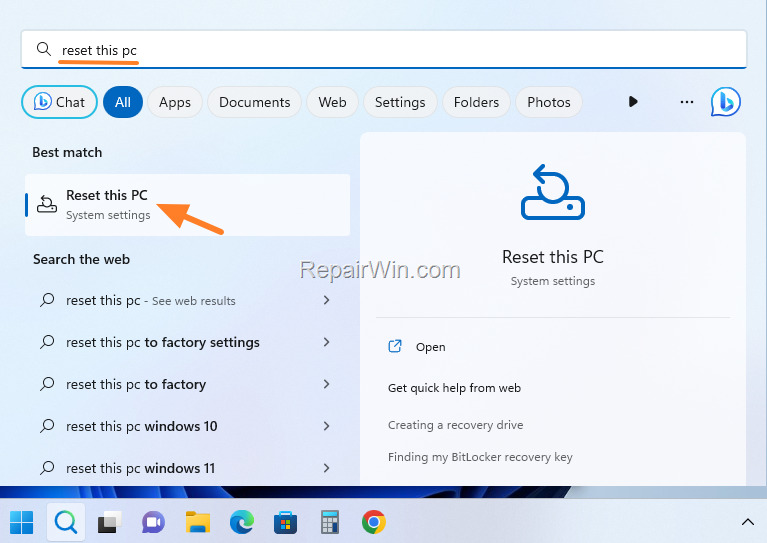
- In the search box, type "reset this pc". This command will lead you to the system settings where you can initiate the reset process.
- Then click the Reset this PC result.
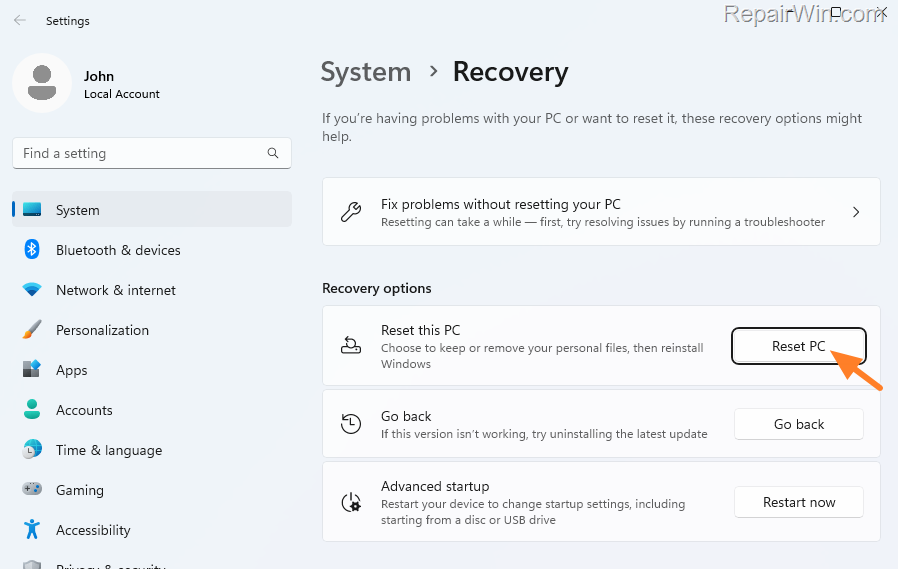
- Then click the Reset this PC button under the Recovery options. This action will open the reset wizard, guiding you through the necessary steps to restore your system.
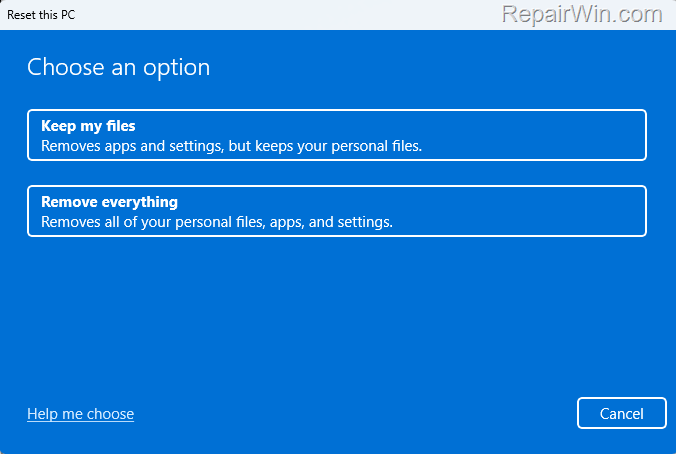
4. Now choose one of the following options according to what you want to do:
- Keep My Files: This option will reset your computer by removing all applications and settings while preserving your personal files, such as documents, pictures, and music. It is ideal for troubleshooting without losing personal data.
- Remove Everything: This option performs a comprehensive restore, removing all personal files, applications, and settings. It reinstalls Windows from scratch, which is beneficial when preparing the device for resale or transfer.
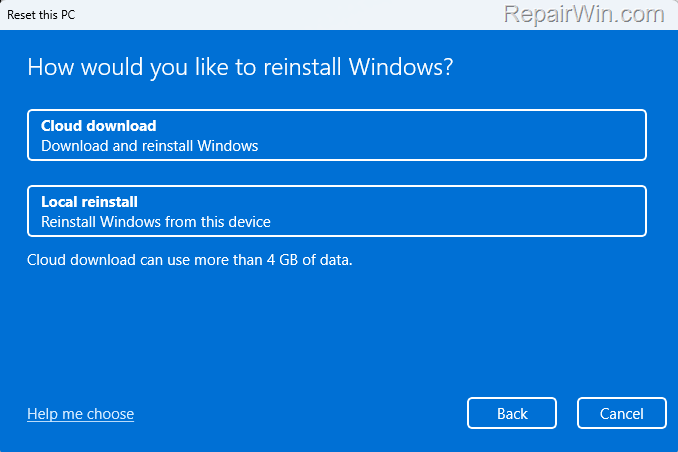
- On the next screen, you will be asked how you want to reinstall Windows. Click the option you want to continue.
- Local Reinstall: This option utilizes the installation files stored locally on your computer, which can be advantageous if your internet connection is unreliable.
- Cloud Reinstall: This option downloads the latest installation files from Microsoft Servers, ensuring the installation of the most current version of Windows with all updates.
- On the Additional Settings screen, confirm the installation method by clicking Next to continue. This step ensures that all your selections are correctly configured before proceeding.
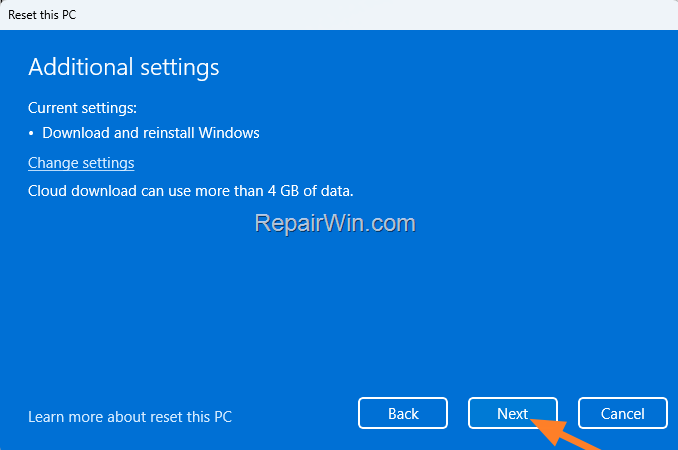
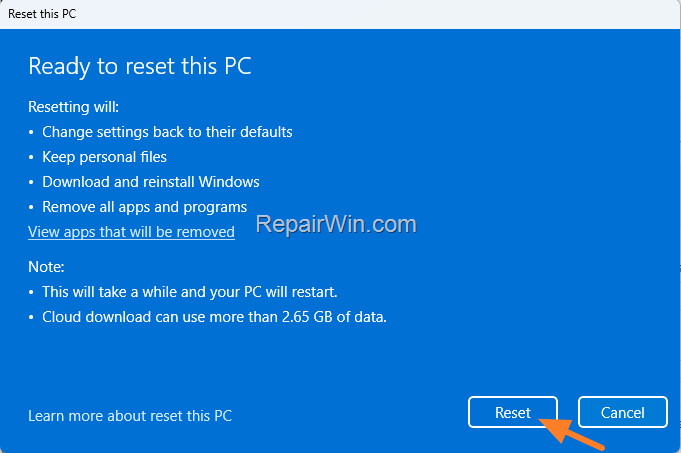
- Finally, check what the reset process will do to the computer, and if you agree, click the Reset button to reinstall Windows 11. This action will commence the reset operation, restoring your system to its default state.
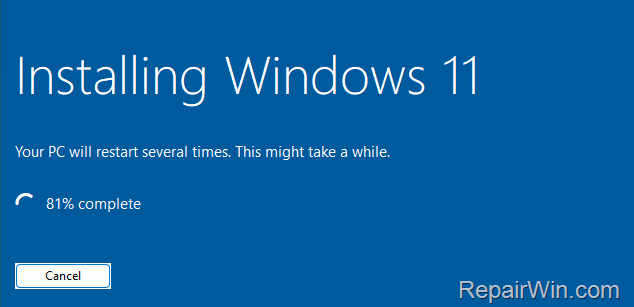
- The Windows 11 installation will begin. Now wait for the process to complete without interrupting it. During the installation, your computer will restart several times, and when the reset is complete, Windows will open normally, allowing you to use your computer again.
Method 2. Reset This PC from Windows Advanced Startup Options.
If Windows isn't functioning correctly, you can boot your PC into Advanced Startup Options and reset your PC from there. This method is particularly useful when the operating system is unresponsive or fails to boot.
- To access the Advanced Startup Options, use one of the following methods:
- On Windows: Click on the Start button in the bottom left corner of your screen. Then hold-down the Shift key on your keyboard and click Power > Restart. This action will reboot your system into the recovery environment.
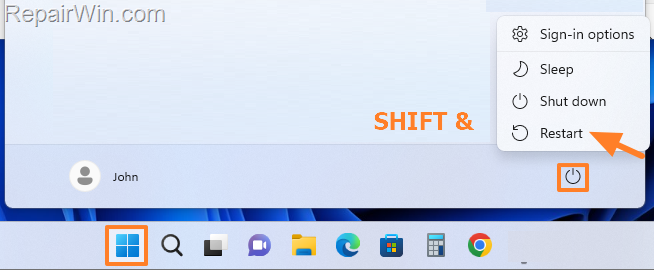
- On the Login/Sign-in screen: Click the Power icon located in the bottom right corner of the screen. Then hold-down the Shift key on your keyboard and click Restart. This method provides access to recovery options directly from the login screen.
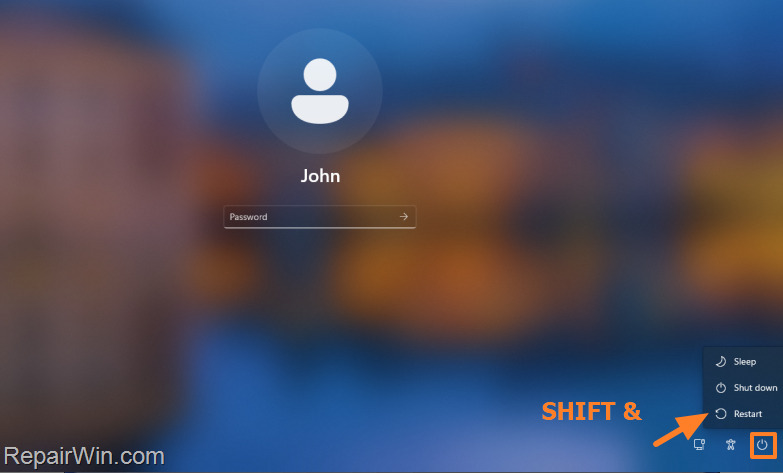
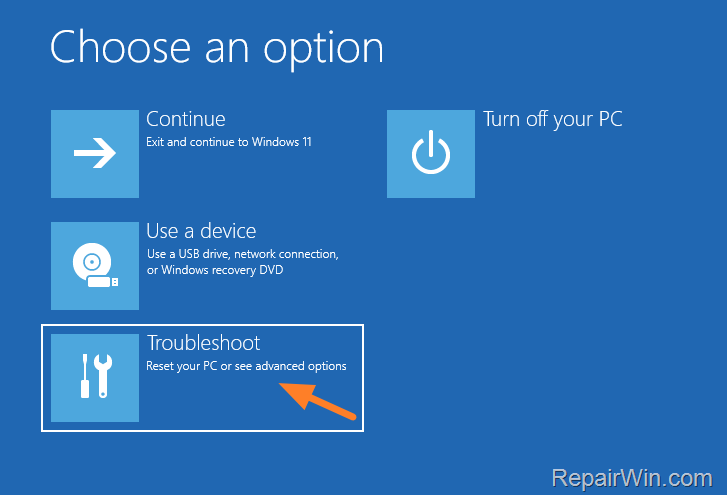
- After the computer restarts, click Troubleshoot. This option will guide you to the troubleshooting tools available in the recovery environment.
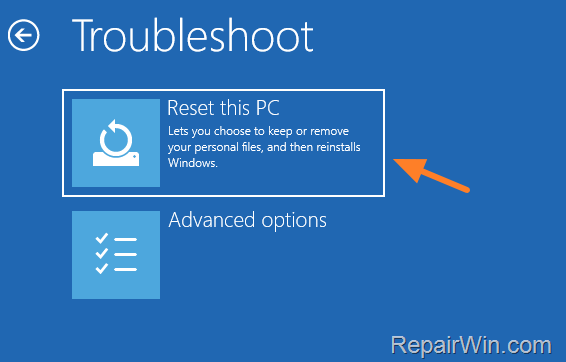
- Then click Reset this PC. This choice will initiate the reset process, offering options to either keep or remove your files.
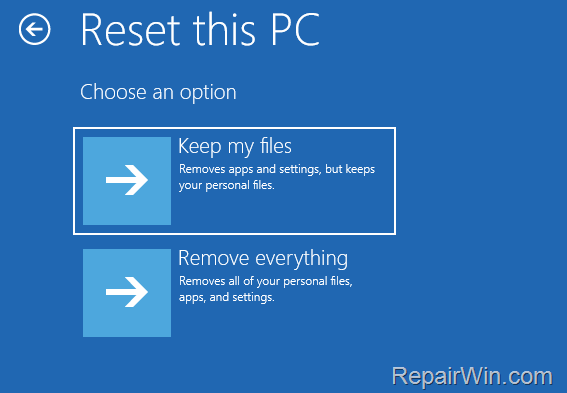
4. On the next screen, choose how you want to restore your computer.
- Keep my files: By selecting this option, you will reset your computer while keeping your files and removing your apps and settings. This is useful for troubleshooting without data loss.
- Remove everything: By selecting this option, you'll restore your PC to a fully clean state with all your files, settings, and apps deleted. This is ideal for a fresh start or when disposing of the device.
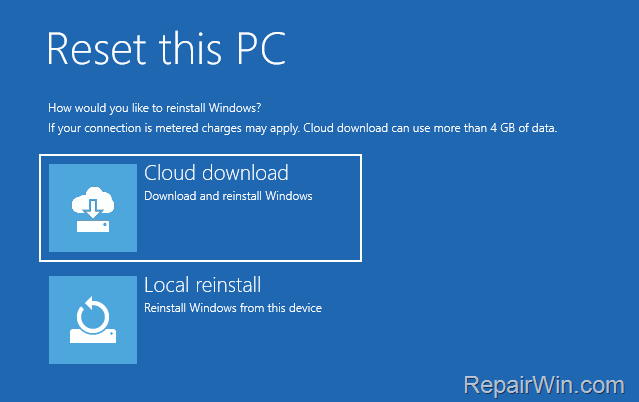
5. On the next screen, click one of the available installation options:
- Cloud Reinstall: This option will reinstall Windows by downloading the latest installation files from Microsoft Servers. It ensures that you install the latest version of Windows with the latest updates.
- Local Reinstall: Selecting this option will reinstall Windows using the installation files stored on the computer. This is useful when you have a bad internet connection.
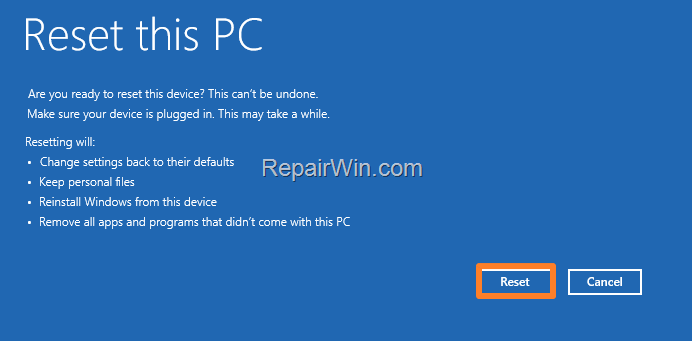
6. Finally, review the actions that the reset will perform on your device, and if you agree, click the Reset button to continue. This will start the reset process, restoring your system to its default state.
7. The Windows 11 installation will begin. Wait for the process to complete without interrupting it. During the installation, your computer will restart several times, and when the reset is complete, Windows will open normally, and you will be able to use your computer again.
Additional Method: Using System Restore
System Restore is another powerful tool that can revert your Windows 11 system to a previous state without affecting personal files. It is particularly useful when recent changes, such as software installations or driver updates, cause system instability.
- Open the Control Panel and navigate to System and Security > System.
- Click on System Protection in the left pane.
- Under the System Protection tab, click System Restore.
- Follow the wizard to choose a restore point and proceed with the restoration process.
For more details on using System Restore, visit the official Microsoft support page.
Summary
Resetting Windows 11 to its default state can resolve numerous system issues and offer a fresh start. The "Reset this PC" feature provides options to either keep personal files or remove everything for a clean installation. Additionally, accessing Advanced Startup Options allows for resetting the system even when Windows is unresponsive. For less drastic measures, System Restore can revert the system to a previous state without affecting personal data. Each method offers unique benefits depending on the user's needs and the system's condition.
Frequently Asked Questions
What is the 'Reset this PC' feature in Windows 11?
The 'Reset this PC' feature in Windows 11 allows users to restore their system to its original state. It gives the option to either keep or remove personal files while reinstalling Windows, providing a way to resolve system problems without needing external media.
How can I use 'Reset this PC' to restore Windows 11 to a clean state?
To use 'Reset this PC', type 'reset this pc' in the search box and click the result. Under Recovery options, click the Reset this PC button, then choose either 'Keep My Files' or 'Remove Everything.' Follow the prompts to complete the restoration process.
What are the options available when resetting Windows 11?
When resetting Windows 11, you can choose between 'Keep My Files' to retain personal files while removing applications and settings, and 'Remove Everything' to perform a full reset removing all files, apps, and settings. You can also select between 'Local Reinstall' and 'Cloud Reinstall' to reinstall Windows.
What should I do if Windows 11 isn't working normally and I need to reset using the Advanced Startup Options?
If Windows isn't functioning normally, boot into Advanced Startup Options by holding down the Shift key while clicking Restart from either the Start menu or the Power icon on the sign-in screen. Then, select Troubleshoot > Reset this PC and proceed with your reset choice.



