
How to Add Unallocated Space to Disk C: after Cloning or Migrating Windows to a New Disk.
Do you want to maximize the storage capacity of your main drive (C:) after cloning or migrating your Windows 10/11 installation to a new, larger disk? This guide will walk you through the process of adding unallocated space to your C: drive efficiently.
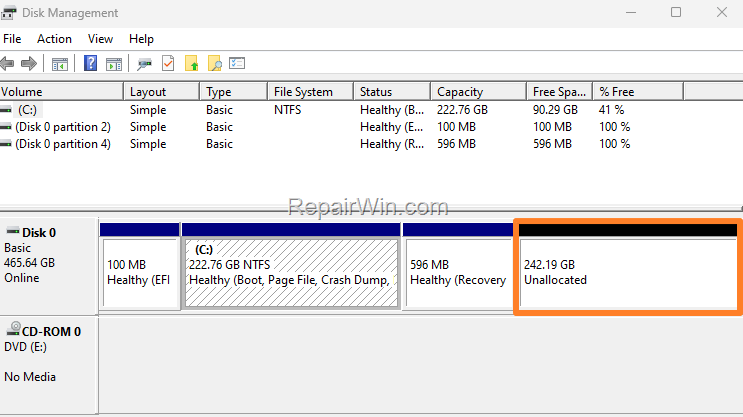
When you clone or migrate your Windows 10/11 hard drive to a larger disk, you might notice that Windows only displays the capacity of the original drive, leaving the additional space as "Unallocated." This issue arises because most disk cloning tools do not automatically expand the partition to utilize the full capacity of the new disk. Similarly, when restoring a system image from a smaller disk to a larger one, the unallocated space remains unused.
For instance, if you clone a 250 GB hard drive to a 500 GB hard drive, Windows will only recognize the original 250 GB, leaving the remaining space unallocated.
How to Extend C: Drive with Unallocated Space After Disk Clone
To efficiently expand the size of disk C: using the unallocated space, follow these steps:
1. Download MiniTool Partition Wizard Free. This tool offers a user-friendly interface for managing disk partitions and is essential for reallocating space efficiently.
2. Once the download is complete, open the downloaded file and install the Free edition of the program. This installation will equip your system with necessary utilities to manage disk partitions effectively.
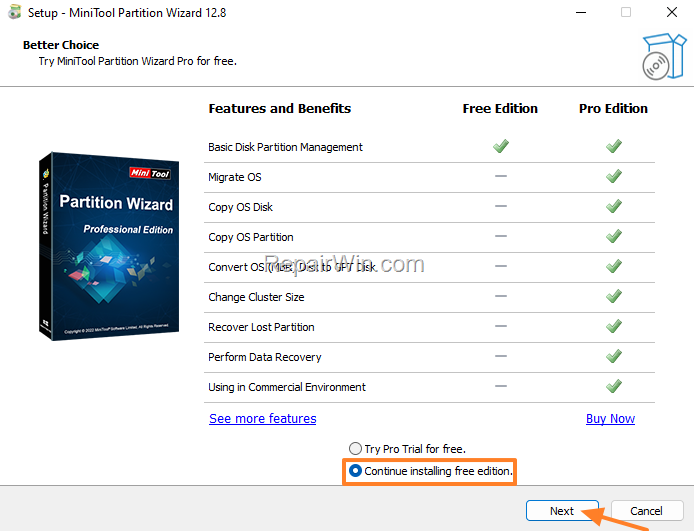
3. After installation, launch MiniTool Partition Wizard. This software provides a comprehensive overview of your disk partitions and available operations.
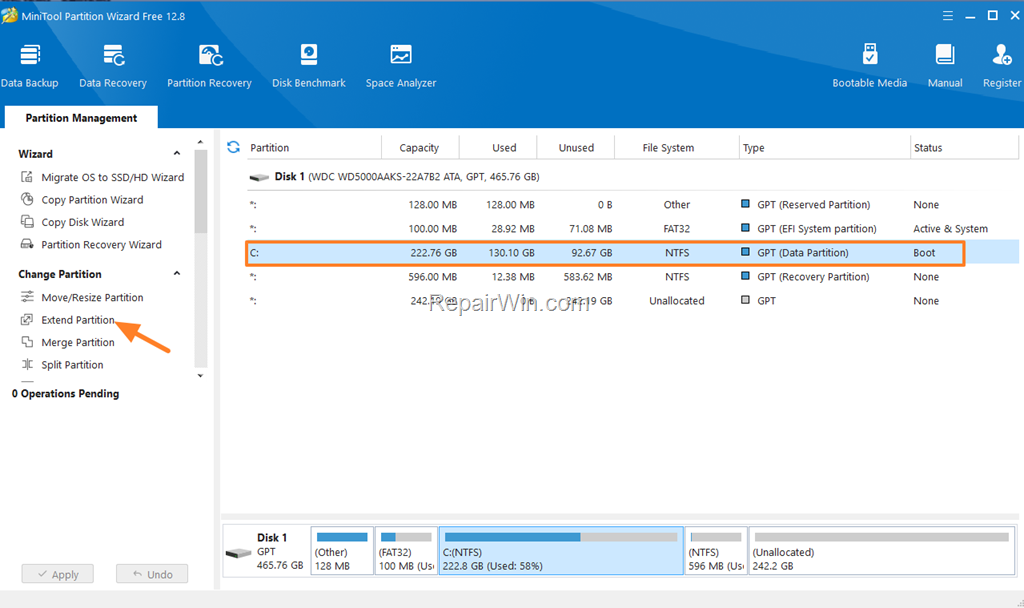
4. Select the disk C: on the right and then click Extend partition on the left pane. This action prepares the system to merge unallocated space with the existing C: drive.
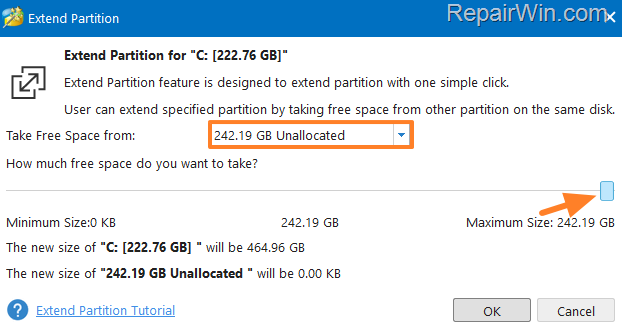
5. In the 'Extend Partition' window, choose to Take Free Space From: Unallocated and drag the slider all the way to the right. This step reallocates all unallocated space to the C: drive, maximizing its capacity. Click OK when done.
6. Click the Apply button on the main screen to execute the changes. This action initiates the process of merging the unallocated space into the C: drive.
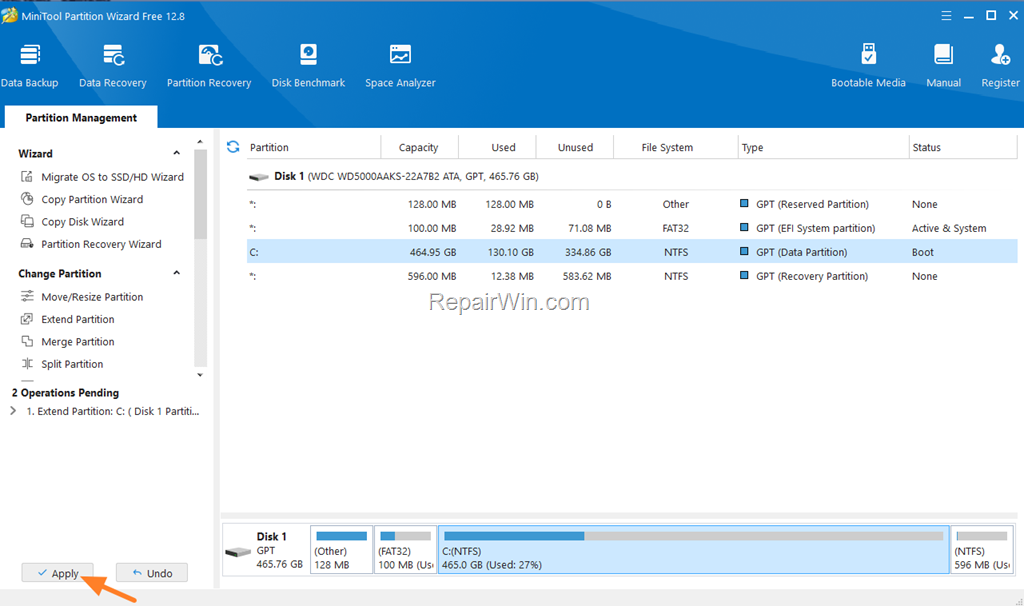
7. In the "Apply pending changes" window, ensure all open programs are closed, then click Yes. This precaution helps prevent data loss or corruption during the partition resizing process.
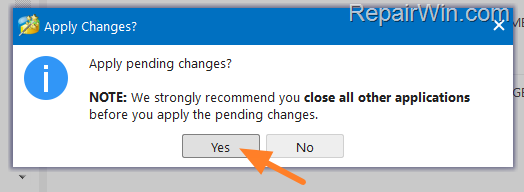
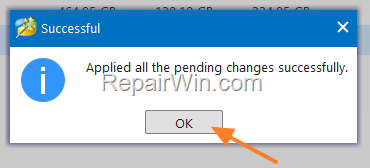
8. Wait for the resizing process to complete. Once finished, click OK and close the MiniTool Partition Wizard. Your C: drive should now reflect the additional space.
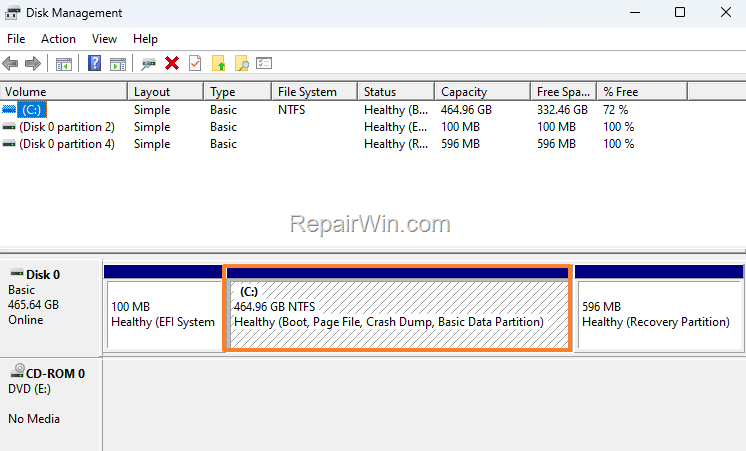
9. That's it! After completing these steps, you should see that all unallocated space has been successfully added to the C: drive.
Summary
In summary, expanding your C: drive to include unallocated space after cloning or migrating to a new disk can be efficiently achieved using tools like MiniTool Partition Wizard or Windows' Disk Management. These methods ensure that your system utilizes the full capacity of your new disk, optimizing storage and performance. Always ensure to back up important data before performing disk operations to prevent data loss.
Frequently Asked Questions
What happens to unallocated space after cloning Windows to a larger drive?
After cloning your Windows installation to a larger drive, the extra space appears as "Unallocated" because most disk cloning programs do not automatically expand the partition to the full capacity of the new disk.
How can I extend the C: drive using unallocated space after disk cloning?
To extend the C: drive with unallocated space, you can use MiniTool Partition Wizard Free. Download and install the program, then use the 'Extend Partition' option to allocate the unallocated space to drive C:.
Why does Windows show the capacity of the old drive after cloning?
Windows shows the capacity of the old drive because the cloning process typically replicates the exact size of the original partition, leaving any additional space on the new drive unallocated.
Is MiniTool Partition Wizard Free necessary to allocate unallocated space?
MiniTool Partition Wizard Free is one of the tools you can use to easily extend the C: drive using unallocated space, but other disk management tools may offer similar functionality.



