
How to Resolve Windows 11 Update Error 0x800F081F for KB5031354.
Encountering the error 0x800F081F while trying to install the Windows 11 KB5031354 update can be frustrating. This guide provides comprehensive steps to troubleshoot and resolve this issue effectively. The error 0x800F081F typically arises due to corrupted update files or system files. Occasionally, it may also be triggered by security software interference or disk issues.
This tutorial contains instructions to resolve the installation error 0x800F081F when installing the "2023-10 Cumulative Update for Windows 11 Version 22H2 for x64-based Systems (KB5031354)"
How to FIX Error 0x800F081F on KB5031354 Update in Windows 11.
Method 1. Force Windows to Download the KB5031354 Update Again.
Errors during update installations often occur due to incomplete or corrupted installation files. Forcing Windows to re-download these files can resolve the error 0x800F081F for the KB5031354 update. This method clears the cache of downloaded update files, ensuring that Windows fetches a fresh copy of the update package, thus eliminating any issues related to file corruption.
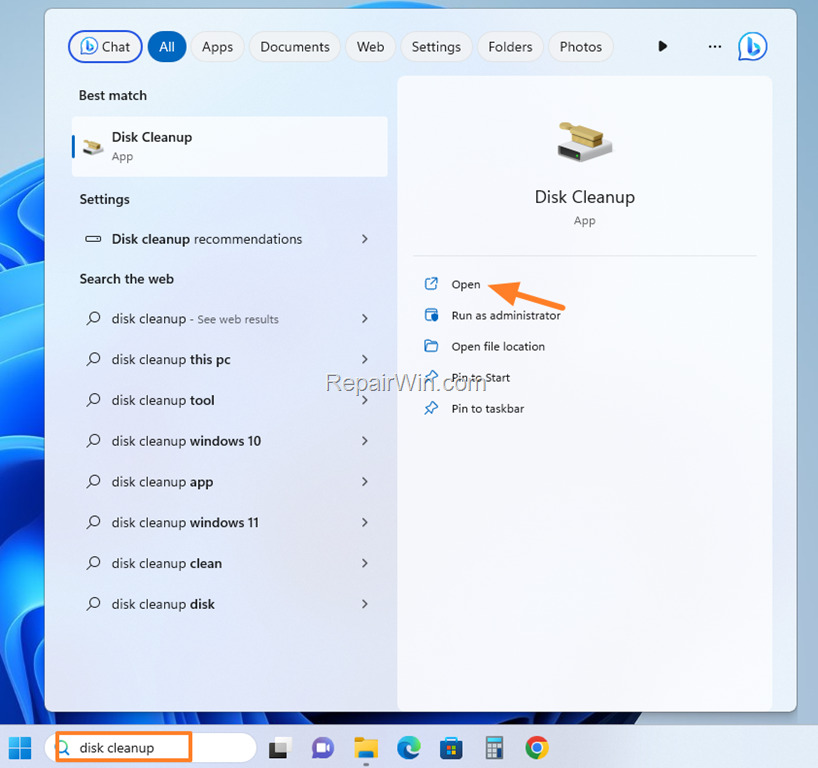
1. Type "disk cleanup" in the search bar and then open the Disk Cleanup App.
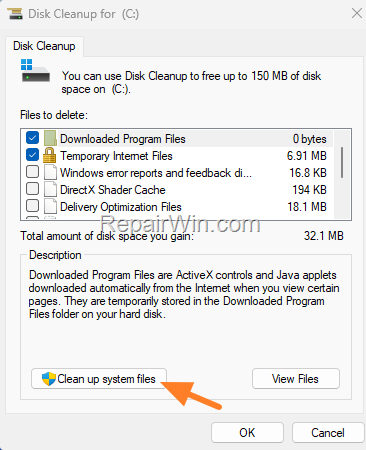
2. At the 'Disk Cleanup' window, click Clean up system files.
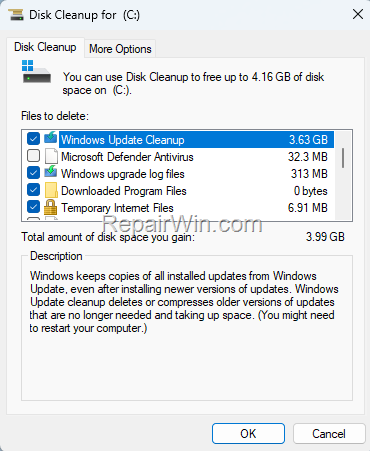
3. In addition to the files selected for deletion, select the following and click OK to delete them.
- Windows Update Cleanup
- Windows upgrade log files
- Temporary Windows installation files
4. Close the Disk Cleanup tool.
5. Navigate to Start > Settings > Windows Update and click Check for Updates.
6. Allow Windows to search for and download the update again, then proceed to install it.
Method 2. Install KB5031354 Update Manually.
Manually downloading and installing the update can bypass the error 0x800F081F. This method ensures that you have the correct and complete update package, which is especially useful if the automatic update process is hindered by network issues or file corruption.
1. Navigate to the Microsoft Update Catalog.
2. According to your Windows 11 version (22H2 or 23H2), click on the corresponding download button.
Note: To view your installed Windows 11 version, type "winver" in the search and then run the winver command.

3. Then click on the given link to download the KB5031354 update file.

4. Finally, double-click on the downloaded file to install the KB5031354 update.
Method 3. Install the Next Update Released After KB5031354.
Sometimes, problematic updates can be bypassed by installing the subsequent update. This method can resolve compatibility or installation issues inherent in the problematic update, as newer updates often contain fixes for known issues.
1. Download and install the KB5032190 from the Microsoft Update Catalog, and see if that fixes the problem.
Method 4. Repair Windows System Files with DISM & SFC Tools.
If the above methods do not solve the problem, checking and repairing errors in Windows system files using DISM and SFC tools can be beneficial. These tools ensure the integrity and proper functioning of system files by replacing corrupted files with cached copies stored by Windows.
1. Open Command Prompt as Administrator.
2. In the command prompt, enter the following command and press Enter:
DISM /Online /Cleanup-Image /StartComponentCleanup
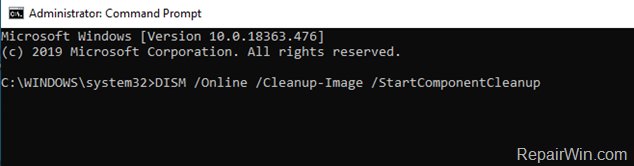
3. When the process is completed, enter the following command:
DISM.exe /Online /Cleanup-image /Restorehealth
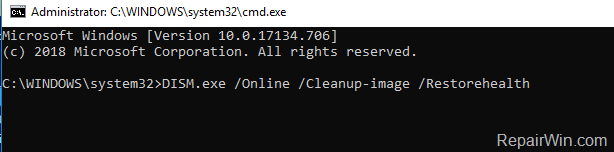
4. Once the DISM operation is completed, type the following command and hit Enter:
sfc /scannow

5. Wait until the System File Checker (SFC) repairs the Windows System Files.
6. When done, restart your computer.
7. Open Windows Update and try to install the failed update(s).
Method 5. Delete the Windows Update Store Folder.
Corruption in the Windows Update Store folder can lead to update errors. Deleting this folder forces Windows to recreate it, potentially resolving update issues by eliminating corrupted files that may be causing the problem.
Step 1: Stop the 'Windows Update' service.
1. Open Windows Services control panel: To do that:
-
- Press Windows
 + R keys to open the run command box.
 - In the Search box, type:
services.msc& click OK.
- Press Windows


2. In the Services control panel, locate the Windows Update service.
2a. Right-click on Windows Update service and select Stop.
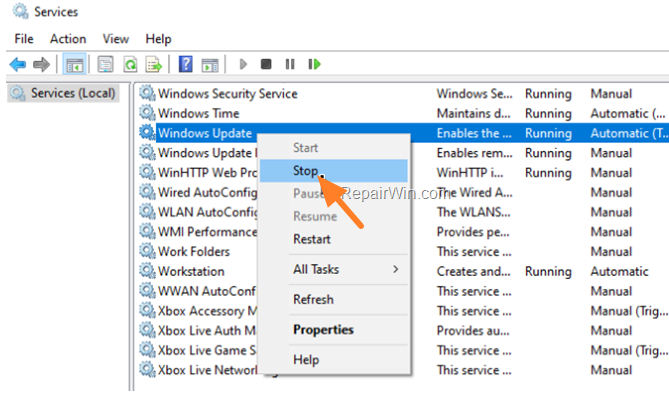
3. Now, without closing the Services window, proceed to Step-2 below.
Step 2: Delete the 'SoftwareDistribution' folder. *
* Info: The C:\Windows\SoftwareDistribution folder is where Windows stores update files. Corruption in this folder can necessitate its recreation to resolve update issues.
1. Open Windows Explorer and navigate to the C:\Windows folder.
2. Find and Delete the SoftwareDistribution folder (or rename it, e.g., to “SoftwareDistributionOLD”).

Step 3. Start the 'Windows Update' service.
In the Windows Services control panel, apply the following actions:
1. Right-click on Windows Update service and select Start.
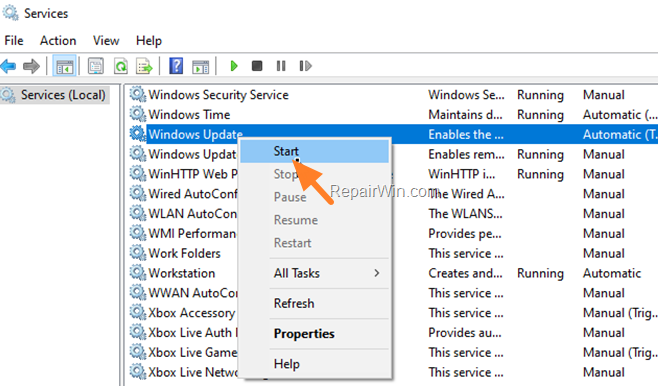
Step 4: Check and Install Windows 11 Updates.
1. Navigate to Start > Settings > Windows Update and click Check for Updates.
2. Allow Windows to search for and download the update again, then proceed to install it.
Method 6. Disable or Uninstall any 3rd Party Antivirus Program.*
While disabling or uninstalling antivirus software can leave your system vulnerable, many users report that removing third-party antivirus software (especially Norton & Malwarebytes) resolves the 0x800F081F installation issue for the Windows 11 update KB5031354. This is because some antivirus programs can interfere with the update process, blocking necessary files from being installed.
If you're using any third-party antivirus, perform the following steps:*
* Note: If you don't have a third-party antivirus installed, skip to the next method.
1. Uninstall your third-party Antivirus.
2. Follow the instructions in Method-1 above and try to install the KB5031354 update again.
3. When the installation is completed, reinstall your Antivirus program.
Method 7. Upgrade Windows 11 with an In-Place Upgrade.
If none of the above methods resolve the Windows 11 KB5031354 0x800F081F install error, consider upgrading with an "In-place Upgrade". This process refreshes system files without affecting your data. An in-place upgrade can repair any deeply embedded system file corruption that other methods may not address. Follow the instructions in this tutorial: How To Repair Windows 11 With In-Place Upgrade.
Summary
In summary, resolving the Windows 11 update error 0x800F081F for KB5031354 involves several methods: forcing Windows to re-download the update, manual installation, installing subsequent updates, repairing system files, deleting the update store folder, disabling antivirus software, and performing an in-place upgrade. Each method addresses different potential causes of the error, ensuring a comprehensive troubleshooting approach.
We hope this guide has been helpful. If you have any questions or feedback, please leave a comment below. Don't forget to share this article with others who might benefit from it!
Frequently Asked Questions
What causes the Error 0x800F081F when installing Windows 11 KB5031354 update?
The Error 0x800F081F typically occurs due to problems with update files, system files, installed security software, or disk issues.
How can I make Windows re-download the KB5031354 update to fix Error 0x800F081F?
Use the 'Disk Cleanup' tool to clear Windows Update Cleanup, Windows upgrade log files, and Temporary Windows installation files. Then, check for updates again via Windows Update settings.
What is an alternative method to install the KB5031354 update if automatic installations fail?
You can manually download and install the update from the Microsoft update catalog by visiting the website and selecting the appropriate version for your system.
What tools can repair Windows system files that might resolve Error 0x800F081F?
Use the DISM & SFC tools. Run these commands in Command Prompt as Administrator to repair system files: 'DISM /Online /Cleanup-Image /StartComponentCleanup', 'DISM.exe /Online /Cleanup-image /Restorehealth', and 'sfc /scannow'.



