
How to Remove XMRig Miner Trojan from Windows 10/11.
If the XMRig Miner application has installed without your knowledge on your PC and causes 100% CPU and Memory usage, then follow the instructions below remove the XMRig Miner Trojan.
XMRig is an open source cryptocurrency mining software used to mine the Monero cryptocurrency (XMR) or other cryptocurrencies. But, some hackers use XMRig Miner to spread malware on Windows 10/11 computers and when this happens the computer becomes very slow with the CPU and Memory working at 100%.

How to Fix 100% CPU Usage Caused by XMRig Miner Trojan on Windows 10/11.
Step 1. Terminate XMRig Miner Trojan processes with RKILL.*
* Info: The RKill is a program developed by Bleepingcomputer.com which terminates malware processes that are running so that your normal security software can then run and clean your computer of infections.
1. Download and run RKILL. (Be patient while RKILL terminates the malicious processes).
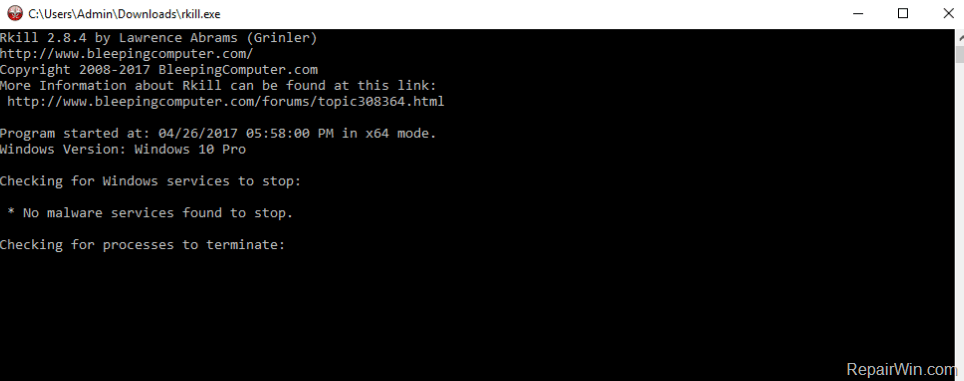
2. When the RKILL completes its job, click OK and continue to next step.

Step 2: Remove XMRig Miner app from Windows Startup.
The next step is to prevent XMRig Miner app from running at Windows Startup, by using these steps:
1. Press CTRL + SHIFT + ESC to open Task Manager.
2. At Startup tab, review all the "Enabled" programs and then select and Disable any unknown or suspicious application, or any other program that you don't want to run at Windows startup.

3. When done, close Task Manager and proceed to next step.
Step 3. Delete XMRig Miner Trojan Scheduled Task(s).
XMRig Miner, like other malicious programs, can run because of a scheduled task that is set to run automatically in Windows Task Scheduler. So proceed as follows:
1. Press the Windows  + R keys to open the run command box.
2. Type taskschd.msc and press Enter to open the Task Scheduler.
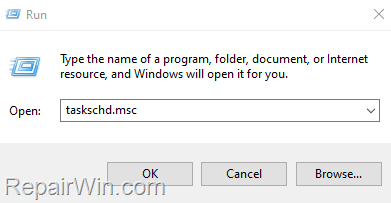
3. Click the Task Scheduler Library on the left and then, on the right, side locate any unknown task and click the Actions tab.
4. Now see if the task is set to Start the program "xmrig.exe":
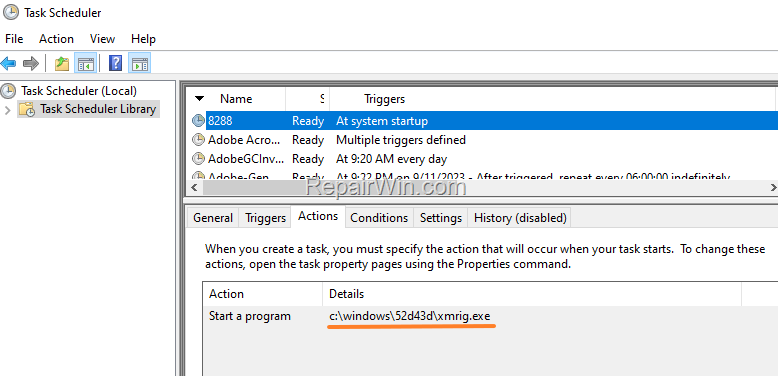
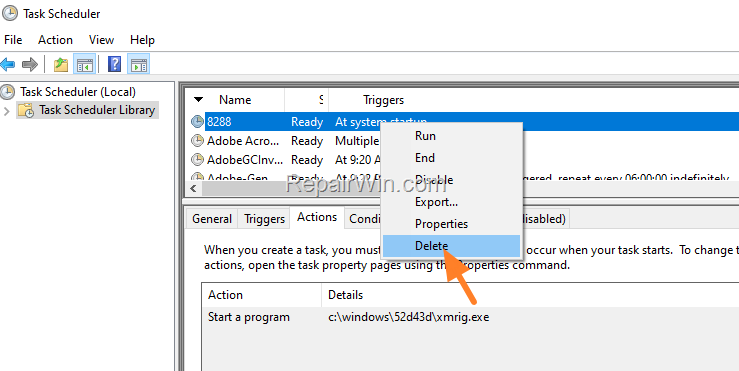
5. If so, right-click on the selected task and choose Delete from the menu.
Step 4: Clean XMRig Miner Trojan with MalwareBytes.
The final step is to clean your computer from the XMRig Miner virus along with any other malicious program using Malwarebytes.
1. Download and install the Malwarebytes antivirus (TRIAL version*) to remove the XMRig Miner Trojan files. *
* Note: Keep in mind that *after the 14-day trial period, Malwarebytes reverts to a free version but without the full real-time protection.

2. Run Malwarebytes Anti-Malware (select Get Start & Maybe Later if you run Malwarebytes for first time).
3. Press the Scan button and wait until Malwarebytes scan your system.

4. When the scan is completed select all malicious items found and then press Quarantine to delete all of them.
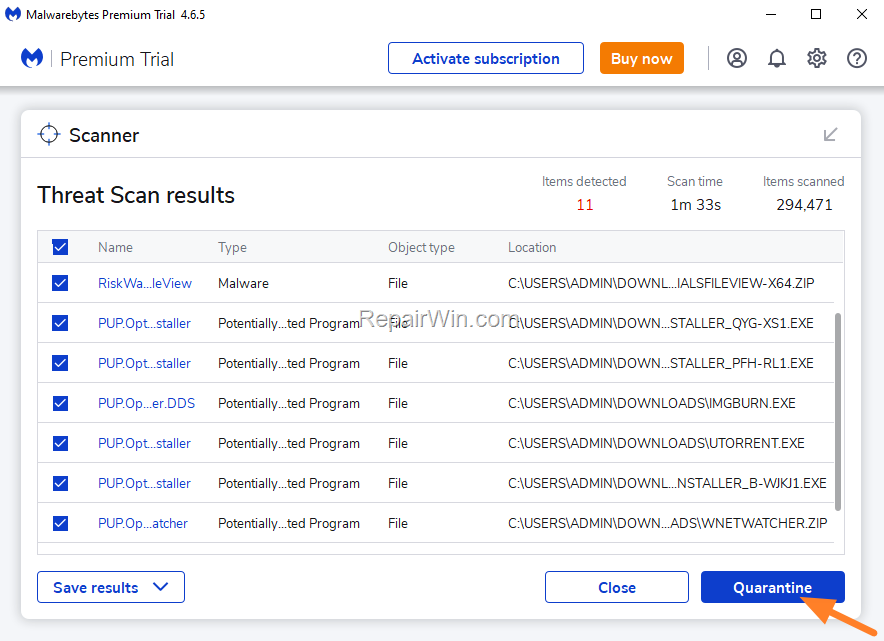
5. Restart your computer if needed and you ‘re done.
That's all folks! Did it work for you?
Please leave a comment in the comment section below or even better: like and share this blog post in the social networks to help spread the word about this solution.
Frequently Asked Questions
What is XMRig Miner and why is it on my PC?
XMRig is an open-source cryptocurrency mining software used primarily for mining Monero (XMR). Unfortunately, hackers often use it to spread malware, resulting in high CPU and memory usage that slows down your computer.
How can I stop XMRig Miner from starting automatically on my computer?
To stop XMRig Miner from running at startup, open Task Manager with CTRL + SHIFT + ESC, go to the Startup tab, identify any unknown or suspicious programs, and select 'Disable' to prevent them from starting with Windows.
Why should I use RKILL and what does it do?
RKILL is a program that helps terminate malware processes running in the system, enabling your security software to clean your computer more effectively. It's the first step in resolving 100% CPU usage caused by the XMRig Miner Trojan.
How can Malwarebytes help in removing XMRig Miner?
Malwarebytes can scan your system and identify malicious items, including XMRig Miner. After scanning, select all detected threats and use the 'Quarantine' option to remove them, effectively cleaning your system.



