
How to Disable Windows 11 S Mode: A Comprehensive Guide for Users with or without a Microsoft Account.
Like Windows 10, S Mode in Windows 11 (also known as "Windows 11 S") is a specialized version of the operating system designed to enhance security and performance. It achieves this by restricting the installation of third-party applications that are not verified through the Microsoft Store and by disabling access to critical Windows tools such as the Registry Editor or the Command Prompt.

When operating in Windows 11 S Mode, users encounter a notification stating: "For security and performance, this mode of Windows only runs verified apps from the Store." This limitation can be frustrating for users who need to install non-Store applications or access advanced system tools. This guide provides detailed instructions on how to disable Windows 11 S Mode, allowing users to install and run applications without restrictions.
How to Exit from S Mode in Windows 11.
There are two primary methods to disable S Mode in Windows 11. The first method involves using a Microsoft account, while the second method does not require one. Both methods are detailed below:
- Exit from Windows 11 S Mode with a Microsoft Account.
- Turn Off Windows 11 S Mode without a Microsoft Account.
Method 1: Switch Out of Windows 11 S Mode with a Microsoft Account
The first method to transition from Windows 11 S Mode to Windows 11 Home involves using a Microsoft Account to download a small application from the Microsoft Store. This application disables S Mode on your device.
* Note: If you do not have a Microsoft account, you can create one by visiting this link.
- From the Start menu, open Settings.
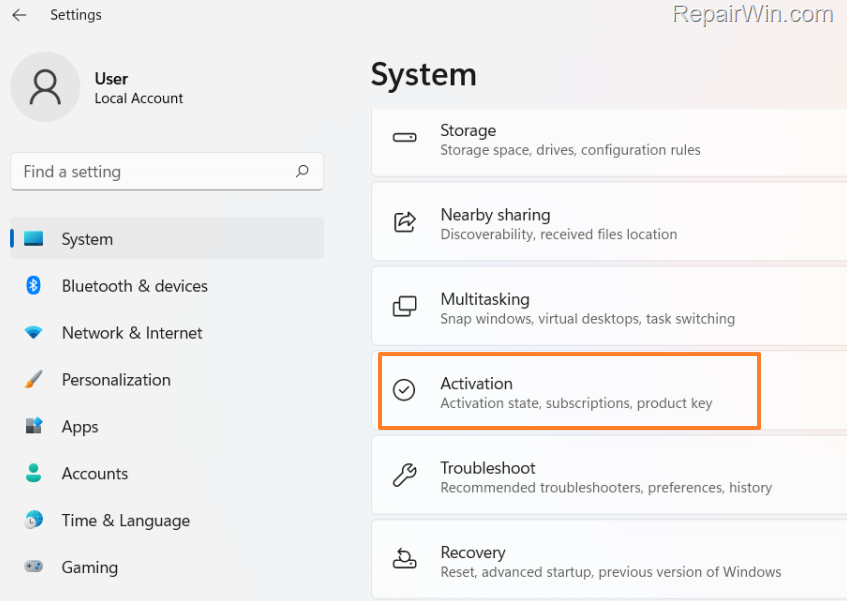
- Select System on the left and click Activation on the right.
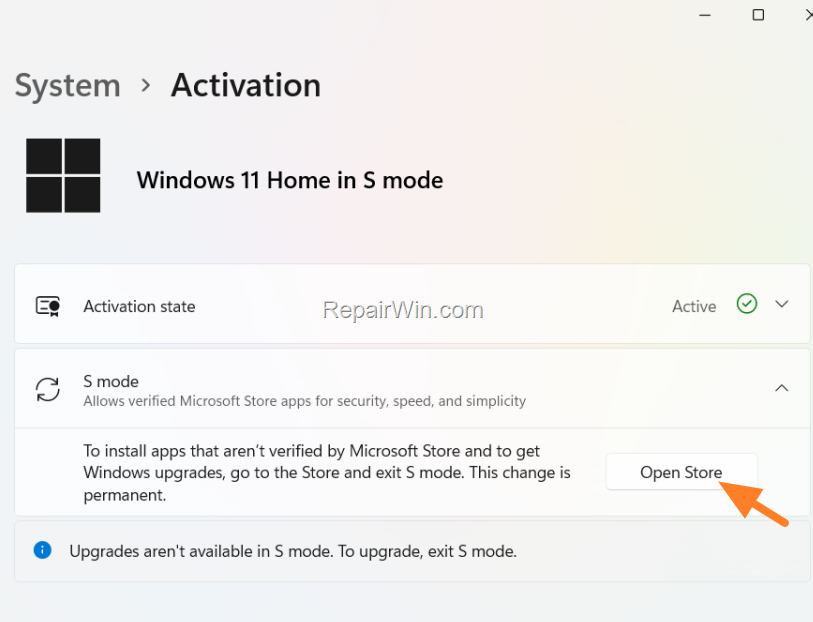
- Click S mode and then click Open Store.
- Click the Get button.

5a. Enter your Microsoft Account username (email) and click Next.
5b. Then, enter the password for your Microsoft Account and click Next.
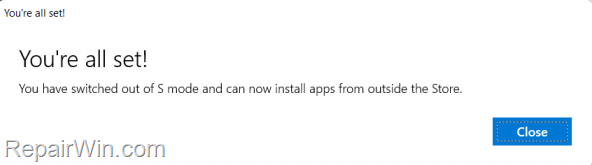
6. After a few seconds, you will be informed that "you have switched out from S Mode and can now install apps from outside the Store." Close the window, and you're done!
Method 2: Disable Windows 11 S without a Microsoft Account
If you prefer not to use or create a Microsoft account to exit Windows 11 Home in S Mode, you can disable "Secure Boot" in the BIOS to switch to Windows 11 Home. Follow these steps:
- From the Start menu, open Settings.
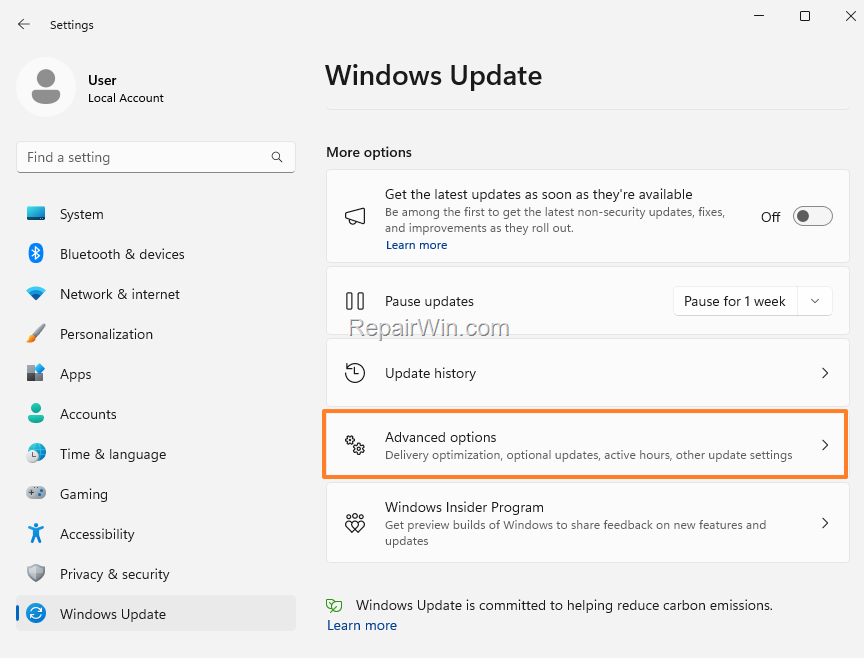
- Select Windows Update on the left and click Advanced Options on the right.
- Click Recovery and then Restart now.

- After rebooting, click Troubleshoot > Advanced Options > UEFI Firmware Settings.
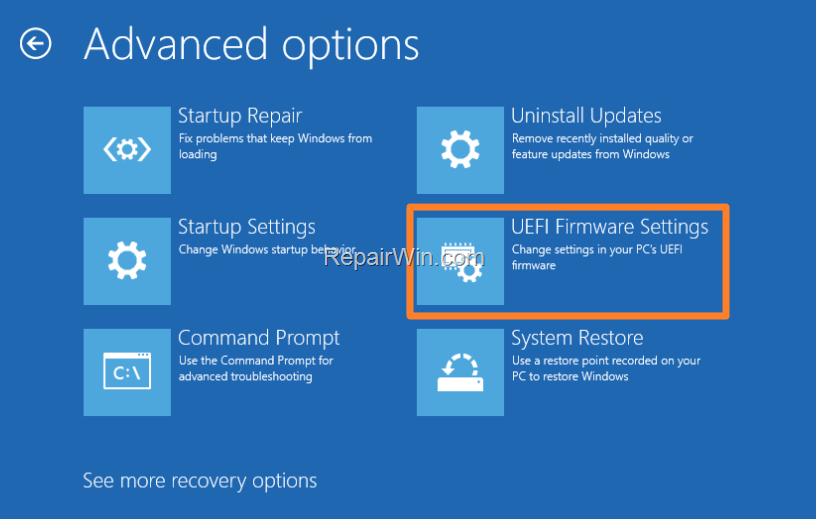
5. After a few seconds, you will enter the BIOS setup menu.
* Note: On some laptops, you will be prompted to press a specific key on your keyboard to enter the BIOS (e.g., DEL, F1, F2, or F10). If prompted, press the corresponding key.
- In the BIOS menu, navigate to the Security, Advanced Settings, or Boot Options menu to locate the Secure Boot option and set it to Disabled.

- When finished, Save and exit from the BIOS settings.
- Once you return to Windows, S Mode will be disabled.
Summary
Disabling Windows 11 S Mode can be accomplished through several methods. Using a Microsoft Account to download a disabling app from the Microsoft Store is straightforward and user-friendly. Alternatively, disabling Secure Boot in the BIOS provides a method that does not require a Microsoft Account. Advanced users can also use the Group Policy Editor on Windows 11 Pro or higher to modify system settings. Each method allows users to install and run applications without the restrictions imposed by S Mode.
Did it work for you? If so, by what method? Please leave a comment in the comment section below or, even better, like and share this blog post on social networks to help spread the word about this issue.
Frequently Asked Questions
What is Windows 11 S Mode?
Windows 11 S Mode, also known as 'Windows 11 S', is a special version of Windows designed to enhance security by only allowing apps from the Microsoft Store and restricting access to certain Windows tools like the Registry Editor and Command Prompt.
Why might someone want to disable S Mode in Windows 11?
S Mode can make using your computer challenging due to its limitations, such as not being able to install third-party applications or access critical Windows tools. Disabling S Mode allows users to run and install any application without restrictions.
How do I switch out of Windows 11 S Mode using a Microsoft Account?
To switch out of S Mode using a Microsoft Account, open Settings from the Start menu, select System, then Activation. Click S mode, followed by Open Store. Click Get, enter your Microsoft Account credentials, and you will be informed that S Mode is switched off.
Can I disable Windows 11 S Mode without a Microsoft Account?
Yes, you can disable S Mode without a Microsoft Account by turning off 'Secure Boot' in the BIOS. This involves navigating through Windows Update settings, accessing UEFI Firmware Settings, and disabling Secure Boot in the BIOS setup menu.



