
How to Share a Folder Without Username or Password on Windows 10/11
Sharing files securely in Windows 10/11 typically involves using a password to protect access. However, there are scenarios where you might want to share a folder without requiring a username or password, especially if you're operating within a secure network environment that is isolated from the Internet.
Note: Sharing files without password protection can expose your data to security risks. This method should only be used on a secure network.
How to Allow Anonymous Access on a Shared Folder on Windows 10/11 Pro
* Note: These instructions apply only to Windows 10/11 Pro versions.
Step 1. Disable Password Protected Sharing
Windows 10/11 defaults to protecting shared folders with user credentials. Disabling this setting allows for anonymous access.
1. Go to Settings -> Network & Internet -> Advanced Network Settings -> Advanced Sharing Settings.
2. In Advanced Sharing Settings:
– Ensure Network discovery and File and printer sharing are Enabled (On).
– Expand All Networks and set Password Protected Sharing to Off.
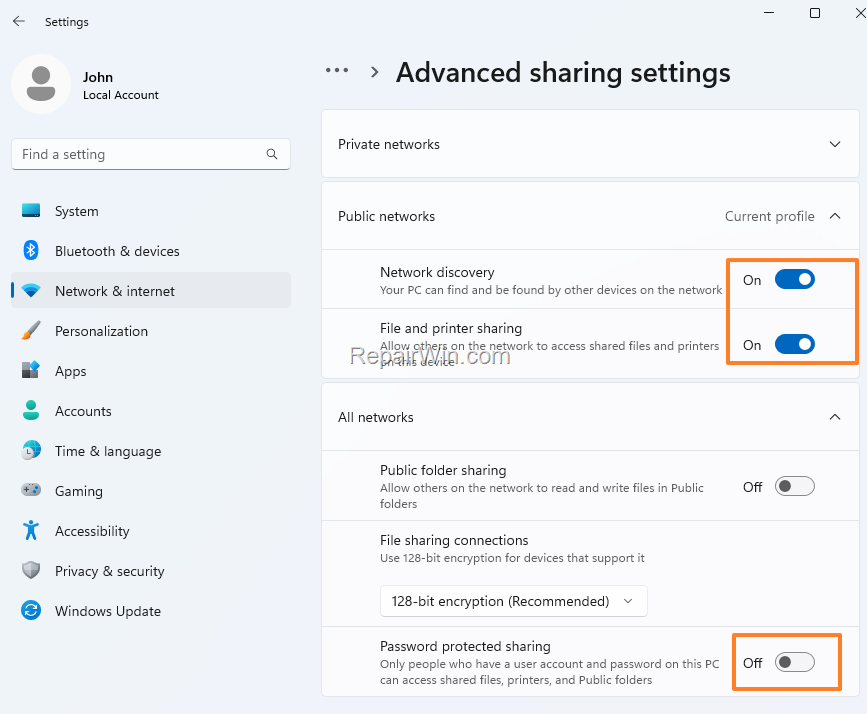
This configuration change allows network users to access shared resources without authentication, which is suitable for isolated secure networks.
Step 2. Enable the Guest Account
The Guest account is disabled by default in Windows. Enabling it allows anonymous access to shared folders.
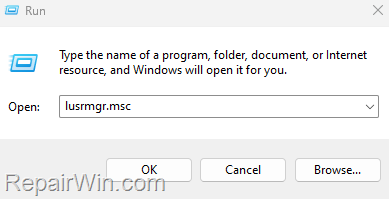
1. Press Windows  + R to open the Run dialog.
2. Enter lusrmgr.msc and press Enter.
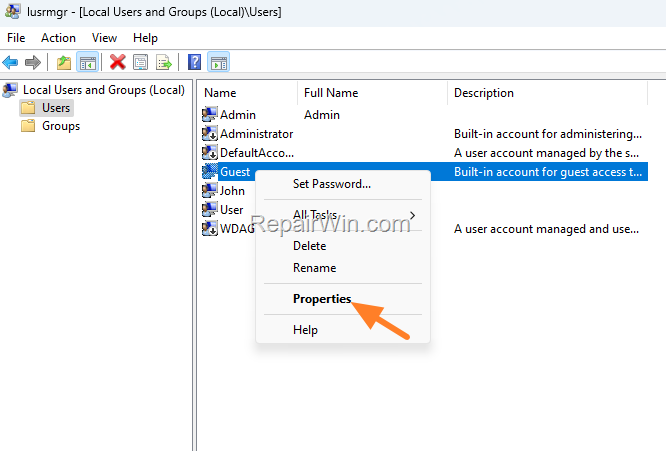
3. Select Users, right-click Guest, and choose Properties.
4. Uncheck Account is disabled and click OK.
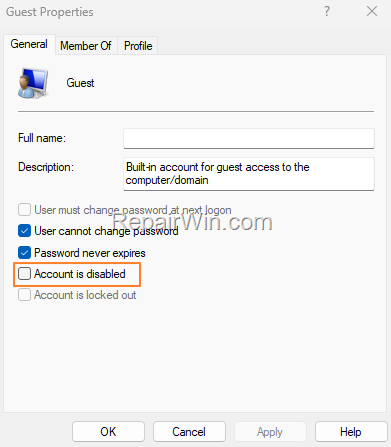
Enabling the Guest account allows users to access shared folders without needing a specific user account.
Step 3. Share Folder to Guest Account
To permit the Guest account access to a shared folder, follow these steps:
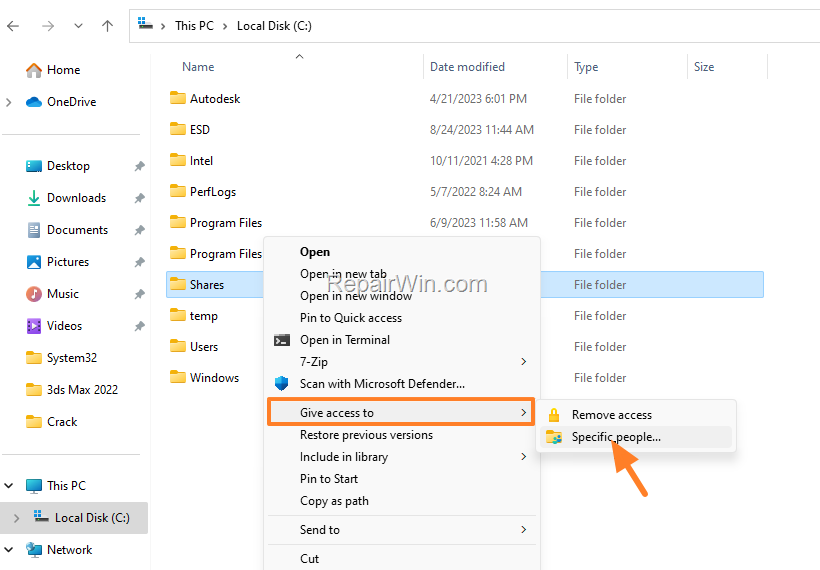
1. Right-click the folder you wish to share and select Give access to -> Specific People. In Windows 11, click Show More Options first.
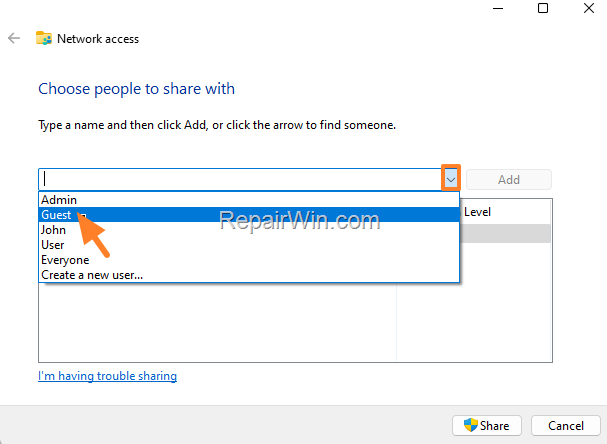
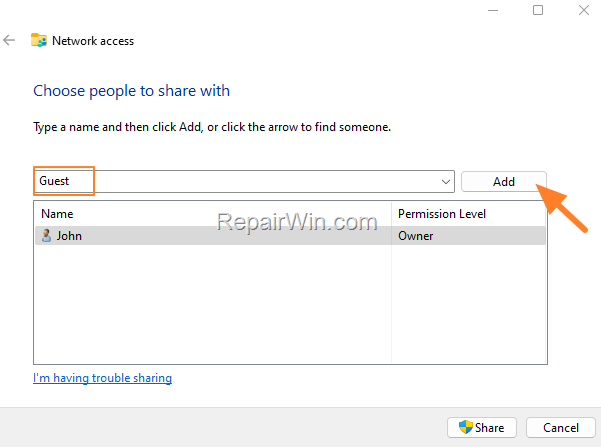
2. Choose Guest from the drop-down menu and click Add.
3. Assign the desired permission level (e.g., 'Read' or 'Full Control') to the Guest account.
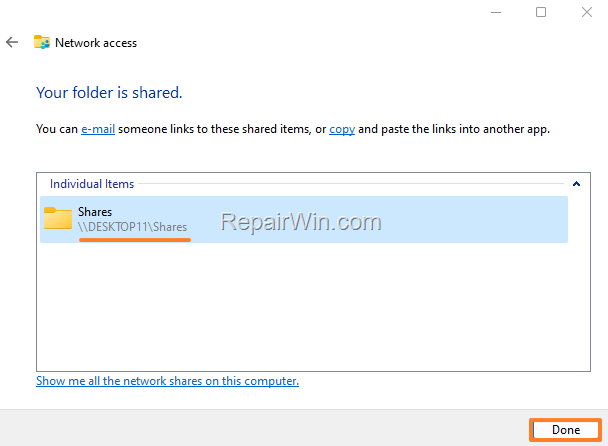
4. Click Share and note the Network Path.
5. Right-click the shared folder and select Properties.
6. Under the Security tab, ensure the Guest account is listed and has the correct permissions.
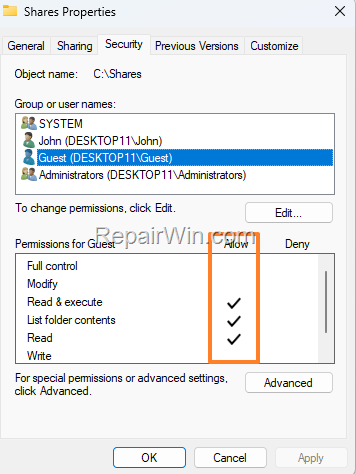
This step configures the folder to be accessible by the Guest account, enabling anonymous access.
Step 4. Allow Guest Account to Access the Computer from Network
By default, the Guest account is restricted from network access. Adjusting this setting allows the Guest account to connect.
1. Press Windows + R to open the Run dialog.
2. Enter secpol.msc and press Enter.
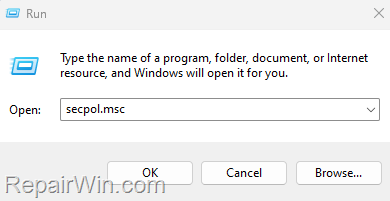
3. Navigate to Security Settings -> Local Policies -> User Rights Assignment.
4. Double-click Deny access to this computer from the network and remove the Guest account.
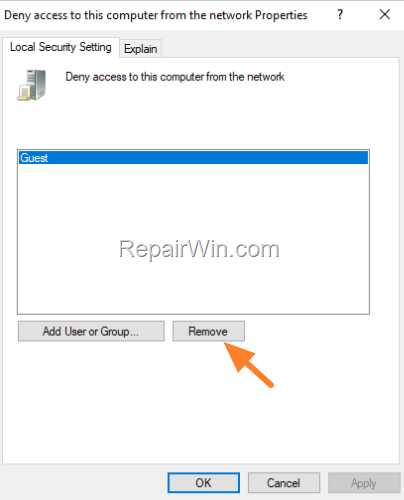
This adjustment removes restrictions, allowing the Guest account to access network resources.
Step 5. Change the Sharing and Security Model to Guest
To streamline access, adjust the security model so local accounts authenticate as Guest.
1. In the secpol.msc, navigate to Security Settings -> Local Policies -> Security Options.
2. Open Network access: Sharing and security model for local accounts.
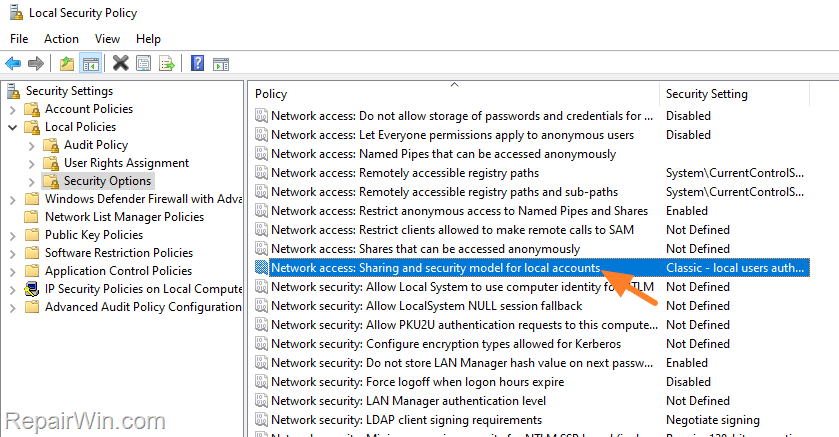
3. Change the setting to Guest only – local users authenticate as Guest.
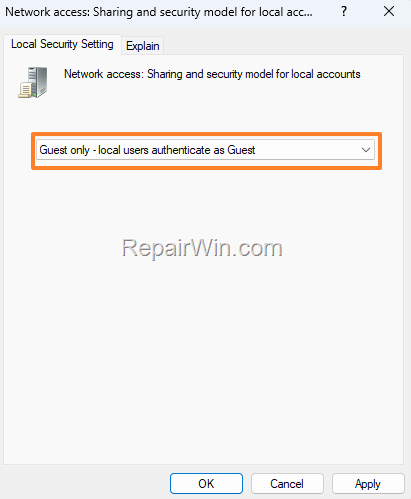
4. Restart the computer or run gpupdate /force in an Admin command prompt to apply changes.
This configuration allows users to access shared resources without entering credentials.
Step 6. Connect to Shared Folder Without Username or Password
To access the shared folder from another computer:
1. Press Windows + R to open the Run dialog.
2. Enter the Network Path of the shared folder (e.g., \\DESKTOP11\Shares) and click OK.
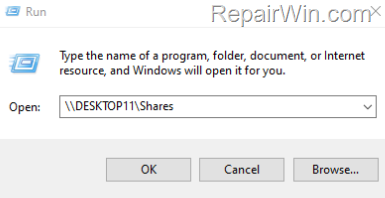
3. You should now be able to view the contents of the shared folder without entering credentials.
Additional Method: Enable Public Folder Sharing
For an alternative approach, you can enable public folder sharing, which allows anyone on the network to access files in the public folder without a password:
1. Navigate to Control Panel -> Network and Sharing Center -> Change advanced sharing settings.
2. Under All Networks, turn on Public folder sharing.
This method provides an additional way to share files without requiring user credentials.
Summary
Sharing folders without requiring a username or password can be useful in secure network environments. By disabling password-protected sharing, enabling the Guest account, and adjusting security policies, you can allow anonymous access to shared folders. Ensure your network is secure to mitigate potential risks.
Frequently Asked Questions
How can I disable password protected sharing in Windows 10/11?
Navigate to Settings -> Network & Internet -> Advanced Network Settings -> Advanced Sharing Settings. Ensure Network discovery and File and printer sharing options are enabled. Expand All Networks and turn Password Protected Sharing off.
What steps should I take to enable the Guest account for file sharing?
Press Windows + R, type lusrmgr.msc, and press Enter. Select Users, right-click on Guest account, select Properties, and uncheck 'Account is disabled' to enable it.
How do I share a folder with the Guest account in Windows 10/11?
Right-click the folder you want to share, select 'Give access to -> Specific People', choose the Guest account from the dropdown, click Add, set the Permission Level, and then click Share. Note the Network Path and ensure the Guest account is correctly listed in the Security tab of the folder's properties.
How can I allow the Guest account to access my computer over the network?
Open the run command box with Windows + R, type secpol.msc, and press Enter. Navigate to Security Settings -> Local Policies -> User Rights Assignment. In the 'Deny access to this computer from the network' policy, remove the Guest account to allow access.



