
How to Resolve Printer Error 0x000003e3 – Windows 10/11 Cannot Connect to Printer (Solved)
If you encounter the error "Operation failed with error 0x000003e3" while attempting to print to a network or shared printer on Windows 10/11, this guide will help you resolve the issue. This error typically arises due to print queue problems or incorrect configurations in Windows or printer settings.
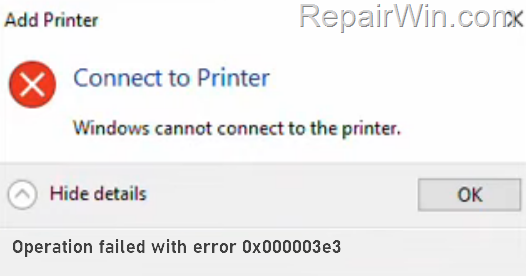
How to FIX: "Windows Cannot Connect to Printer: Operation Failed with error 0x000003e3" on Windows 10/11 OS.
Printer error 0x000003e3 is often due to a malfunctioning print queue or misconfigured settings. Follow these detailed instructions to troubleshoot and resolve the issue.
Method 1. Restart the Print Spooler Service & Clear Print Jobs.
- Press Windows
 + R keys to open the Run command box.
 - Type
services.mscin the search box and click OK.
 + R keys to open the Run command box.
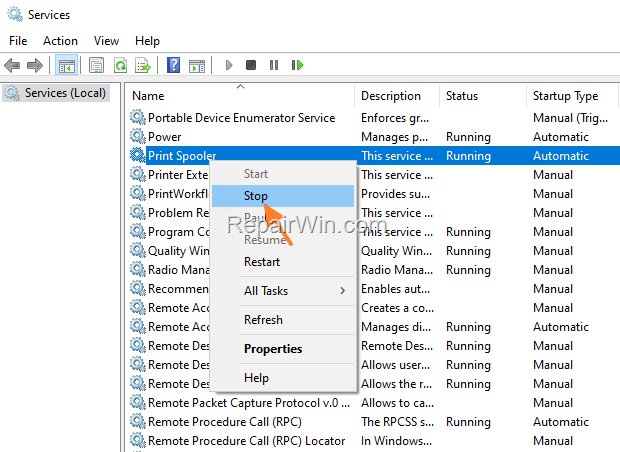
- In the Services panel, right-click on the Print Spooler service and select Stop. This action halts the print spooler service, which manages the print jobs, allowing you to clear any stuck print jobs.
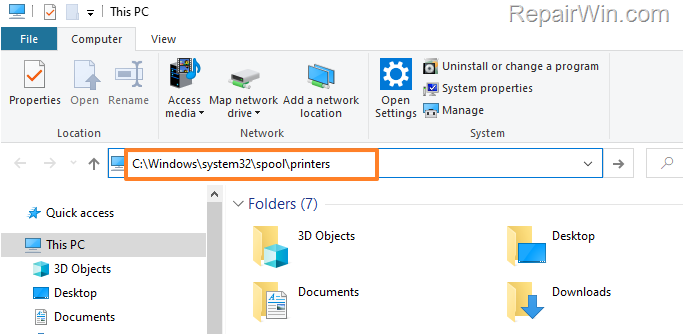
- Open File Explorer, paste
C:\Windows\system32\spool\printersin the address bar, and press Enter. This path leads to the directory where print jobs are temporarily stored.
- Press CTRL + A to select all files in the "printers" folder and press Delete to remove them. This clears any pending print jobs that might be causing the error.
- Return to the Services panel, right-click on the Print Spooler service, and click Start to restart the service.

Try printing a test page or reinstalling the network printer.
Method 2. Add the Network / Shared Printer as Local.
To circumvent the error 0x000003e3, manually add the printer by specifying the Printer Port (Local or TCP/IP).
- Navigate to Control Panel > Devices and Printers.
- Click Add a printer.

- Click The printer that I want isn't listed.
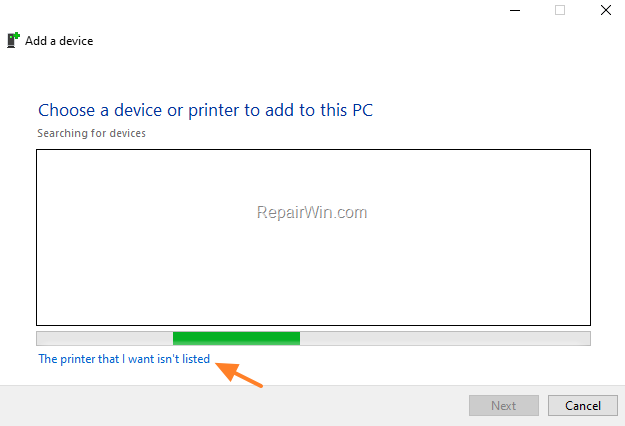
- Select Add a local printer or network printer with manual settings and click Next.
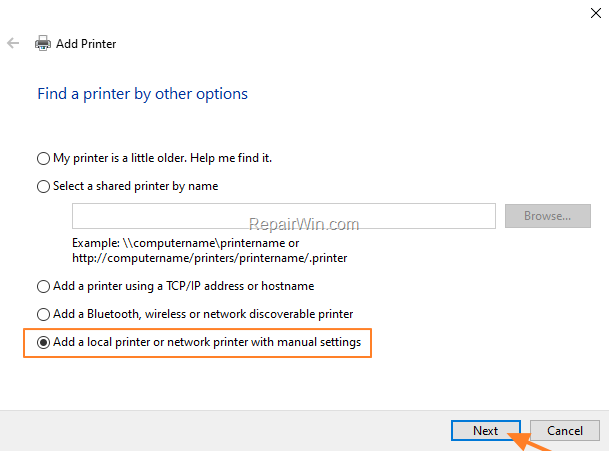
- Choose Create a new port, then select either Local Port or Standard TCP/IP Port based on your setup.
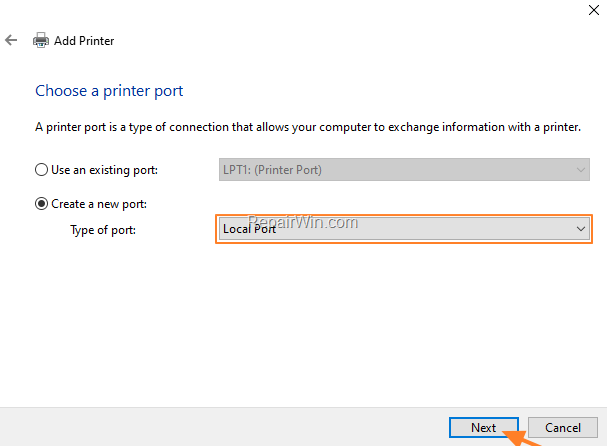
- Follow the prompts to complete the printer setup, ensuring the correct port and driver are selected.
Method 3. Disable Client Side Rendering (CSR) on Print Server.
Disabling Client Side Rendering on the print server can resolve issues where print jobs are improperly processed on the client machine.
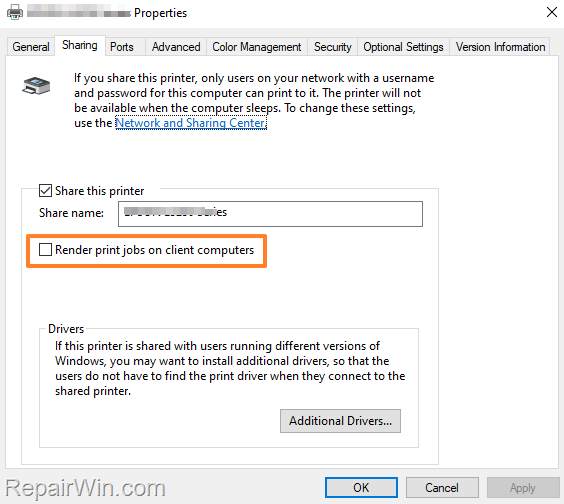
- On the Print server, open the Printer's Properties.
- Under the Sharing tab, uncheck Render print jobs on client computers and click OK.
- Now restart the client computer and attempt to print again.
Method 4. Disable Client Side Rendering (CSR) in Group Policy (Client).
For Windows 10/11 Pro users, modify Group Policy to ensure print jobs are rendered on the server.
- Press Windows + R, type
gpedit.msc, and click OK.

- Navigate to
Computer Configuration\Administrative Templates\Printers. - Open the Always render print jobs on the server policy, set it to Enabled, and click Apply > OK.

Restart the computer and test printing.
Method 5. Disable Client Side Rendering (CSR) through Command Prompt (Client).
For Windows 10/11 Home users, use the Command Prompt to disable Client Side Rendering.
- Open Command Prompt As Administrator.
- Execute
wmic printer list briefto list all installed printers. - Identify the printer causing the error.
- Run
printui /Xs /n "Printer-Name" ClientSideRender disabledto disable CSR.
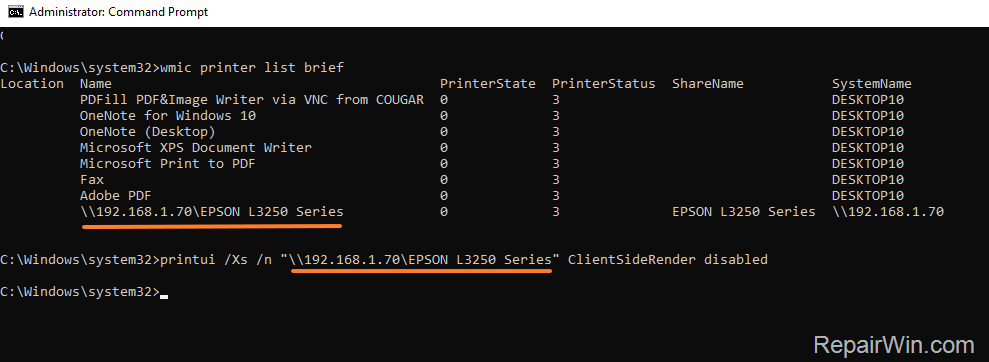
Test printing again. If issues persist, re-enable CSR with printui /Xs /n "Printer-Name" ClientSideRender enabled.
Method 6. Fix Printer Error 0x000003e3 in Registry. (Client).
Editing the registry can resolve persistent issues by removing problematic keys related to the print provider.
- Stop the Print Spooler service via
services.msc. - Press Windows + R, type
regedit, and press Enter.
 + R, type
- Navigate to
HKEY_LOCAL_MACHINE\SOFTWARE\Microsoft\Windows NT\CurrentVersion\Print\Providers. - Right-click on the Providers key and select Delete.

- Close the Registry Editor, restart the Print Spooler service, and attempt to print.
Additional Method: Update Printer Drivers
Ensure that your printer drivers are up-to-date. Outdated drivers can cause compatibility issues leading to error 0x000003e3. Visit the printer manufacturer's official website to download and install the latest drivers for your printer model.
Summary
Resolving printer error 0x000003e3 involves several steps, from restarting the Print Spooler service and clearing print jobs to modifying Group Policy and registry settings. Ensure your printer drivers are current, and consider disabling Client Side Rendering if print jobs are not rendering correctly. By following these methods, you should be able to restore normal printing functionality on your Windows 10/11 system.
Frequently Asked Questions
What causes the printer error 0x000003e3 on Windows 10/11?
Printer error 0x000003e3 usually occurs because of a problem in the print queue or due to incorrect Windows or printer settings.
How can I fix the 'Operation Failed with error 0x000003e3' when printing on Windows?
To fix this issue, you can try restarting the Print Spooler service and clearing the print jobs, or manually adding the network/shared printer as a local printer by specifying the Printer Port.
How do I clear all the print jobs to solve the printer error 0x000003e3?
You can clear the print jobs by stopping the Print Spooler service, deleting all files in the C:\Windows\system32\spool\printers directory, and then restarting the Print Spooler service.
What steps should I follow to add a network/shared printer as a local printer?
Navigate to Control Panel > Devices and Printers > Add a printer. Select 'The printer that I want isn't listed,' choose 'Add a local printer or network printer with manual settings', and then select either Local Port or Standard TCP/IP Port depending on your setup.



