
How to Disable the "Let's Finish Setting Up Your PC" Prompt on Windows 11.
The "Let's finish setting up your computer" prompt in Windows 10/11 typically appears during the initial setup of the operating system. It encourages users to enhance their Windows experience by signing in with a Microsoft Account, which unlocks additional features and services such as OneDrive and Windows Hello. However, if you have installed Windows 11 using a local account and prefer not to use a Microsoft account, this prompt can become a recurring annoyance, requiring you to select "Remind me later" each time it appears.
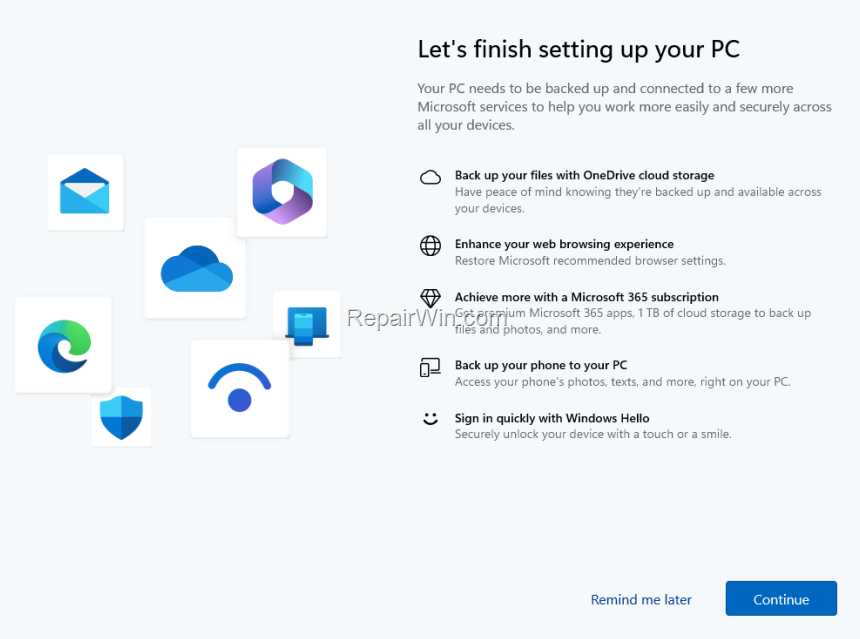
This guide provides two effective methods to disable the "Let's finish setting up your PC" screen on Windows 11.
How to Disable the "Let's Finish Setting Up Your Device" Prompt on Windows 11
Method 1. Disable 'Let's Finish Setting Up Your PC' Notification in System Settings
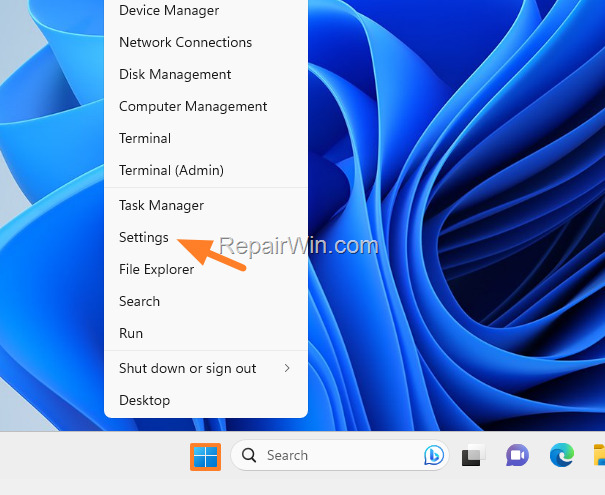
1. Right-click on the Start menu and select Settings. This action opens the Windows Settings app, which acts as a centralized hub for configuring system preferences.
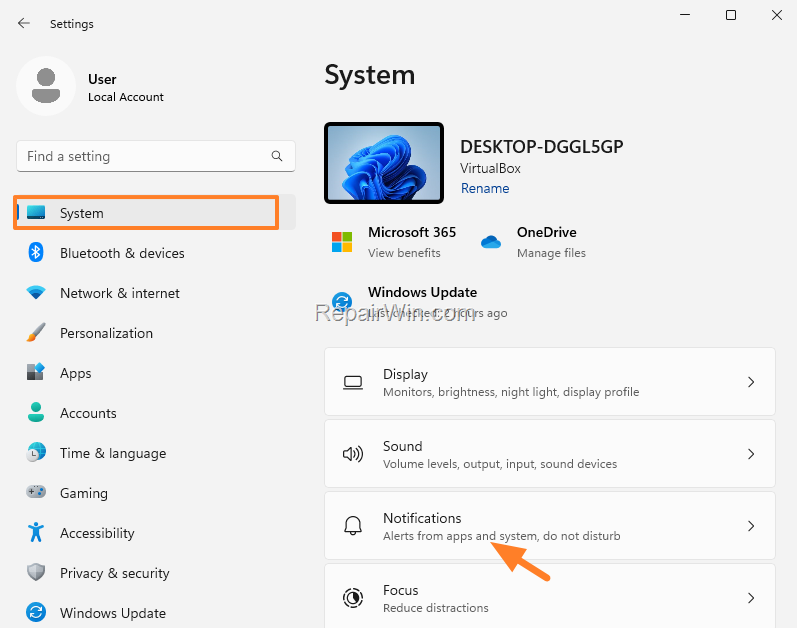
2. Select the System tab, then click Notifications on the right. This section allows you to manage how notifications are delivered and displayed on your device.
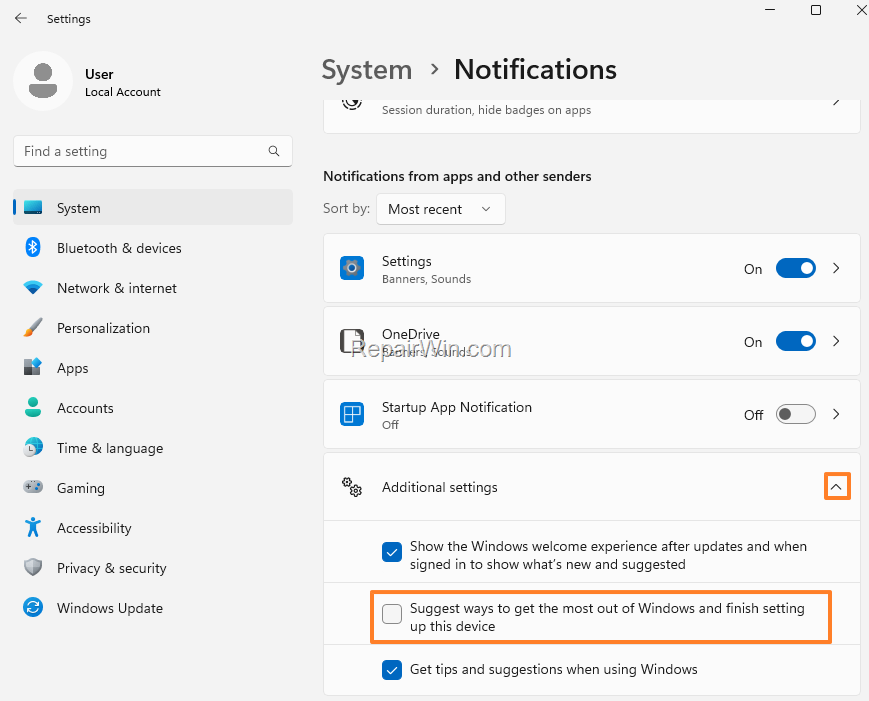
3. Scroll down and click to expand Additional Settings.
4. Uncheck the option Suggest ways to get the most out of Windows and finish setting up this device. (This prevents Windows from prompting you with setup suggestions that are typically aimed at users who have not fully configured their accounts).
Method 2. Disable Let's Finish Setting Up Your PC in the Registry
Another approach to stop Windows 11 from displaying the "Let's finish setting up your PC" message is by modifying the Windows Registry:
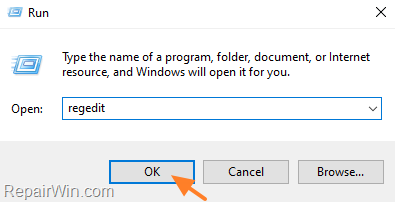
- Open Registry Editor. To do this:
- Press
Windows+Rkeys to open the Run command box. - Type regedit and press Enter. This launches the Registry Editor, a powerful tool that allows you to view and change system settings at a low level.

- Press
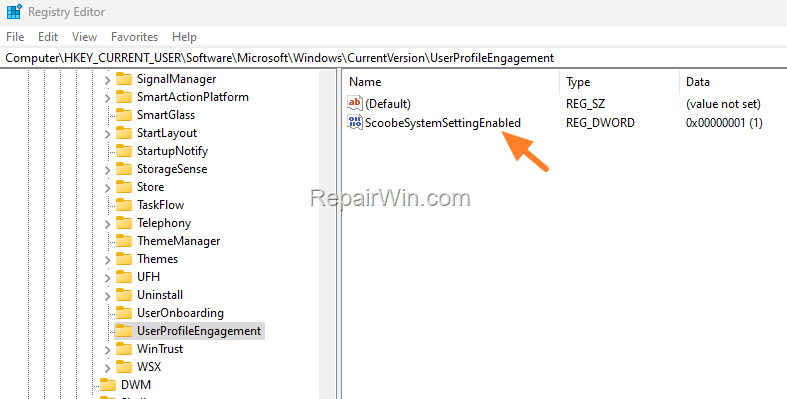
- Navigate to the following key:
HKEY_CURRENT_USER\Software\Microsoft\Windows\CurrentVersion\UserProfileEngagement. This key stores user-specific settings related to profile engagement and setup prompts. - In the right pane, double-click on ScoobeSystemSettingEnabled REG_DWORD. This value controls whether the setup prompt is enabled or disabled.
-
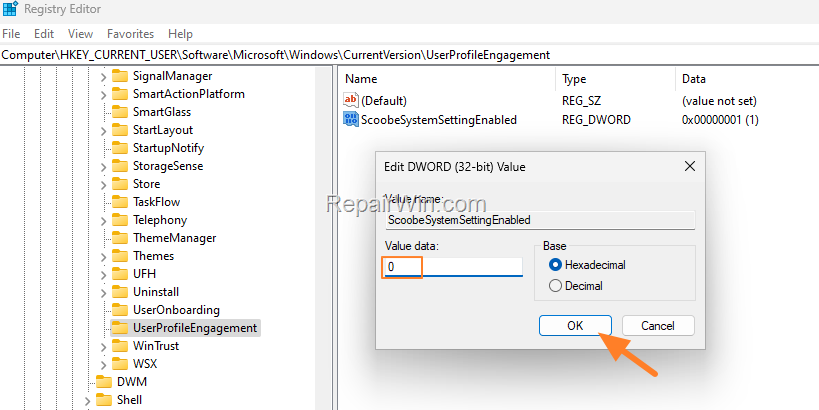
- Change the value data from "1" to "0" and click OK. Setting this value to "0" effectively disables the prompt, preventing it from appearing during the setup process.
Note: To re-enable the "Let's finish setting up your PC" screen, change the value back to "1".
- Close the Registry Editor.
- Restart your PC to apply the changes. This ensures that the modifications take effect and the prompt is disabled.
Additional Method: Disable Using Group Policy Editor
If you are using Windows 11 Pro or Enterprise, you can also disable the prompt using the Group Policy Editor:
- Press
Windows+Rkeys to open the Run dialog box. - Type gpedit.msc and press Enter to open the Group Policy Editor.
- Navigate to
Computer Configuration\Administrative Templates\Windows Components\OOBE. - Locate and double-click on Don't display the 'Let's finish setting up your PC' screen.
- Select Enabled, then click Apply and OK.
- Restart your PC to ensure the changes take effect.
Summary
Disabling the "Let's finish setting up your PC" prompt in Windows 11 can be achieved through various methods. You can adjust system settings, modify the Registry, or use the Group Policy Editor for more advanced configurations. Each method effectively prevents the recurring setup prompt, allowing you to use your device without unnecessary interruptions.
Frequently Asked Questions
What is the 'Let's finish setting up your computer' prompt in Windows 10/11?
The 'Let's finish setting up your computer' prompt in Windows 10/11 typically appears during the initial setup and suggests using a Microsoft Account to access additional features like OneDrive and Windows Hello.
How can I disable the 'Let's finish setting up your PC' prompt through system settings?
To disable the prompt through system settings, right-click on the Start menu, select Settings, go to the System tab, click Notifications, expand Additional Settings, and uncheck 'Suggest ways to get the most out of Windows and finish setting up this device'.
Is there a method to disable the prompt using the Registry Editor?
Yes, open the Registry Editor by pressing Windows + R, type regedit, navigate to HKEY_CURRENT_USER\Software\Microsoft\Windows\CurrentVersion\UserProfileEngagement, double-click 'ScoobeSystemSettingEnabled', change the value from '1' to '0' and click OK. Restart your PC to apply the changes.



