
How to Stop Adobe Acrobat DC Updates on Windows 10/11.
This comprehensive guide provides step-by-step instructions to effectively stop Adobe Acrobat DC automatic updates on Windows 10/11. While keeping Adobe Acrobat DC updated is crucial for resolving software issues, enhancing security, and boosting productivity with new features, some users prefer to manage updates manually. This guide walks you through disabling automatic updates, allowing you to control when updates occur.
How to Disable Automatic Updates in Adobe Acrobat DC
Adobe employs multiple methods to automatically download and install updates for Acrobat DC, making the process of disabling these updates a multi-step endeavor.
Step 1. Block/Disable "Adobe Updater Startup Utility"
The initial step to prevent Acrobat DC from downloading and installing updates is to disable the Adobe Updater utility from launching at Windows startup. This utility is responsible for initiating the update process whenever your system boots, so disabling it is crucial.
-
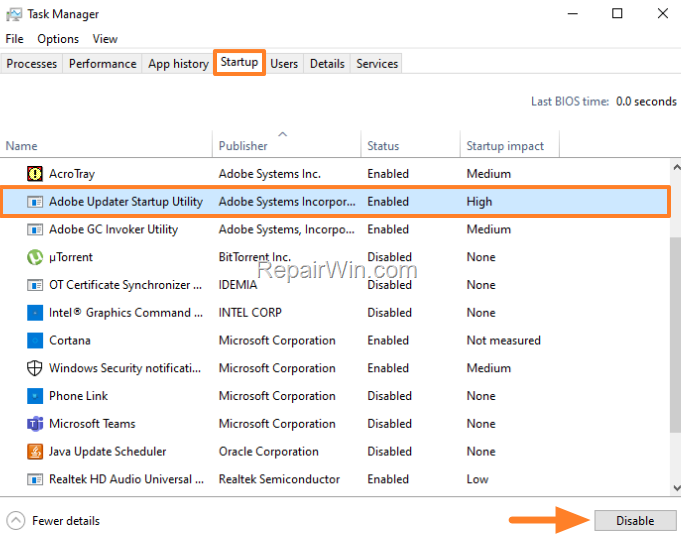
- Press CTRL + SHIFT + ESC to open Task Manager.
- In the Startup tab, select Adobe Updater Startup Utility and click Disable. (This action prevents the utility from executing during system startup, effectively halting any automatic update checks initiated by this utility).
- Close Task Manager and proceed to the next step.
Step 2. Disable Acrobat DC Automatic Updates Installation
By modifying the preferences within Adobe Acrobat DC, you can prevent the application from automatically installing updates. This change ensures that updates are only installed when you manually initiate them.
-
- Open Adobe Acrobat DC and from the Edit menu, select Preferences.
- Select the Updater category on the left, then uncheck the option Automatically install updates on the right. This setting adjustment stops the software from autonomously applying updates, granting you full control over the update process.
- Click OK to apply the change and then close Acrobat DC.

Step 3. Disable Acrobat Update Task
Disabling the scheduled task for Acrobat updates ensures that no background processes are scheduled to check for or apply updates without your consent.
1. In the search bar, type "task scheduler" and open Task Scheduler.

2. Select Task Scheduler Library on the left.
3. On the right, locate the following Adobe tasks:
-
-
- Adobe Acrobat Update Task
- AdobeGCInvoker
-
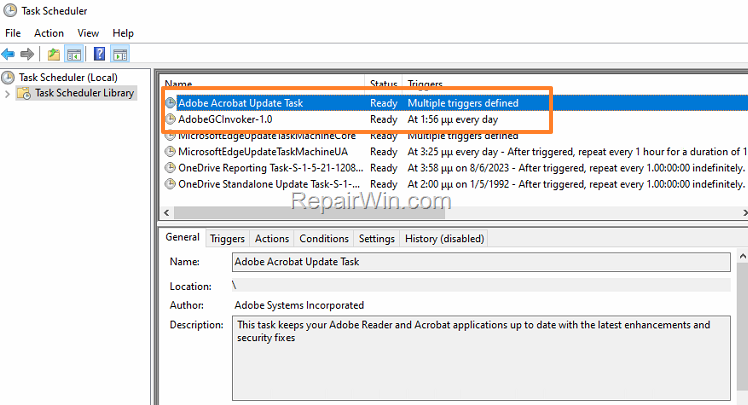
4. Right-click on Adobe Acrobat Update Task and select Disable. Then do the same with the "AdobeGCInvoker" task. (This action prevents any scheduled task from initiating updates, thereby halting automatic update processes.)
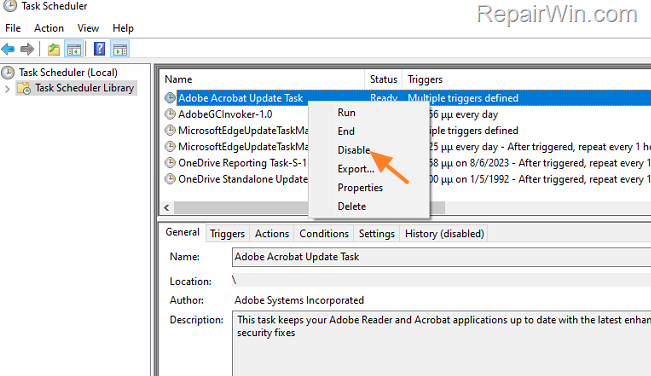
5. Close Task Scheduler.
Step 4. Disable the Acrobat Update Service
By disabling the Acrobat Update Service, you prevent the service from running in the background, which is responsible for checking and applying updates.
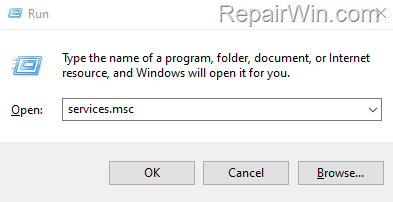
1. Press Windows  + R keys to open the run command box.
2. Type services.msc and click OK.
3. In Services, locate the following Adobe services:
-
-
- Adobe Acrobat Update Service
- Adobe Genuine Software Service Software Integrity Service
- Adobe Genuine Software Monitor Service
-
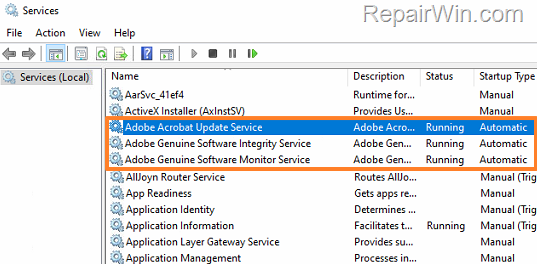
4. Double-click on Acrobat Update Service.

5. Change the Startup type to Disabled and click Apply > OK. This setting prevents the service from starting automatically, thereby blocking any update activity it would normally initiate.
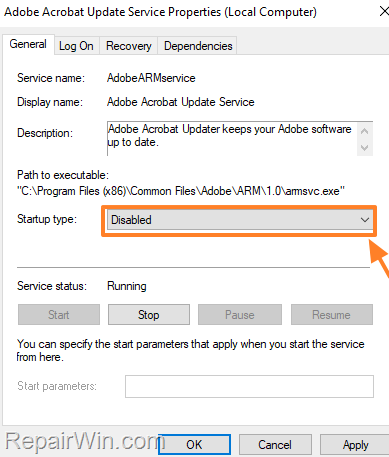
6. Close Services and continue to the next step.
Step 5. Stop Adobe Acrobat DC Updates from Registry
Modifying the Windows Registry allows you to disable automatic updates at a deeper system level, ensuring that no update processes are initiated without your explicit permission.
1. Press Windows + R keys to open the run command box.
2. Type regedit and click OK.
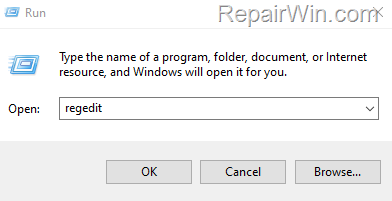
3. In Registry Editor, navigate to the following path:
-
-
HKEY_LOCAL_MACHINE\SOFTWARE\WOW6432Node\Adobe\Adobe ARM\Legacy\Acrobat\{AC76BA86-1033-FFFF-7760-0C0F074E4100}
-
4. In the right pane, double-click to open the Mode REG_DWORD value.
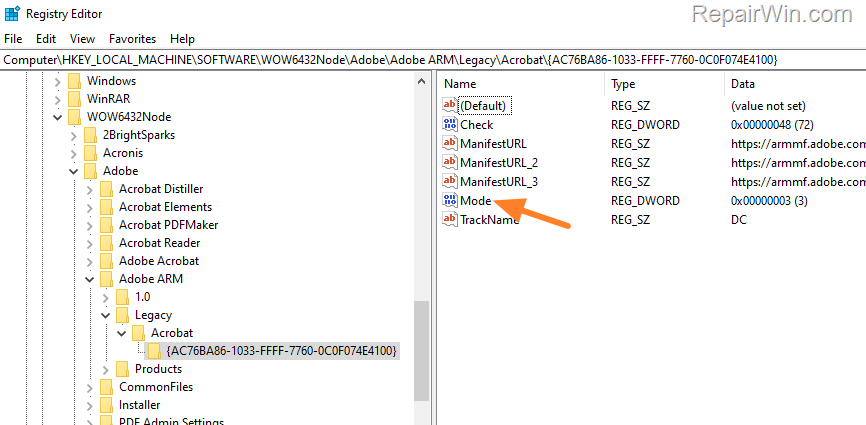
5. Change the Value data from 3 to 0 and click OK to prevent Acrobat DC from downloading or installing updates automatically. This registry tweak effectively disables the automatic update mechanism at the software level.
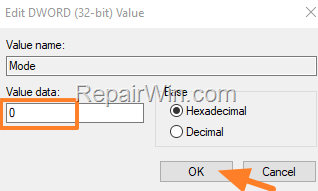
6. Close the Registry Editor, restart your PC, and you're done!
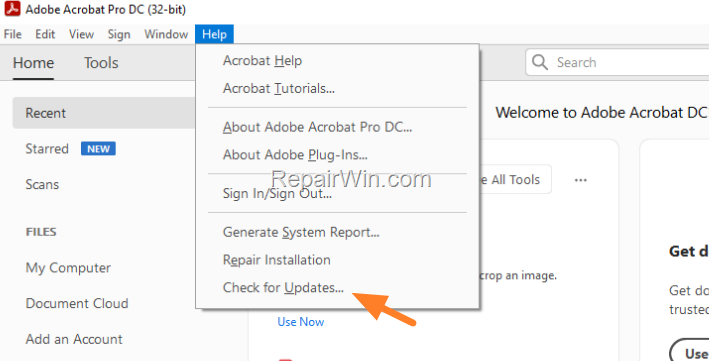
Note: To manually install updates in the future, go to the Help menu and click Check for Updates.
Summary
To stop Adobe Acrobat DC automatic updates on Windows 10/11, you can disable the Adobe Updater Startup Utility, adjust preferences within Acrobat DC, disable scheduled tasks and services related to updates, and modify the Windows Registry. These steps ensure that updates are only applied when you choose, giving you full control over your software environment.
Please leave a comment below or share this guide to help others manage their Adobe Acrobat DC updates effectively.
Frequently Asked Questions
Why might someone want to disable automatic updates in Acrobat DC?
While updating Adobe Acrobat DC is crucial for fixing software issues and improving productivity, some users prefer to disable automatic updates and install updates manually when it's convenient for them.
What is the first step to stop Acrobat DC from downloading and installing updates automatically?
The first step is to block or disable the 'Adobe Updater Startup Utility' to prevent it from running when Windows starts. This can be done through the Task Manager by selecting the utility under the Startup tab and clicking Disable.
How can you disable the 'Adobe Acrobat Update Task' using Task Scheduler?
Open Task Scheduler, select Task Scheduler Library, locate 'Adobe Acrobat Update Task' on the right panel, right-click on it, and select Disable to stop it from running automatically.
What should be changed in the Registry to stop Acrobat DC automatic updates?
In the Registry Editor, navigate to HKEY_LOCAL_MACHINE\SOFTWARE\WOW6432Node\Adobe\Adobe ARM\Legacy\Acrobat\{AC76BA86-1033-FFFF-7760-0C0F074E4100} and change the Mode REG_DWORD value from 3 to 0 to prevent automatic updates.



