
How to Login to Windows 11 without Entering a Password.
If you're looking to bypass the password entry process when logging into Windows 11, this guide will walk you through various methods to achieve that. While it's generally advised to keep a password for security reasons, there are scenarios where you might prefer to skip this step, especially if your device is used in a secure home environment.
3 Effective Methods to Log In to Windows 11 Without a Password.
To avoid typing your password every time you log into Windows 11, consider one of the following methods:
Important: Bypassing password entry can compromise your device's security. Proceed with caution.
Method 1. Remove Windows 11 Login Password from a Local Account
If you're using a local account to access Windows 11, the simplest way to log in without a password is to remove the password altogether. Here's how:
* Note: If you log in with a Microsoft Account, skip to the next methods.
1. Press Ctrl + Alt + Delete and select Change Password.

2. Enter your current password, leave the "new password" and "confirm password" fields empty, and press Enter.

This method effectively removes the password requirement for your local account, allowing you to log in without entering any credentials.
Method 2. Disable Windows 11 Password Requirement on Login
This method involves configuring Windows 11 to bypass the password prompt, applicable to both local and Microsoft accounts.
Step 1. Enable Passwordless Sign-in in the Registry
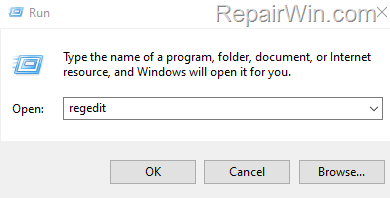
1. Press Windows + R to open the Run dialog box.
2. Type regedit and press Enter.
3, Navigate to HKEY_LOCAL_MACHINE\SOFTWARE\Microsoft\Windows NT\CurrentVersion\PasswordLess\Device.
4. Double-click on DevicePasswordLessBuildVersion and change the value data from 2 to 0, then click OK.

This registry modification disables the password requirement, allowing for a seamless login experience.
Step 2. Disable Password Requirement During Sign-in
1. Press Windows + R to open the Run dialog box.
2. Type netplwiz and press Enter.

3. Uncheck the box labeled Users must enter a user name and password to use this computer and click Apply.

4. In the Automatically sign in window, enter and confirm your password, then click OK. Click OK again to close the 'User Accounts' window.

5. Restart your PC to apply the changes.
This method configures Windows to log in automatically, bypassing the password prompt.
Method 3. Use the Registry to Log in Without Typing a Password
Another approach is to store your login credentials directly in the Windows Registry. This method works for both local and Microsoft accounts.
1. Press Windows + R to open the Run dialog box.
2. Type regedit and press Enter.
3. Navigate to HKEY_LOCAL_MACHINE\SOFTWARE\Microsoft\Windows NT\CurrentVersion\Winlogon.
4. Right-click on the Winlogon key and select New > String Value.

5. Rename the new value to DefaultUserName and press Enter.
6. Open the DefaultUserName value, enter your username (or email for Microsoft accounts), and click OK.

7. Create another String Value named DefaultPassword.
8. Double-click the DefaultPassword value, enter your password, and click OK.
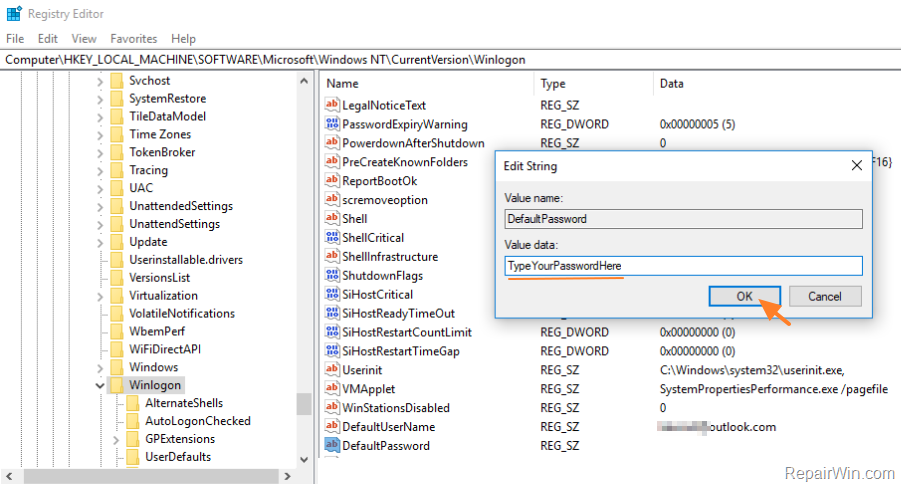
9. Create a final String Value named AutoAdminLogon.
10. Open the AutoAdminLogon value, set the value data to 1, and click OK.
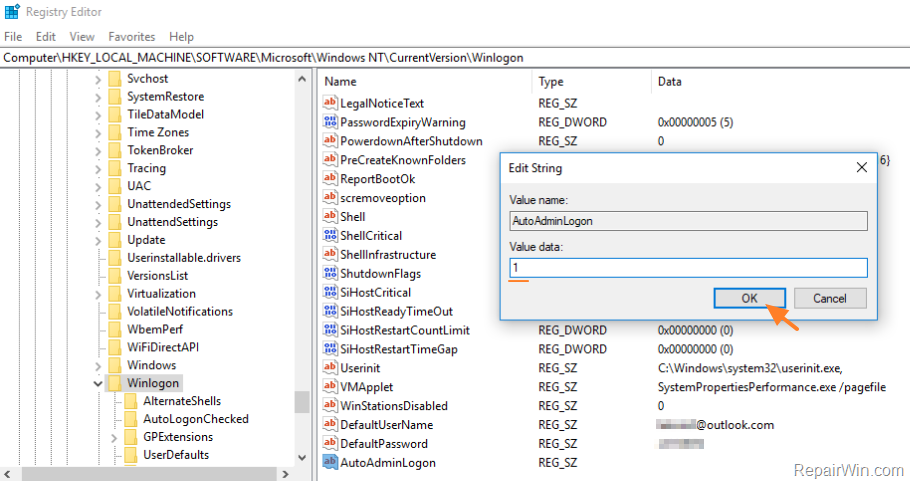
11. Close the Registry Editor and restart your PC.
By storing your credentials in the registry, Windows will automatically log you in without requiring a password entry.
Additional Method: Use Windows Hello for Seamless Login
Windows Hello offers a secure and convenient way to log in without a password by using biometric authentication or a PIN. To set up Windows Hello:
- Go to Settings > Accounts > Sign-in options.
- Under Windows Hello, select the option you want to configure (Face, Fingerprint, or PIN) and follow the on-screen instructions.
For more details, visit the official Microsoft Support page.
Summary
While logging into Windows 11 without a password can enhance convenience, it is crucial to weigh the security implications. This guide covered several methods, including removing the password from a local account, disabling password prompts via registry tweaks, and using Windows Hello for a secure, password-free login experience. Always consider the security risks and take appropriate measures to protect your device.
We hope this guide has been helpful. Which method worked for you? If you have any questions or feedback, please leave a comment below.
Don't forget to share this article with others who might benefit from it!
Frequently Asked Questions
How can I remove the password for a local account to log into Windows 11?
If you're using a local account, you can log in without a password by pressing Ctrl + Alt + Delete, selecting 'Change Password', entering your current password, and leaving the 'new password' and 'confirm password' fields empty before pressing Enter.
Can I disable the password requirement for logging into Windows 11?
Yes, you can disable the password requirement by enabling Passwordless Sign-in through the Registry Editor and then using 'netplwiz' to uncheck the option that requires entering a username and password to use the computer.
What steps are involved in setting up automatic login using the Registry?
To set up automatic login via the Registry, open 'regedit' and navigate to HKEY_LOCAL_MACHINE\SOFTWARE\Microsoft\Windows NT\CurrentVersion\Winlogon. Create or modify the 'DefaultUserName', 'DefaultPassword', and 'AutoAdminLogon' values with your login credentials and set 'AutoAdminLogon' to 1. Then restart your PC.



