
How to Disable ActiveX Filtering in EDGE on Windows 10/11.
ActiveX filtering is a security feature in Internet Explorer that helps protect your computer from potentially malicious content on websites. More specifically, ActiveX filtering is used to prevent ActiveX controls, which are small programs that allow websites to display content such as videos and games.
However, since some websites still use ActiveX controls to display their content, there is a need to disable ActiveX filtering in Internet Explorer or the Microsoft Edge browser.
How to Disable/Enable ActiveX Filtering in Edge.
To turn off ActiveX Filtering on Internet Explorer for all sites:
1. Close Edge.
2. Navigate to Control Panel > Internet Options, or…
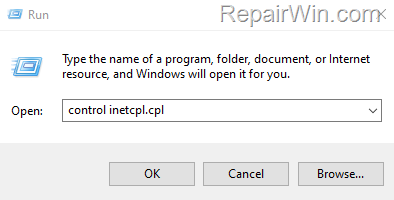
1. Press Windows
+ R keys to open the Run command box.
2. Type control inetcpl.cpl and press OK (or Enter)

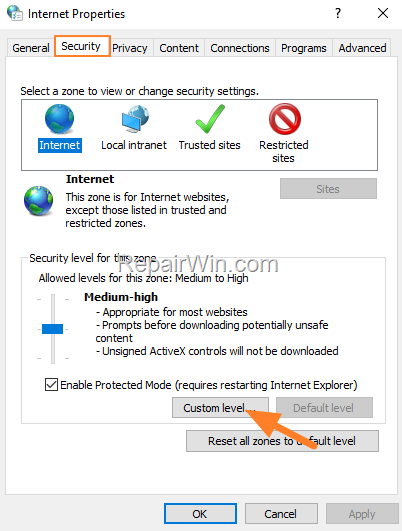
3. At Security tab, click Custom level.
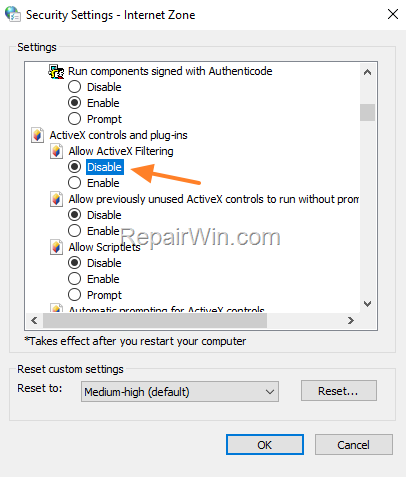
4. Scroll to "ActiveX controls and plug-ins" section and set the Allow ActiveX Filtering to Disable and click OK twice to save the change.
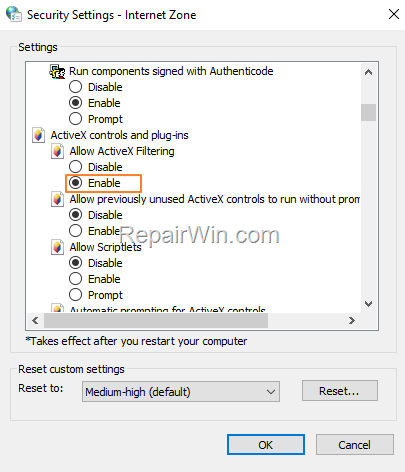
* Note: To turn on the ActiveX filtering, repeat the same steps and set the "Allow ActiveX Filtering" setting to Enable.
How to Disable/Enable ActiveX Filtering in Internet Explorer.
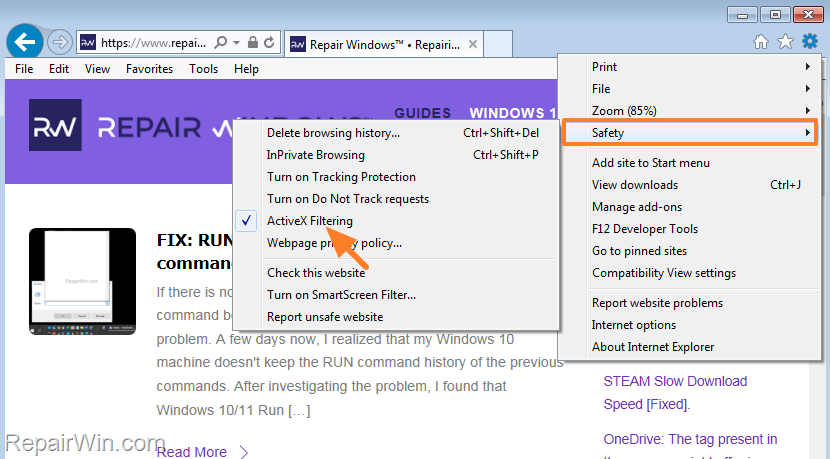
To turn off ActiveX Filtering on Internet Explorer for all sites:
From the Tools menu, select click Safety and then click ActiveX Filtering, to remove the check mark next to ActiveX Filtering.
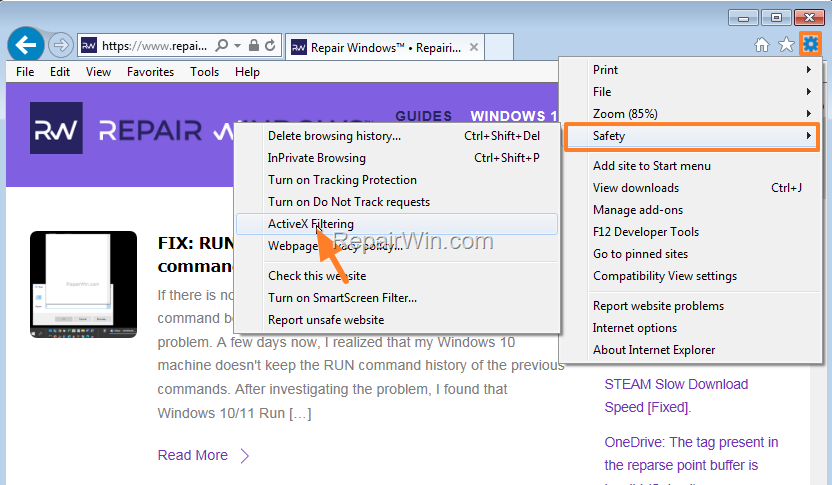
To turn on ActiveX Filtering in Internet Explorer for all sites:
From the Tools menu, select click Safety and then click ActiveX Filtering, to add the check mark next to ActiveX Filtering.
That's all folks! Did it work for you?
Please leave a comment in the comment section below or even better: like and share this blog post in the social networks to help spread the word.
Frequently Asked Questions
What is ActiveX Filtering in Internet Explorer?
ActiveX Filtering is a security feature in Internet Explorer designed to protect your computer from potentially malicious content by preventing ActiveX controls, which are small programs that allow websites to display content such as videos and games.
How can I disable ActiveX Filtering in Microsoft Edge?
To disable ActiveX Filtering in Microsoft Edge, close Edge, navigate to Control Panel > Internet Options, or press Windows + R keys to open the Run command box, type control inetcpl.cpl, and press OK. At the Security tab, click Custom level, scroll to "ActiveX controls and plug-ins" section, set Allow ActiveX Filtering to Disable, and click OK twice to save the changes.
How do I disable ActiveX Filtering in Internet Explorer?
To disable ActiveX Filtering in Internet Explorer for all sites, go to the Tools menu, select Safety, and click ActiveX Filtering to remove the check mark next to ActiveX Filtering.
How do I enable ActiveX Filtering in Internet Explorer?
To enable ActiveX Filtering in Internet Explorer for all sites, go to the Tools menu, select Safety, and click ActiveX Filtering to add the check mark next to ActiveX Filtering.



