
How to Create Shortcuts to Desktop in Windows 11.
If you want to learn how to crate a shortcut to a program or to a folder/file on your desktop in Windows 11, continue reading below.
Creating desktop shortcuts for frequently used applications and files allows you to launch them easily without having to search each time where they are on the disk or in the Windows 11 apps list.
How to Create Desktop Shortcuts to Apps or Files in Windows 11.
Create Desktop Shortcuts to Programs with Drag and Drop.
To create a desktop shortcut for an App or a program in Windows 11:
1. Click the Start menu and click All Apps.
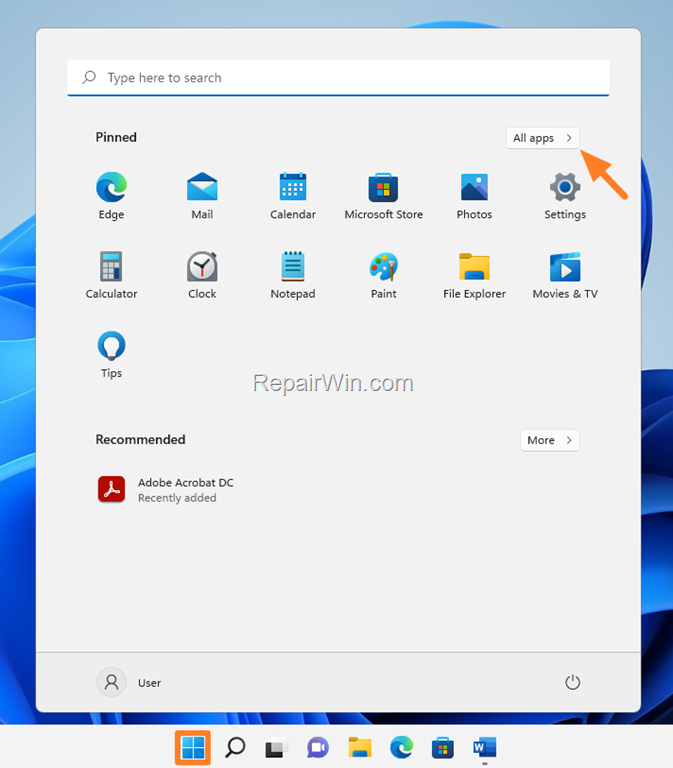
2. Click the program or application you want to create a shortcut for on your desktop, and while holding down the mouse button, drag your mouse to an empty space on your desktop. Then release the mouse button.

Create Shortcuts to any Program from their Location on Disk.
1. In the Search bar, type the name of the program for which you want to create a desktop shortcut. (e.g. "Task Scheduler").
2. Then at search results, right-click on the program and select Open file location.

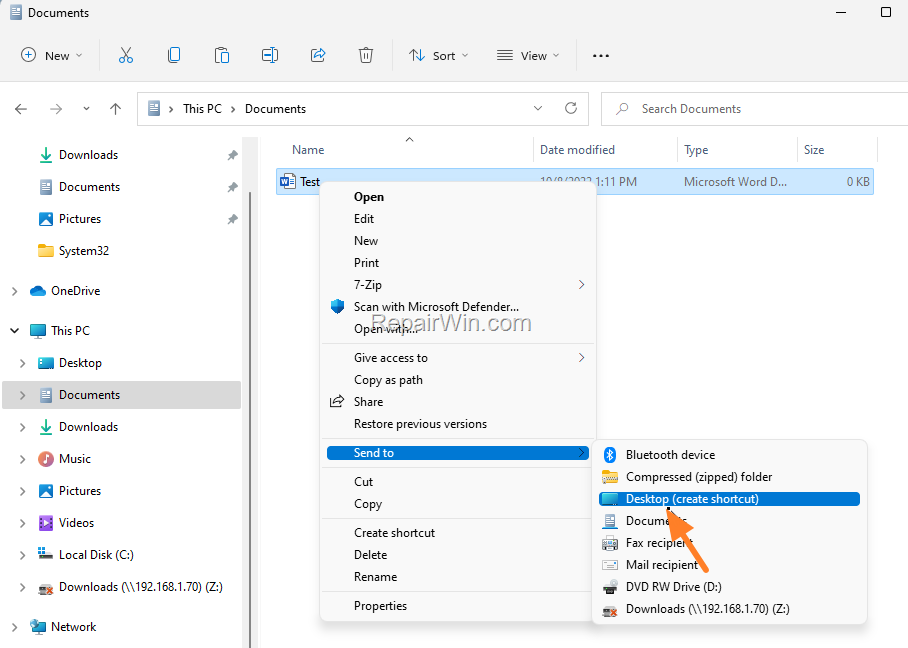
3. Now right-click again on the the program and select Send to -> Desktop (create shortcut).

Create Shortcuts to Folder/Files.
To create a desktop shortcut for a folder/file:
1. Using Explorer, navigate to the folder/file location on the disk.
2. Right-click o the folder/file that you want to create a shortcut for, and select Send to -> Desktop (create shortcut)
That's all folks! Please leave a comment in the comment section below or even better: like and share this blog post in the social networks to help spread the word about this solution.
Frequently Asked Questions
How can I create a desktop shortcut for a program using drag and drop in Windows 11?
To create a desktop shortcut for a program using drag and drop in Windows 11, click the Start menu and select All Apps. Choose the program, then drag it to an empty space on your desktop while holding down the mouse button. Release the button to create the shortcut.
What steps should I follow to create a desktop shortcut from a program's location on the disk in Windows 11?
First, type the program's name in the Search bar and right-click the result to select Open file location. Right-click on the program again and choose Send to -> Desktop (create shortcut) to create the shortcut on your desktop.
How do I create a desktop shortcut for a folder or a file in Windows 11?
To create a desktop shortcut for a folder or file, open Explorer and navigate to the desired location. Right-click the folder or file and select Send to -> Desktop (create shortcut) to add it to your desktop.



