
How to Schedule Auto Shutdown Windows 10/11.
If you want to set your Windows 10 computer to automatically shut down at a specific time, keep reading below.
Sometimes there is a need to shut down your computer automatically after a certain time, or at a certain time every day. In such cases you can program Windows to shut down automatically by following the instructions below.
How to automatically shut down Windows at a specific time.
Method 1. Auto Shutdown Windows 10/11 from RUN command.
If you want to manually shut down your computer after xxx seconds and for one time only:
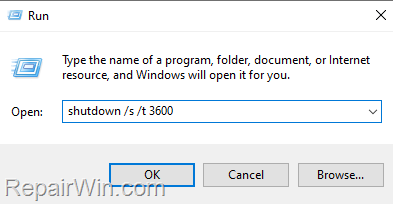
1. Press Windows  + R keys to open the Run command box.
2. Type the below command (where "Time_In_Seconds" represents the time-out period in Seconds, before shutdown), and press Enter. *
- shutdown /s /t Time_In_Seconds
* e.g. If you want Windows to shut down your computer after 1 hour (3600 seconds), because this is approximately the time it takes to complete a specific task that is running (e.g. bulk mail, backup, etc.), the command will be:
- shutdown /s /t 3600
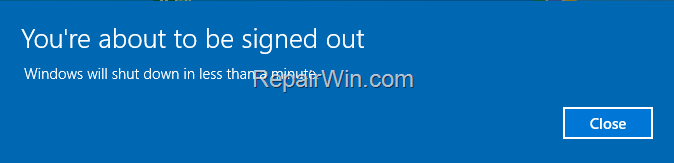
3. After executing the above command you will be notified that the computer will shut down shortly before the specified time. Click the Close button and close all the open programs or, if you want to cancel the shutdown, type the following command in Run command box or in Command Prompt:
-
shutdown -a
Method 2. Schedule Windows 10 Shutdown with a command.
To schedule automatic shutdown of Windows 10 in command prompt (for one time only):
1. Right click on Start menu and select Command Prompt.

2. In Command prompt, give the following shutdown command: *
- shutdown /s /t 3600
* Note: Where 3600 is the time in seconds after which you want the computer to shut down (e.g. 3600 = 1 hour)

Method 3. Schedule Automatic Shutdown of Windows 10/11 with Task Scheduler.
If you want to schedule Windows to automatically shut down your computer once or every day, week, or month at a specific time, go ahead and create a shutdown task in the Task Scheduler:
1. Open Task Scheduler. If you don't know how to do that, then…
1. At the search box type Task or Task Scheduler.
2. Open the 'Task Scheduler' from the search results.

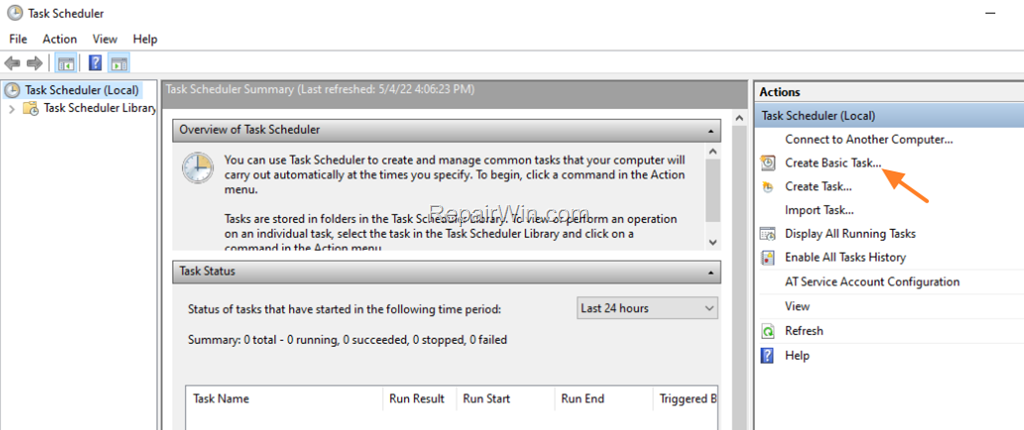
2. At Task Scheduler click Create Basic Task.
3. Type a name for the new task (e.g. "Auto Shutdown") and click Next.

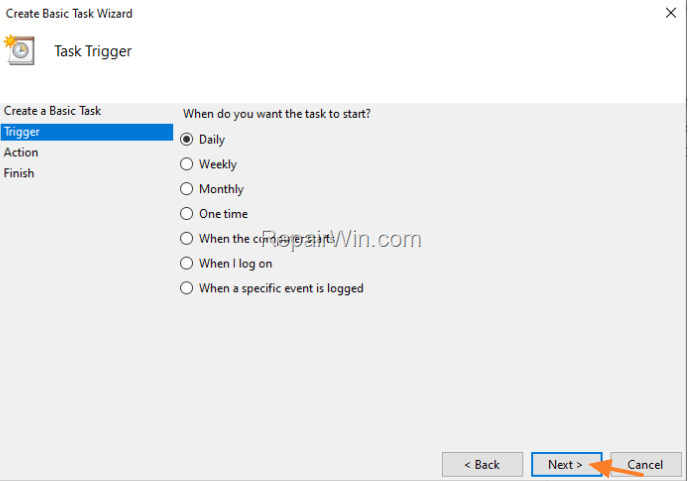
4a. At Trigger options, choose when you want the task to start and click Next.
* e.g. If you want to automatic shutdown your computer every day at 22.00pm choose Daily.
4b. On the next screen, select the day on which the task will start and the time for automatic shutdown and click Next..

5a. At Action options, choose Start a Program and click Next.

5b. Now at 'Program/script' box type shutdown and at 'Add Arguments' type /s /t 0
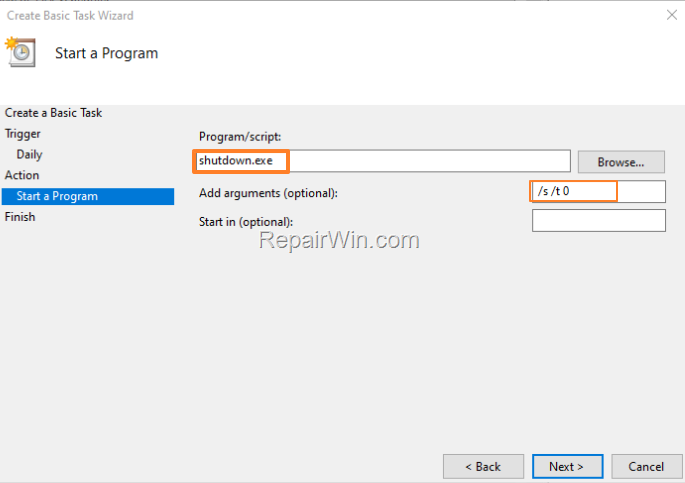
6. Click Finish and you're done! *

* Note: If you want to remove or to change the properties of the Auto Shutdown task (e.g. to change the shutdown time):
1. Open the Task Scheduler again and click on Task Scheduler Library.
2. Select the task from the list and press the Delete button to remove it, or (if you want to change its properties), double-click on it and in the Triggers tab click Edit to modify the runtime.

That's all folks! Did it work for you?
Please leave a comment in the comment section below or even better: like and share this blog post in the social networks to help spread the word about this.
Frequently Asked Questions
How can I set my Windows 10 computer to automatically shut down after a specific amount of time using the Run command?
You can set your computer to shut down after a specific amount of time by pressing Windows + R to open the Run command box, then typing 'shutdown /s /t Time_In_Seconds' and pressing Enter, where 'Time_In_Seconds' represents the time in seconds before shutdown.
How do I cancel a scheduled shutdown on Windows using the Run command or Command Prompt?
To cancel a scheduled shutdown, open the Run command box or Command Prompt and type 'shutdown -a', then press Enter.
Can I schedule an automatic shutdown for a specific time daily using Task Scheduler?
Yes, you can schedule an automatic shutdown daily using Task Scheduler. Open Task Scheduler, click 'Create Basic Task,' choose when you want the task to start, set the time for shutdown, select 'Start a Program,' type 'shutdown' in 'Program/script,' and '/s /t 0' in 'Add Arguments.' Finish the setup.
How can I modify or delete an existing Auto Shutdown task in Task Scheduler?
To modify or delete an Auto Shutdown task, open Task Scheduler, go to 'Task Scheduler Library,' select the task, and either press 'Delete' to remove it or double-click on it to modify its properties in the 'Triggers' tab by clicking 'Edit.'



