
FIX: Firefox HTTP Strict Transport Security error (Solved)
If Firefox cannot connect to google or youtube or in other websites because of HTTP Strict Transport Security (HSTS) policy, continue reading below to fix the problem.
HTTP Strict Transport Security (HSTS) is a policy mechanism that helps to protect websites against malicious attacks. The HSTS mechanism only allows secure connections to websites from browsers via HTTPS instead of the less secure HTTP.
The HTTP Strict-Transport-Security warning in Firefox appears if one of the following occurs:
-
- The website that you try to visit is misconfigured, or is insecure.
- The computer clock is set to the wrong time.
This tutorial contains instructions on how to fix the follow error-warning on Firefox browser:
"Did Not Connect: Potential Security Issue.
Firefox detected a potential security threat and did not continue to <website>, because this website requires a secure connection.
<website> has a security policy called HTTP Strict Transport Security (HSTS), which means that Firefox can only connect to it securely".
How to FIX: HTTP Strict Transport Security warning in Firefox.
Step-1. Make sure your computer has the correct date and time. *
Step-2. Install all Windows Updates.
Step-3. Update Firefox to its latest version.
Step-4. Disconnect from VPN or Proxies.
After applying the above steps, restart your computer and see if the problem persists. If yes, proceed to disable the HTTP Strict Transport Security policy in your Firefox browser, as described bellow. *
* Suggestion: Problems like this, related to wrong date/time settings on the computer, sometimes also occur because of a bad CMOS battery. So, I suggest to replace the CMOS battery (if you can), before disabling the HTTP Strict Transport Security mechanism on Firefox.
Step-5. Disable HTTP Strict Transport Security mechanism in Firefox.
To turn off the HSTS mechanism in Firefox:
1. At Firefox's address bar, type the following and hit Enter:
- about:config
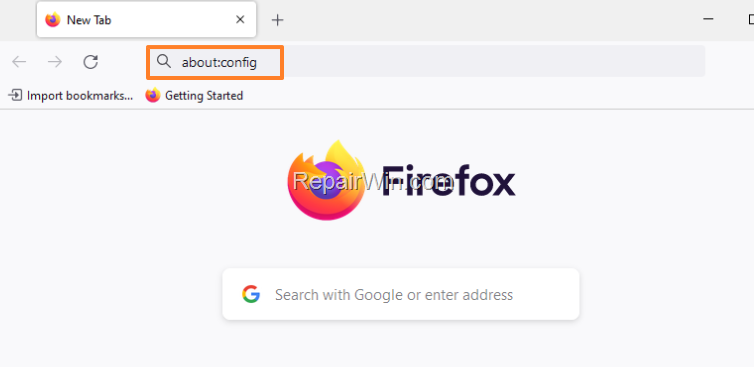
2. Click Accept the Risk and Continue.

3a. At 'Search preference name' box, type enterprise
3b. Toggle the setting security.enterprise_roots.enabled from false to true
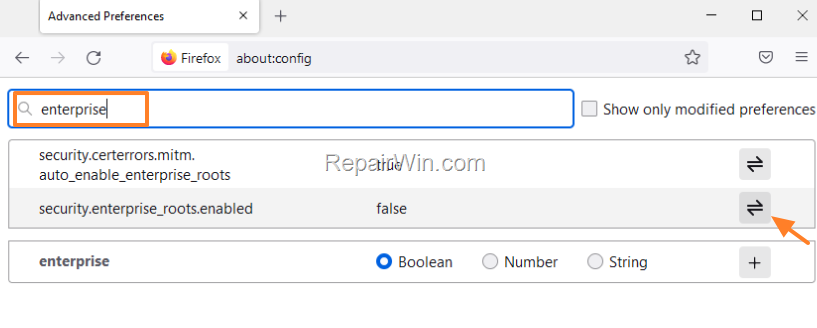
4. Close all Firefox windows and restart Firefox.
5. Firefox should not display anymore the HSTS warning on any page. *
* Note: If the HTTP Strict Transport Security warning still appears on webpages you visit, try the following:
-
-
Type again about:config in Firefox's address bar and press Enter. (Click Accept the Risk and Continue.)
-
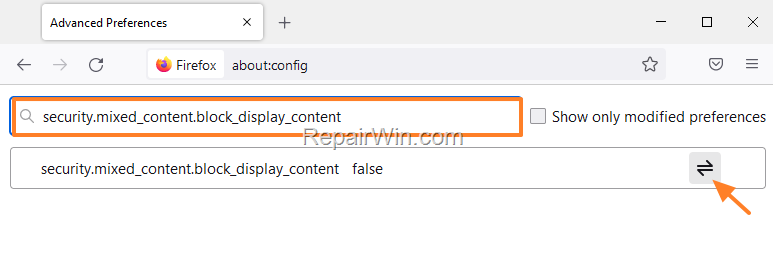
Then search for security.mixed_content.block_display_content
-
Double click on "security.mixed_content.block_display_content", or toggle the switch on the right to set it to true.
-
Restart Firefox.
-
That’s all folks! Did it work for you?
Please leave a comment in the comment section below or even better: like and share this blog post in the social networks to help spread the word about this.
Frequently Asked Questions
What is HTTP Strict Transport Security (HSTS)?
HTTP Strict Transport Security (HSTS) is a policy mechanism that helps to protect websites against malicious attacks by ensuring that browsers only establish secure connections via HTTPS rather than the less secure HTTP.
Why am I seeing 'Did Not Connect: Potential Security Issue' in Firefox?
This warning appears if a website is misconfigured or insecure, or if your computer's clock is set to the wrong time, which can affect secure connection attempts in Firefox.
How can I fix the HSTS warning on Firefox?
To fix the HSTS warning, ensure your computer’s date and time are correct, install all Windows updates, update Firefox to the latest version, and disconnect from VPN or proxies. If the issue persists, you may need to disable the HSTS mechanism in Firefox via about:config.
What should I do if the HSTS warning continues after following initial steps?
If the warning persists, search for and modify the 'security.mixed_content.block_display_content' setting in Firefox’s about:config, ensuring it is set to true, then restart Firefox.



