
FIX: System Clone Does Not Support Cloning MBR disk to GPT or Vice Versa (Solved)
The error "System Clone Does Not Support Cloning MBR disk to GPT or Vice Versa", may appear in any disk-cloning software when you try to clone an GPT disk (with GUID Partition Table) to an MBR disk (Master Boot Record), or vice-versa. To resolve the problem continue reading below.
Error details: "System clone does not support cloning MBR disk to GPT or Vice Versa, please choose the disk with the same type or convert the target disk into the same type, and then try again".
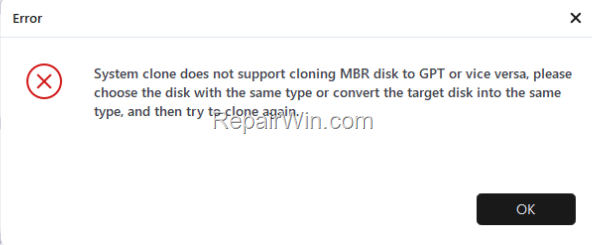
How to FIX: System Clone Does Not Support Cloning MBR to GPT or Vice Versa in Disk Cloning programs.
To be able to clone one hard disk to another, the source disk and the target disk have the save partition style. To change the partition style on the target disk to match the partition style of the source disk, proceed as follows
Step 1. Find out the partition style of the Source Hard Disk:
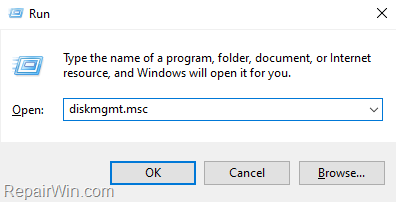
1. Navigate to Windows Disk Management. To do that:
- Press Windows
+ R keys to open the run command box.
- In the Search box, type: diskmgmt.msc & click OK.

2. Right-click on the source hard disk and select Properties.
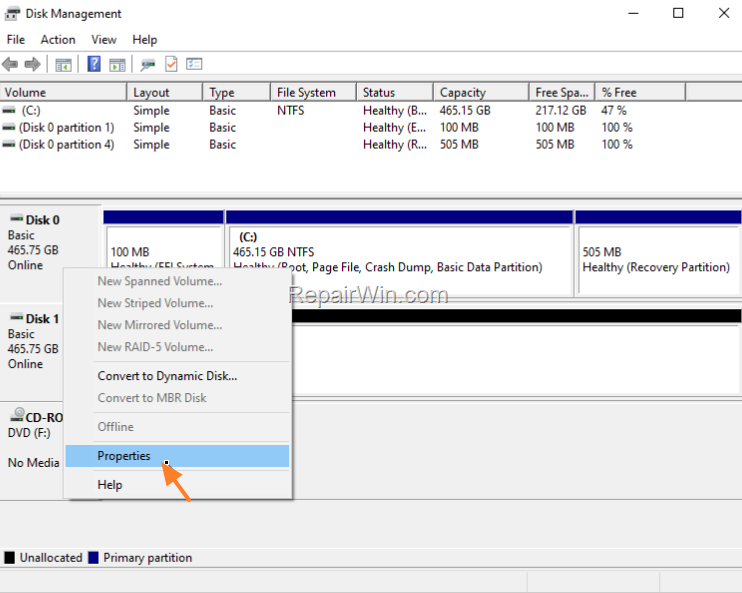
3. At Volumes tab, notice the Partition Style (GPT or MBR) of the source disk.

Step 2. Change the Partition Style of the Target Hard Disk.
1. Close the disk cloning software.
2. Right-click on the New Empty Hard Disk (Target disk) and perform one of the following actions according your case:*
* Note: To be able to convert the partition style of a hard disk, the disk must be empty without any partitions or volumes on it.
a. If you face the error when you try to clone a GPT disk (source disk) to an MBR disk (target) select Convert to GPT Disk
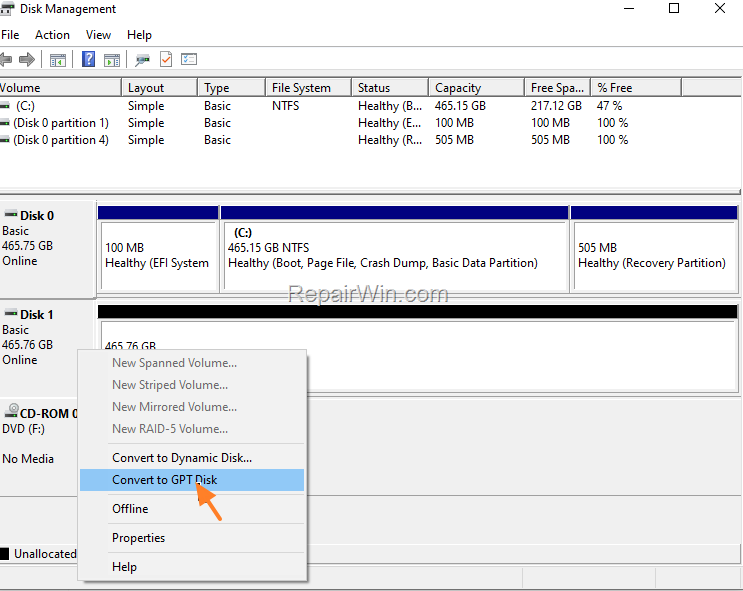
b. If you face the error when you try to clone an MBR disk to a GPT disk, select Convert too MBR Disk.
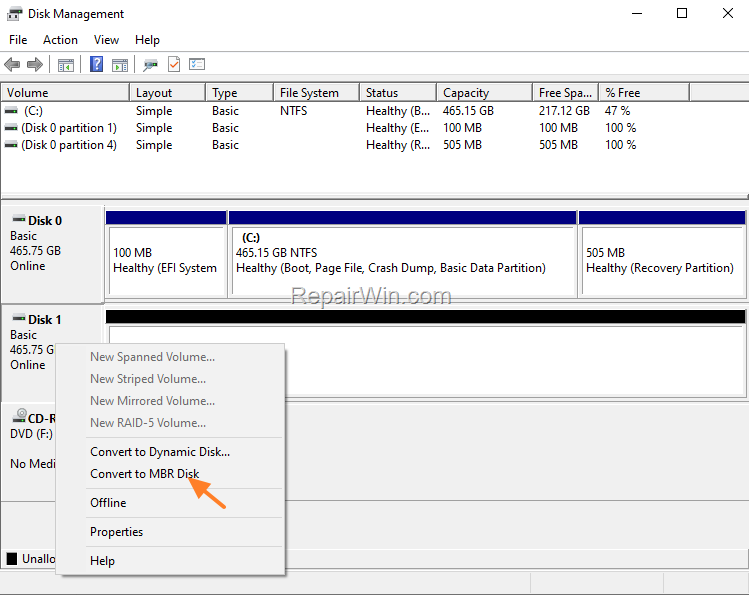
4. When done, close Disk Management.
5. Open the disk-cloning software and try to clone the disk now. The problem should be solved.
That’s all folks! Did it work for you?
Please leave a comment in the comment section below or even better: like and share this blog post in the social networks to help spread the word about this solution.



