
FIX: Touchpad Not Working or freezes in Windows 10 (Solved)
Over the past years I have troubleshooted many touchpad problems in Windows 10 on several laptops (e.g. touchpad is not working, touchpad freezes, etc.), so I decided to write a tutorial to troubleshoot these problems.
If you own a laptop, then from time to time you may have problems with the touchpad device. Especially if you have Windows 10, the touchpad can often stop working or not working properly after you install an update. Of course touchpad problems can indicate a hardware problem, but in many cases touchpad malfunctions are due to a software problems.
On Windows 10, the laptop's touchpad may not work for various reasons, so this tutorial will cover all the methods to solve the problem.
How to FIX Touchpad Problems in Windows 10.
Follow these steps before proceeding with the following methods to address touchscreen issues.
- Make sure Windows 10 is not frozen, by pressing ALT + CTRL + DEL and see if Task Manager opens.
- If your laptop has a Function key combination to disable and enable the touchpad. (e.g. Fn + F3), then press the Fn key combination to turn the touchpad on. (On some laptops the touchpad can be turned on / off by double-tapping the touchpad's surface)
- Restart your computer.
- Perform a Full Windows 10 shutdown and then power on your laptop again. (To perform a full shutdown: press and hold down the SHIFT key and then click Start > Power > Shutdown).
Method 1. Enable Touchpad in Windows 10.
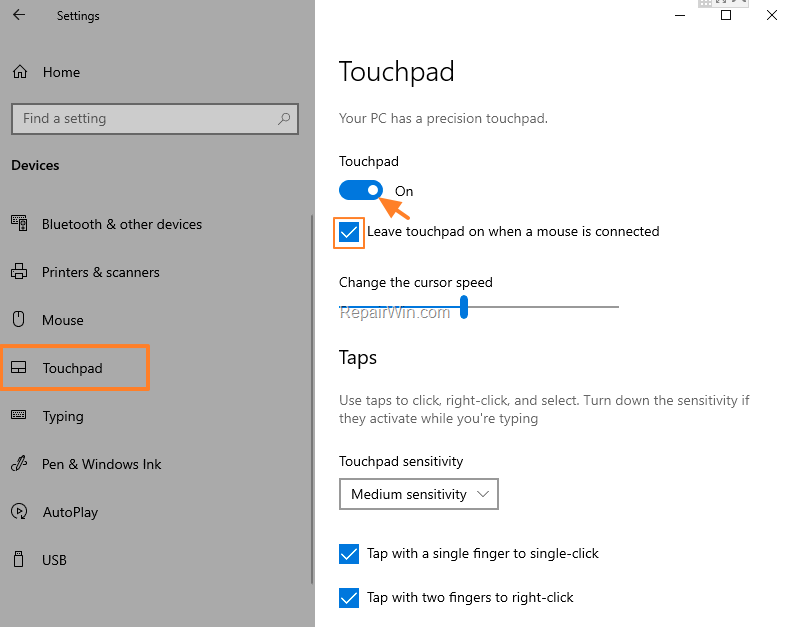
Windows 10 has the ability to disable or to turn off the touchpad when an external mouse is connected. So, proceed and make sure that the Touchpad is enabled in Touchpad settings.
1. Navigate to Start ![image_thumb[2]_thumb](https://www.repairwin.com/wp-content/uploads/2019/02/image_thumb2_thumb-1.png "image_thumb[2]_thumb") menu -> Settings
menu -> Settings  -> Devices.
2. Select Touchpad on the left panel, and at the right make sure that the Touchpad switch is set to ON and also check the Leave touchpad on when a mouse is connected option. *
* Note: If you cannot find here the Touchpad toggle/switch…
1. Open Additional Settings under the Related settings section.
- Related article: Disable Touchpad Option Missing on Windows 10.

2. Enable the touchpad in Mouse Properties options. (If the touchpad is already enabled, try to disable and enable it again.)

Method 2. Reset Touchpad settings in Windows 10.
A common method to solve touchpad problems in Windows 10, is to reset the touchpad settings to their default.
1. Navigate to Start menu -> Settings -> Devices.
2. At Touchpad options, scroll down and click Reset under Reset your touchpad. *

* Note: If you cannot see the Reset button…
1. Open the Additional Settings.
2. Click Reset Devices in Mouse Properties options.

Method 3. Uninstall & Reinstall Touchpad device driver.
Another solution to fix the touchpad issues in Windows 10, is to completely uninstall and reinstall the touchpad drivers.
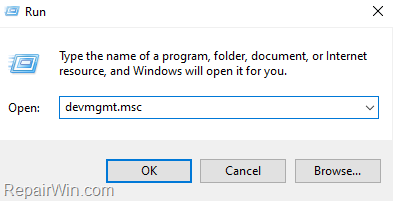
1. Open Device Manager. To do that:
1. Press Windows
+ R keys to open the run command box.
2. In the "Open" box, type: devmgmt.msc & click OK.

2. Expand the Mice and other pointing devices.
3. Right-click on the TouchPad device and click Uninstall.

4. After restart, wait 4-5 minutes for Windows to reinstall the touchpad driver and check if your touchpad is working. If your touchpad does not work again, try to install its driver from your laptop's manufacturer support site.
Method 4. Disable and Enable Touchpad in BIOS. *
* Note: This method does not apply to all laptop models, but I know it works on many ASUS laptops.
1. Completely Shutdown your laptop by pressing and holding down the SHIFT key while clicking Start > Power > Shutdown
2. Power on the laptop and press the corresponding Function key to enter in BIOS settings. (e.g. F2, F10, etc.),
3. In BIOS settings, check if there is a setting for the Touchpad or Internal Pointing Device or Trackpad device (commonly this setting can be found in 'Advanced' section). If so, Disable the touchpad device and Save and Exit from BIOS settings.
4. Let Windows 10 to load.
5. Shutdown & power-on your laptop again.
6. Re-enter in BIOS settings and re-enable Touchpad & Save & Exit.
7. After booting to Windows 10, the touchpad should work.
Conclusion: If, after the above steps, your touchpad still does not work, this indicates a hardware problem. At this case, use an external mouse or go to a laptop repair shop to repair the touchpad device.
That's all folks! Please leave a comment in the comment section below or even better: like and share this blog post in the social networks to help spread the word about this solution.
Frequently Asked Questions
Why is my Windows 10 touchpad not responding?
There could be several reasons: your Windows 10 might be temporarily frozen, the touchpad may be disabled via a Function key, or it might need a software reset. Ensure Task Manager opens using ALT + CTRL + DEL to check for freezes, and see if a Function key (like Fn + F3) enables the touchpad. If these don't work, a restart or a full shutdown might help.
How do I ensure that my touchpad is enabled on Windows 10?
Go to Start menu > Settings > Devices, and select 'Touchpad' from the left panel. Make sure the Touchpad switch is set to ON, and check the option 'Leave touchpad on when a mouse is connected.' If you don't see this option, open 'Additional Settings' under the Related settings to enable the touchpad in Mouse Properties.
What steps should I follow to reset my touchpad settings?
Navigate to Start menu > Settings > Devices, scroll down to 'Touchpad' options, and click 'Reset' under the 'Reset your touchpad' section. If the Reset button is not visible, open the 'Additional Settings' to access these options, and use 'Reset Devices' in Mouse Properties.
How can I reinstall my touchpad driver on Windows 10?
Open Device Manager by pressing Windows + R keys, typing 'devmgmt.msc,' and clicking OK. Expand 'Mice and other pointing devices,' right-click on your TouchPad device, and select 'Uninstall.' Restart your laptop, and Windows will attempt to reinstall the driver. If this doesn’t work, download the driver from your laptop’s manufacturer site.




January 1, 2022 @ 3:13 am
My Asus Vivobook S15's touchpad was intermittently working. Sometimes it responded like normal, others it was completely unresponsive, and sometimes it has a seizure on the screen without me even touching anything. Also, the stupid numberpad embedded in the touchpad keeps turning on and I can't turn it off.
June 18, 2024 @ 12:24 pm
Great guide! 🖱️👍 I was struggling with my touchpad freezing, but your step-by-step instructions solved the problem quickly. Updating drivers and checking touchpad settings were spot on. Thanks for making it easy to fix this frustrating issue. 🙌💻 Keep up the excellent work! 🌟😊