
FIX: Macrium 0x8004231f – Failed To Create Snapshot (Solved)
If you try to clone a hard disk with Macrium Reflect and the Clone failed with error "Failed To Create Snapshot. Result Code: 0x8004231f", continue below to fix the problem. Macrium Reflect is one of the most popular disk cloning programs on the market and we like to use it from time to time to clone old disks into new ones. After several disk cloning with Macrium Reflect, I have noticed that one of Macrium's most common errors is "0x8004231f – Failed to create snapshot".
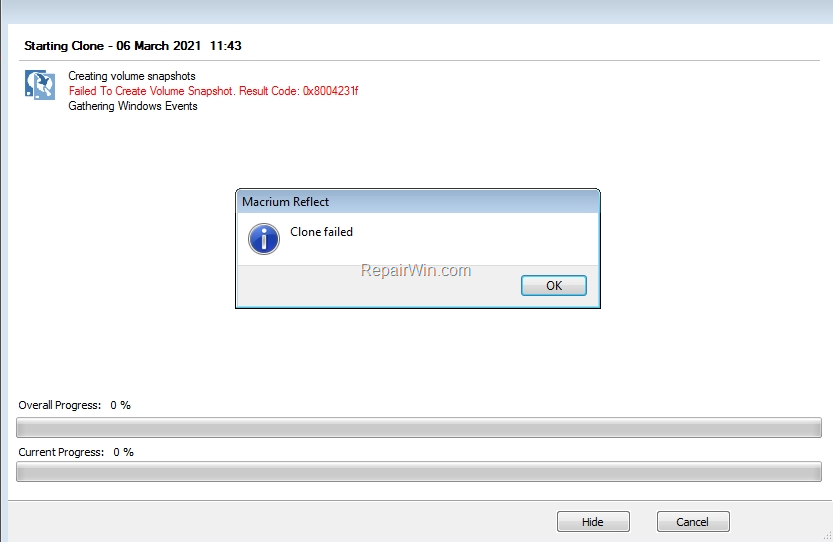
This tutorial contains instructions to resolve the error "0x8004231f – Failed To Create Snapshot" in Macrium Reflect.
How to FIX: Macrium Reflect Error 0x8004231f – Failed To Create Snapshot.
The Macrium error "0x8004231f – Failed to create a snapshot" usually occurs when is assigned a drive letter on the System Reserved partition (MSR). To resolve the problem, proceed and remove the drive letter from the System Reserved partition of the source disk, using the instructions below.
1. Close Macrium Reflect and all open programs (plus the Windows Explorer)
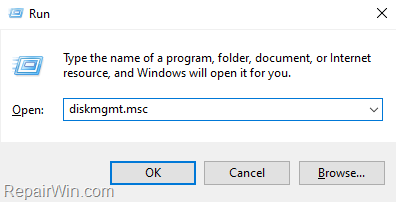
2. Open Disk management. To do that:
- Press Windows
 + R keys to open the run command box.
 - In the Search box, type: diskmgmt.msc &
click OK.

2. Right-click on the System Reserved partition of the disk that you want to clone (Source disk) and select Change Drive Letter and Paths…

3. Click Remove.

4. Click Yes at the warning message.

5. Close Disk Management.
6. Open Macrium Reflect and try to clone the disk again.
That's all folks! Did it work for you?
Please leave a comment in the comment section below or even better: like and share this blog post in the social networks to help spread the word about this solution.
Frequently Asked Questions
What does the Macrium Reflect error code 0x8004231f mean?
The error code "0x8004231f - Failed to create snapshot" in Macrium Reflect usually indicates that a drive letter is assigned to the System Reserved partition, which causes the cloning process to fail.
How can I resolve the Macrium Reflect error 0x8004231f?
To resolve the error, remove the drive letter assigned to the System Reserved partition on the source disk. You can do this by using Disk Management to change the drive letter settings and then try cloning the disk again with Macrium Reflect.
What steps should I follow to remove the drive letter from the System Reserved partition?
First, close Macrium Reflect and all open programs. Then, open Disk Management by pressing Windows + R and typing 'diskmgmt.msc' and clicking OK. Right-click the System Reserved partition on the source disk, select 'Change Drive Letter and Paths', click 'Remove', and confirm by clicking 'Yes'. Finally, close Disk Management and relaunch Macrium Reflect to attempt the clone again.




May 22, 2024 @ 5:05 pm
!!! super !!!