
FIX: Cannot Delete Folder – Item Not Found. Could not find this item. This item is no longer located in … (Solved)
If you cannot delete a folder in Windows with error: "Item Not Found. Could not find this item. This item is no longer located in…", continue reading below to fix the problem. The error "Item not found because it is no longer located in its location", commonly appears when the folder or the file, is damaged.
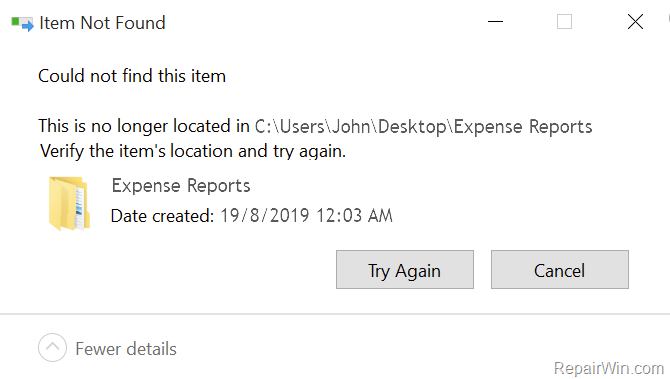
This tutorial contains instructions to resolve the deletion error "Item Not Found. Could not find this item. This item is no longer located in location. Verify the item's location and try again", when trying to delete a file or a folder in Windows OS.
How to FIX: Cannot Delete Folder or File with error "Item Not Found. Could not find this item".
Method 1. Copy a File on the Empty folder and then Delete the folder.
The first method to delete a folder (or a file), that cannot be deleted via Windows Explorer, is to move it to a new empty folder and then to delete the new folder. *
* Note: I know, this method is crazy, but it is easy to try it.
Method 2. Delete the File with Unlocker.
1. Download and Install the latest Unlocker version from here. *
Note: At the installation options choose Advanced and unselect the Install Delta toolbar checkboxes.

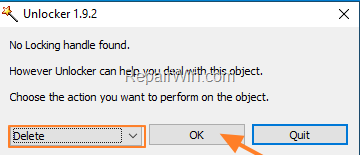
2. When the installation is completed, right-click on the file that you cannot delete and choose Unlocker.

3. At Unlocker window, select Delete and click OK.
Method 3. Delete Item with Command Prompt.
The first method of deleting a folder or file that cannot be deleted due to the error "Item not found. This item could not be found", is to delete the file via command command. To do that:
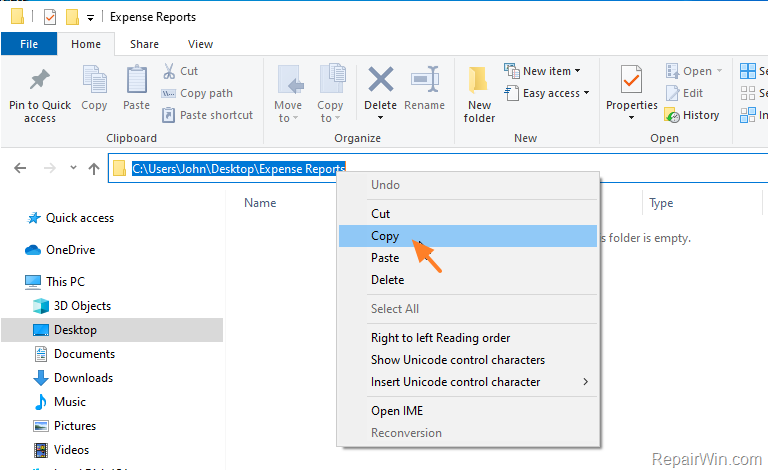
1. Find the path of the item (folder or file), that you cannot delete using the File Explorer. To do that, navigate to the item's location on the disk.
a. Highlight and select the folder path in the address bar.
b. Right click at the folder path and select Copy.
2. Open Command Prompt as Administrator.
3a. In command prompt type the following command and press Enter:
-
rd /s "\\?\X:\bad-folder-path"
3b. Press the Y key to confirm your decision.
Notes for the above command:
1. After typing rd /s \\?\ press the CTRL + V keys to paste the copied path and then type the quotation marks (").
2. Note the space after typing (pasting) the folder path before the quotation marks (") at the end. *
e.g. For this example the command will be:
-
rd /s "\\?\C:\Users\John\Desktop\Expense Reports"
* Note: If you receive the error "file not found" after executing the above command and you're sure that the command is correct, type the command again but this time add a space after the folder name and before the quotation marks. e.g.
- rd /s "\\?\C:\Users\John\Desktop\Expense Reports "

Method 4. Delete folder or file with 7-Zip.
1. Download and install the 7-Zip archiver program.
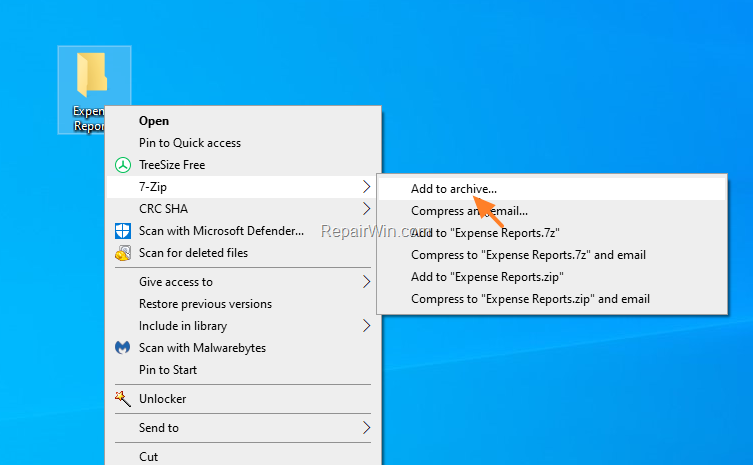
2. Right click on the folder (or file) that you want to delete and choose: 7-Zip > Add to archive.
3. At "Add to Archive" options, select to Delete files after compression and click OK.

4. When the compression is complete, delete the created archive (e.g. the "Expense Reports.7z" in this example), and you 'll be OK.
That's all folks! Did it work for you?
Please leave a comment in the comment section below or even better: like and share this blog post in the social networks to help spread the word about this solution.
Frequently Asked Questions
What error message do I receive when I'm unable to delete a folder in Windows?
You might see the error message 'Item Not Found. Could not find this item. This item is no longer located in…' when trying to delete a folder in Windows if the item is damaged or corrupt.
How can I delete a stubborn folder using the Unlocker tool?
To delete a stubborn folder using Unlocker, download and install the latest version, ensuring to select Advanced options and uncheck the Install Delta toolbar boxes during installation. Once installed, right-click the file or folder, select Unlocker, choose the Delete option, and press OK.
What command should I use in Command Prompt to delete a file when I receive the 'Item Not Found' error?
Open Command Prompt as Administrator and type 'rd /s "\?\X:\bad-folder-path"', replacing 'X:\bad-folder-path' with the actual path of the file or folder, then press Enter. Confirm with 'Y' if prompted. Ensure there's a space before the closing quotation mark.
How can 7-Zip assist in deleting a problematic folder or file?
First, install the 7-Zip program. Right-click on the folder or file you wish to delete, choose '7-Zip > Add to archive', and select 'Delete files after compression'. Once compression is complete, delete the created archive.




August 31, 2024 @ 6:37 pm
Long path tool can be a easier solution to this issue.