
FIX: A program is trying to send e-mail on your behalf in Outlook (Solved)
The Outlook warning message "A program is trying to send an e-mail message on your behalf. If this is unexpected, click Deny and verify your antivirus software is up-to-date", is displayed when you try to send an e-mail from another program (e.g. Word, Excel or a third-party program), or because you have been infected by a malware program that tries to send spam.

In this tutorial you'll find step-by-step instructions to remove the Outlook warning message "A program is trying to send an e-mail message on your behalf", in Microsoft Outlook 2019, Outlook 2016, Outlook 2013, Outlook 2010, Outlook 2007 & Outlook for Office 365.
How to FIX: A program is trying to send e-mail on your behalf in Outlook. *
* Attention: If the warning message appears without attempting to send an email from another program, proceed and scan your computer for malware by using the instructions in this article: How To Scan Your Computer for Viruses and other Malicious Programs.
Method 1. Update your Antivirus Program.
The Outlook message "A program is trying to send an e-mail message on your behalf", may appear if your Antivirus program is outdated. So ensure that your AV program is updated.
Method 2. Change the Programmatic Access Security setting in Outlook.
To remove the Outlook warning "A program is trying to send e-mail on your behalf", in case you are actually using a program other than Outlook to send email, turn off the warnings for suspicious activities. in Outlook settings. To do that:
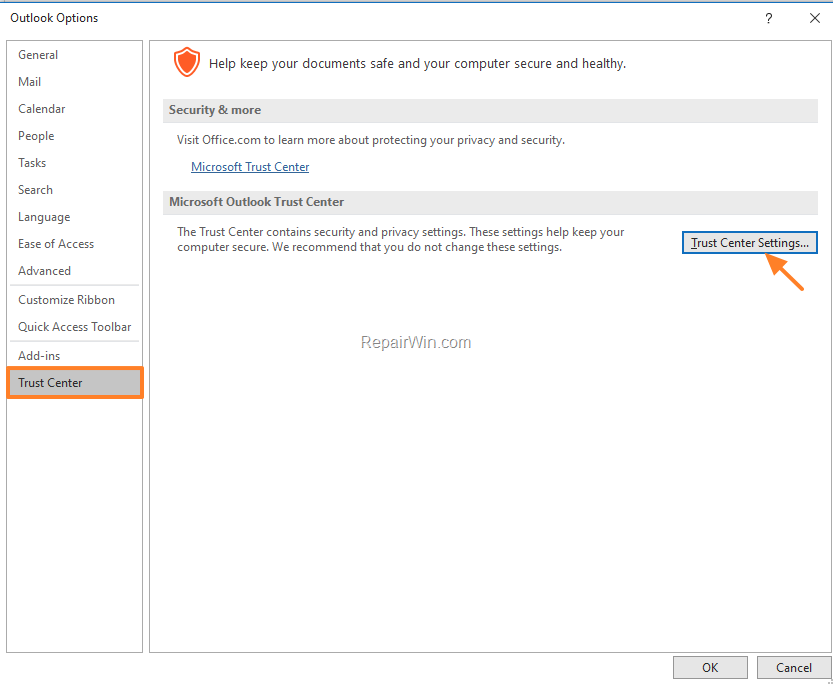
1. In Outlook go to File -> Options. *
2. Select Trust Center on the left and open the Trust Center Settings.
* Note: In Outlook 2007, go to Tools > Trust Center.
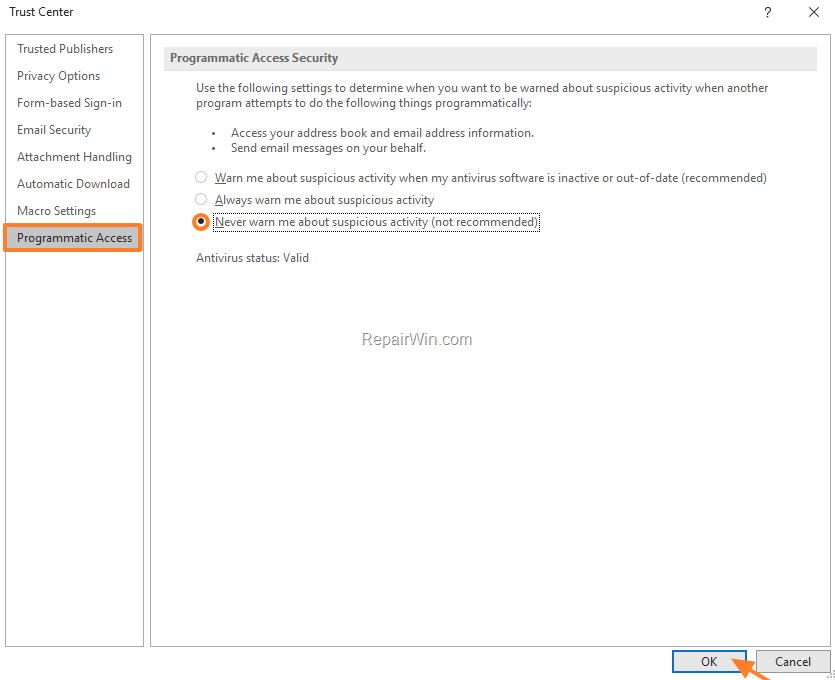
3. At Programmatic Access Security settings select the Never warn me about suspicious activity (not recommended) option and click OK twice to apply the setting. *
* Note: If the Programmatic Access settings are greyed out, then close and re-launch Outlook as Administrator. (Right click on Outlook icon -> Run as Administrator.)
That's all folks! Did it work for you?
Please leave a comment in the comment section below or even better: like and share this blog post in the social networks to help spread the word about this.
Frequently Asked Questions
What causes the Outlook warning 'A program is trying to send an e-mail message on your behalf'?
This warning appears when an e-mail is being sent from another program (like Word or Excel) or due to malware attempting to send spam emails.
How can I update my antivirus to stop the Outlook warning?
Ensure that your antivirus program is up-to-date by checking for updates through your antivirus settings and updating it to the latest version.
How do I change Programmatic Access Security settings in Outlook to stop the warning?
In Outlook, go to File -> Options, select Trust Center, then open Trust Center Settings. Under Programmatic Access Security, select 'Never warn me about suspicious activity (not recommended)' and click OK.
What should I do if the Programmatic Access settings are greyed out in Outlook?
Close Outlook and re-launch it as Administrator. Do this by right-clicking on the Outlook icon and selecting 'Run as Administrator'.




July 15, 2022 @ 1:09 pm
Thanks for the instructions. In my case a malware is causing this!