
FIX Outlook Error: You must connect to Microsoft Exchange at least once before you can use your Outlook data file .ost (Solved)
This tutorial contains instructions to resolve the Outlook error "Cannot start Microsoft Outlook. Cannot open the Outlook window. The set of folders cannot be opened. The file C:\Users\…\%account_name%.ost cannot be accessed. You must connect to Microsoft Exchange at least once before you can use your Outlook data file (.ost)".
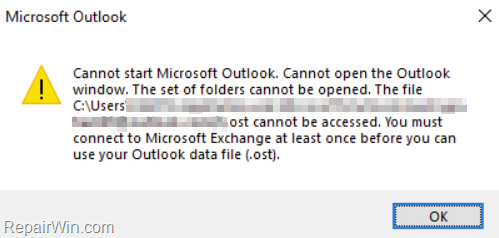
Problem description: After changing the password for your email account in Office365, Outlook cannot start and prompts you to connect at least once to Microsoft Exchange in order to use the Outlook data file, without displaying the credentials window to type the new password.
How to FIX: You must connect to Microsoft Exchange at least once before you can use your Outlook data file .ost in Outlook 2019/2016/2013.
In order to force Outlook to display the credentials window to type your Office365 account name and password, proceed and make the below change in the Registry:
1. Open the Registry Editor and navigate to this key:
- HKEY_CURRENT_USER\Software\Microsoft\Office\16.0\Common\Identity
2. At the right pane, check if you can see a value with name: EnableADAL *
* Note: If the value does not exist:
a. Right-click at an empty space, and select New > DWORD (32-bit) Value.

b. Name the new value: EnableADAL and press Enter.
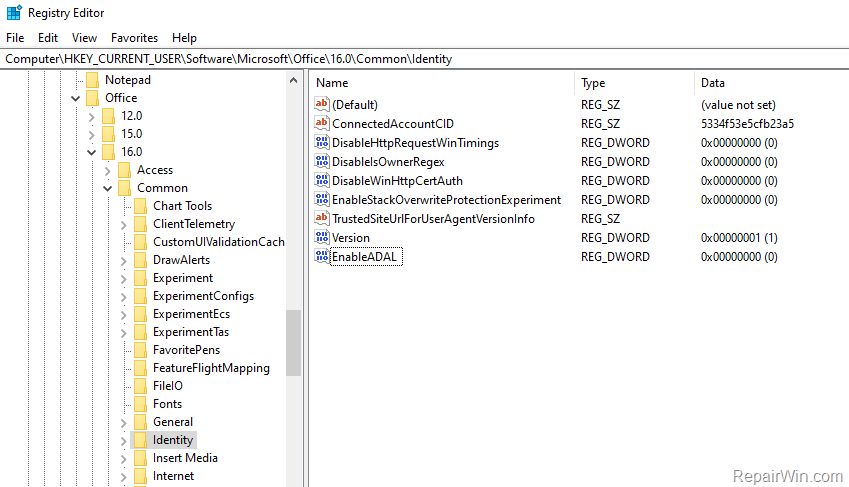
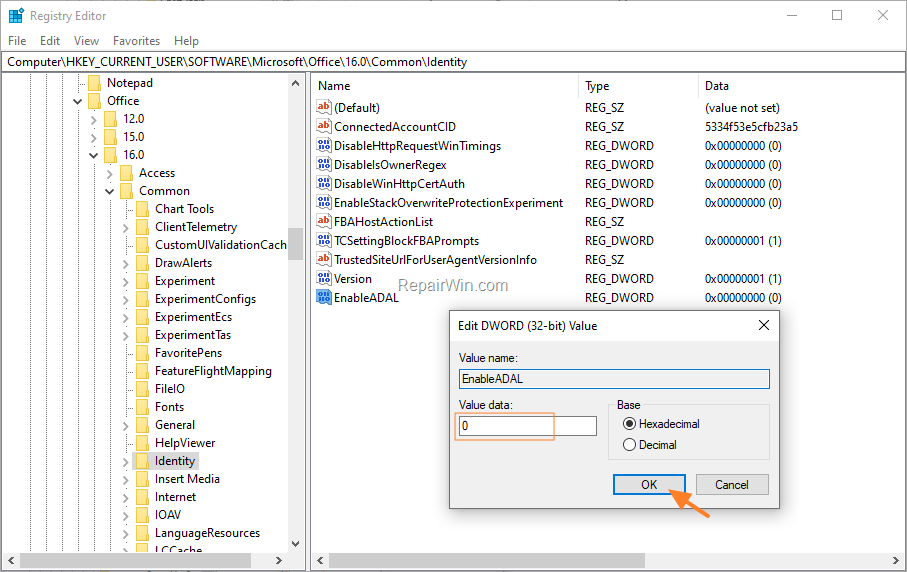
3. Double click at the EnableADAL value, set the Value Data to 0 and click OK.
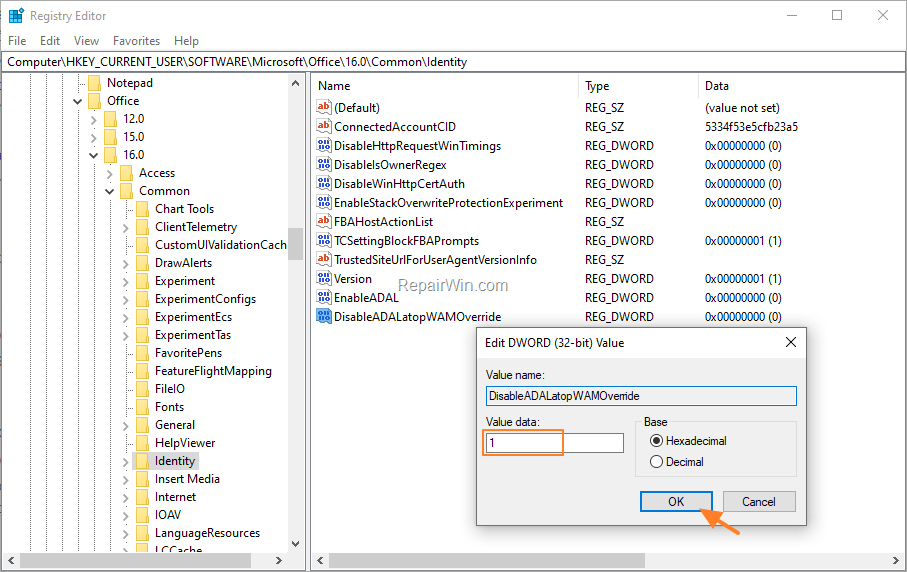
4a. Then, create a new DWORD (32-bit) Value and name it: DisableADALatopWAMOverride
4b. Double click at the DisableADALatopWAMOverride value, set the Value Data to 1 and click OK.
5. Close the Registry Editor and restart the PC.
6. Open Outlook. Normally now you 'll see the credentials window to type your Office 365 credentials.
That’s all folks! Did it work for you?
Please leave a comment in the comment section below or even better: like and share this blog post in the social networks to help spread the word about this solution.
Frequently Asked Questions
What causes the 'Cannot start Microsoft Outlook' error?
This error often arises after changing the password for your email account in Office365. It prevents Outlook from prompting for the new password, resulting in an inability to start Outlook.
How can I resolve the Outlook error related to opening the Outlook window?
To resolve this, you need to force Outlook to display the credentials window by modifying the Registry. Navigate to HKEY_CURRENT_USER\Software\Microsoft\Office\16.0\Common\Identity and set up the values EnableADAL and DisableADALatopWAMOverride as instructed.
What should I do if the EnableADAL value doesn't exist in Registry?
If you don't see the EnableADAL value, right-click on an empty space in the Registry Editor, select New > DWORD (32-bit) Value, name it EnableADAL, and press Enter. Then set its Value Data to 0.
Why should I create the DisableADALatopWAMOverride value in the Registry?
Creating the DisableADALatopWAMOverride value with a Value Data of 1 forces Outlook to show the credentials window, allowing you to enter your updated Office 365 credentials.




March 21, 2022 @ 2:03 pm
thank you much its working ….
June 9, 2022 @ 6:14 am
Hi, your suggestions were interesting. I typed in both DWords as you suggested. When I opened Outlook the window came up asking for the password but it when I entered the password it would not log in. Instead it simply presented the login window again. The password is correct because I can log into that email account using outlook.com. I am not sure what else to try other than to reinstall Outlook. Let me know if you have a further suggestion.
June 10, 2022 @ 9:02 am
Go to Control Panel > Credential Manager and at Windows Credentials see if there is a record with the credentials for your outlook.com account. If yes, remove it, open Outlook and type your credentials again.
July 12, 2022 @ 7:04 pm
Went to Credential Manager, deleted all entries for Outlook and is still doning the same thing. Do you know any additional tips?
July 13, 2022 @ 9:07 am
What Outlook version you have?