
FIX: Windows Update Something went wrong. Try to reopen Settings later (Solved)
If you face the Windows Update error: "Something went wrong. Try to reopen Settings later" in Windows 10, then continue reading below to find out how you can resolve the problem. The error "Something went wrong. Try to reopen Settings later" usually appears when the Windows Update folder is corrupted or when one the needed Windows Update services are disabled.
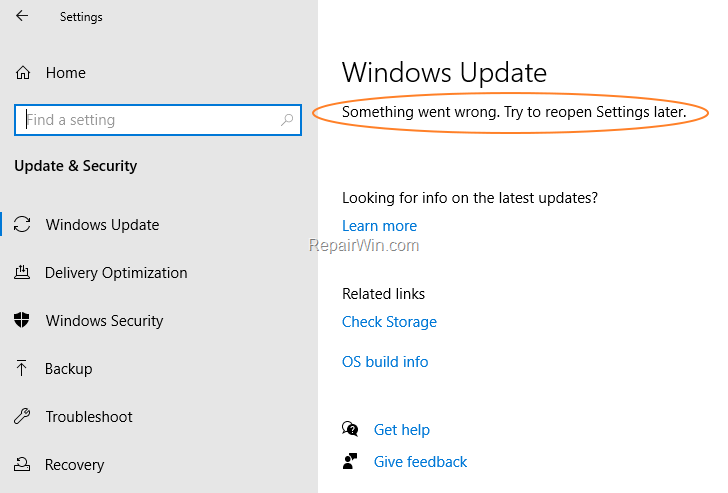
This tutorial contains instructions, on how to solve the error "Something went wrong. Try to reopen Settings later" in Windows 10 Update.
How to FIX Windows Update problem 'Something went wrong. Try to reopen Settings later'.
Method 1. Re-Download the Windows Update(s).
The most effective solution to troubleshoot Windows update problems, is to force Windows to download the updates from scratch. To do that:
Step 1: STOP the Windows Update Service.
1. Open Windows Services control panel: To do that:
-
- Press Windows
 + R keys to open the run command box.
 - In the Search box, type: services.msc & click OK.
- Press Windows


2. In Services control panel locate the "Windows Update" service.
3. Right-click on Windows Update service and select "Stop".

Step 2: Delete the SoftwareDistribution folder.
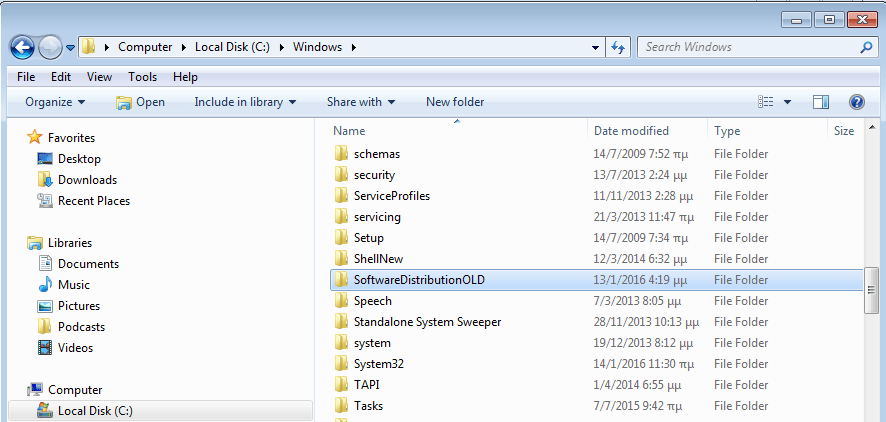
1. Open Windows Explorer and navigate to: C:\Windows folder.
2. Find and Delete the "SoftwareDistribution" folder (or rename it. e.g. to "SoftwareDistributionOLD") . *
* Note: If you cannot delete the folder, start Windows in Safe Mode.
Step 3: START the Windows Update Service.
1. Open Windows Services control panel.
2. Right-click on Windows Update service and select "Start".

Step 4. Go to Windows Update options and and click Check for Updates.
Method 2. Enable the Required Windows Update Services by modifying Registry.
In order to turn on Windows 10 updates, you have to enable the below mentioned services from Windows Registry:
- Update Orchestrator Service (UsoSvc)
- Windows Update Medic Service (WaaSMedicSvc)
- Windows Update Service (wuauserv)
1. Press Windows  + R keys to open the run command box.
2. Type regedit and press Enter.

3. In Windows registry editor locate the following key:
HKEY_LOCAL_MACHINE\SYSTEM\CurrentControlSet\Services\UsoSvc
4. Look at the right pane and double click at Start DWORD value.

5. Change the value data from the default value 4 to 2 and click OK. *
* Service Startup States according the "Start" DWORD Value:
0 = Boot
1 = System
2 = Automatic
3 = Manual
4 = Disabled
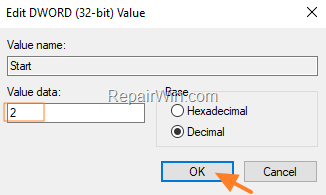
6. Perform the same actions and change the value data of Start DWORD value, from 4 to 2 on the following keys:
- HKEY_LOCAL_MACHINE\SYSTEM\CurrentControlSet\Services\WaaSMedicSvc
- HKEY_LOCAL_MACHINE\SYSTEM\CurrentControlSet\Services\wuauserv
7. When done, close registry editor and restart your computer.
8. Navigate to Windows Update and see if the error "Windows Update Something went wrong. Try to reopen Settings later" has been resolved.
Method 3. Restore Windows Update settings to Default with StopUpdates10 utility.
StopUpdates10 is a free program that can block the Windows updates in Windows 10 by modifying the system settings. Instead of that, the program can restore back the required settings and services in order to re-enable the updates in Windows 10.
1. Download and install the StopUpdates10 tool on your PC.
2. At the last step of the installation, keep checked only the Launch StopUpdates10 option and click Finish.

3. Click the Restore Windows Updates button.

4. When the operation is completed, close the StopUpdates10 application and restart your PC.
5. After restart, navigate to Windows Update center and see if the error persists. If everything is OK, uninstall the StopUpdates10 tool and you're ready.
Method 4. Repair Windows 10.
The next method to resolve the error "Something went wrong. Try to reopen Settings later" in Windows update, is to repair Windows by using the SFC and the DISM commands. To do that:
1. Open Command Prompt as Administrator.
2. In command prompt give the following dism command and press Enter:
- DISM.exe /Online /Cleanup-image /Restorehealth

3. When the DISM operation is completed, type the following command and hit Enter:
- sfc /scannow
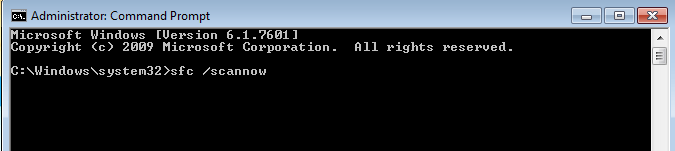
4. Now wait until the System File Checker repairs the Windows System Files.
5. When this done, restart your computer and see if the problem is solved.
That’s all folks! Did it work for you?
Please leave a comment in the comment section below or even better: like and share this blog post in the social networks to help spread the word about this solution.
Frequently Asked Questions
What does the error 'Something went wrong. Try to reopen Settings later' indicate on Windows 10?
This error usually appears when the Windows Update folder is corrupted or when one of the required Windows Update services is disabled.
How can I resolve the Windows Update error by re-downloading updates?
To resolve the error by re-downloading updates, stop the Windows Update Service, delete the SoftwareDistribution folder, start the service again, and then check for updates.
What steps should I follow to enable required update services using the registry editor?
Open the registry editor by pressing Windows + R, typing regedit, and pressing Enter. Navigate to the specified keys for each required service and change the 'Start' DWORD value to 2. Restart your computer afterward.
How can I restore Windows Update settings to default using StopUpdates10?
Download and install StopUpdates10, launch the program, and click the 'Restore Windows Updates' button. Restart your PC, check for updates, and if the error is resolved, uninstall the tool.



January 23, 2021 @ 3:06 pm
Thank you, Method 2 worked for me. If anyone is facing the same issue like me then you can try these method.
January 28, 2023 @ 6:54 pm
Me too, it worked for me 👍🏻
January 26, 2021 @ 4:24 am
Thank you very much! Method 3 was a success.
January 26, 2021 @ 5:04 pm
merci bcp pour vos différentes reponses car j'ai pu resoudre mon pb de windows updates
February 7, 2021 @ 2:38 am
method 1 and 2 worked thanks so much i thought my dad are gonna kill me but no. You saved my life
March 4, 2021 @ 8:17 pm
Thank you. Method 2 worked for me
May 20, 2021 @ 9:41 am
Thanks for the fixes, Method 4 finally worked for me, when using method 3 the values were all on "4" after making the change and restarting WaaSMedicSvc and wuauserv had stayed at "4" so I still had an update error
May 22, 2021 @ 6:21 am
Method 2 Then Method 3 Worked for me thanks alot for that useful guide
May 30, 2021 @ 1:55 pm
After looking in vain for a solution for hours, I finally discovered this site. Method 3 is very easy and worked perfectly. Thanks a lot!
May 31, 2021 @ 5:34 pm
Number 2 worked for me. It's the only thing I tried.
June 9, 2021 @ 5:41 am
Thanks so much, method 3 worked for me.
June 14, 2021 @ 10:58 pm
what if I don't have a windows license? Would these methods work? I'm afraid of losing my data or ruining important software… Has anyone tried a method without a windows license ? Please share your experience if you have.
July 7, 2021 @ 11:23 am
Step 3 REALLY WORKED for Me
July 21, 2021 @ 4:11 am
I tried method 2 but after restarting, the second two addresses remained as 4. Method 3 worked perfectly though.
August 4, 2021 @ 4:39 pm
Method 2 worked like a dream
October 2, 2021 @ 4:18 pm
i did methode 4 before before 3 and it worked , ty man you saved my day
December 2, 2021 @ 12:22 pm
Method 1 worked as a charm! I tried method 4 first, but it kind of hanged (the process looked inactive and after a couple of hours I stopped it), so I made a run for method 1 and it ended fine! Thank you!
December 18, 2021 @ 3:03 am
method 2 worked to me but its error and say We couldn't connect to the update service. We'll try again later, or you can check now. If it still doesn't work, make sure you're connected to the Internet.
January 11, 2022 @ 9:42 am
THANK YOU! Method 1, Step 2 was the key for me. Deleting the "SoftwareDistribution" folder, I guess, reset the Windows Update progress and returned my computer to a usable state. My Disk and CPU usage where spiked between 95 and 100%. This method restored me to 5% usage; and reset the update process. I spend days trying to figure this out before reading your post. Again, thank you!
January 24, 2022 @ 12:35 am
method 2 fixed everything thank you so much <3
February 7, 2022 @ 2:22 pm
thank you, method 2 worked for me
February 21, 2022 @ 2:02 am
Not working for me.
I've tried just about everything. Looks like since update 21H2 was installed, I cannot install the cumulative updates. In Dec 2021, I ran the online upgrade. It went through the process and it appeared to have worked. But the January 2021 Cumulative update will not install. It starts and the we get working on update. It reaches 7% then restarts and reverts the changes.
I've tried everything that I could find on the Web without success.
April 25, 2022 @ 8:05 pm
Thank you so much, method 2 worked for me.
July 16, 2022 @ 10:09 am
Thank you so much, Method 2 worked for me.
January 28, 2023 @ 6:57 pm
Thanks bro, you made my day..
Method number 2 worked for me.
March 17, 2023 @ 11:21 am
Bruh, you are a life saver. Thanks, Method 1 worked for me
September 12, 2023 @ 3:13 am
Thanks for taking your time to make this tutorial, method 4 worked for me.
October 20, 2024 @ 11:15 pm
i cant get an option to stop windows updates in services
October 22, 2024 @ 9:11 am
Try this: Open command prompt as administrator, give the following six (6) commands in order, then restart your PC:
net stop bits
net stop wuauserv
ren %systemroot%\softwaredistribution softwaredistribution.bak
ren %systemroot%\system32\catroot2 catroot2.bak
net start bits
net start wuauserv
January 12, 2025 @ 6:42 pm
thanks for the clear tutorial.
Unfortunately nothing worked. I tried all the suggestions. Windows Update cannot download as it says it s unable to connect to the Internet
WIfi is connected ( router and modem restarted), Antivirus temporarily suspended, i even reinitialized the network parameters.
Navigators can t open any url either, by the way.