
How to Uninstall Edge Chromium version in Windows 10.
Many users have reported that after installing the new Chromium-based version of the Microsoft Edge browser in Windows 10, the system became too slow or freezes at random times. If you 're facing the same problem, continue reading bellow to uninstall Edge Chromium version from your PC. *
* Note: If the Chromium version of Microsoft Edge is not installed yet on your system, read the instructions on this article to prevent Microsoft Edge from installing automatically.

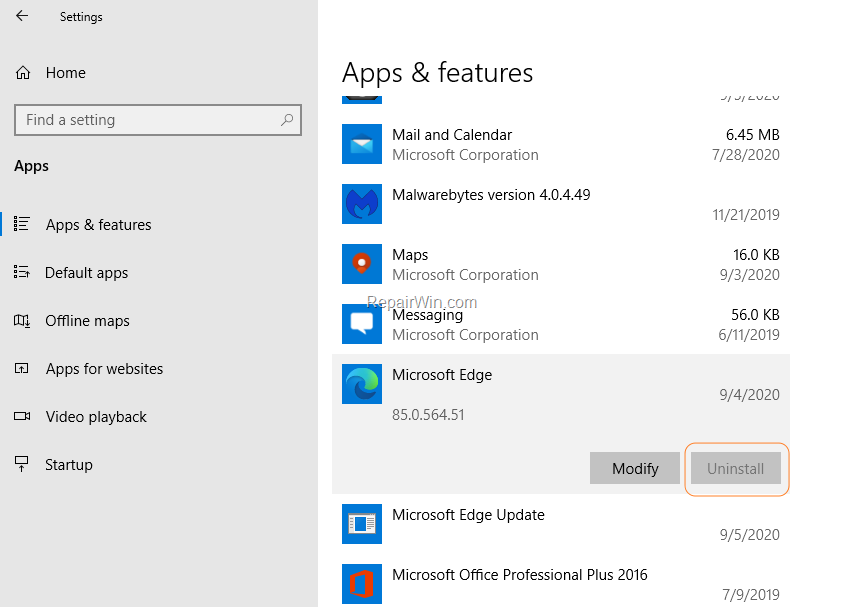
The new Chromium-based version of the Microsoft Edge browser, is installed automatically with the KB4559309 update. When this happens, you can not remove the Microsoft Edge from the Start menu ![image_thumb[2]_thumb](https://www.repairwin.com/wp-content/uploads/2019/02/image_thumb2_thumb-1.png "image_thumb[2]_thumb") -> Settings
-> Settings  -> Apps -> Apps & Features options, because the Uninstall option is greyed out. To bypass this restriction, apply the steps below.
How to Remove Edge Chromium from Windows 10.*
* Update: These below instructions does not work anymore. To remove Edge see this updated article.
To uninstall the new Chromium-based Edge in Windows 10:
1. Navigate to the following folder on your PC: *
- C:\Program Files (x86)\Microsoft\Edge\Application\85.0.564.41\Installer
* Note: The folder name "85.0.564.41" indicates the installed version of the new Chromium version and may differ at your PC.
2. Select the folder path in the address bar, and right-click > Copy.
![image_thumb[35]](https://www.repairwin.com/wp-content/uploads/2020/09/image_thumb35.png "image_thumb[35]")
3. Open Command Prompt as Administrator, type cd press once the spacebar and then press CTRL+V to paste to copied folder path. When done, press Enter. *
* e.g.: At the current example, the command will be:
cd C:\Program Files (x86)\Microsoft\Edge\Application\85.0.564.41\Installer

4. Now, give the below command (Copy/Paste) in command prompt to remove the Chromium version of the Microsoft Edge browser from you PC.
- setup.exe –uninstall –system-level –verbose-logging –force-uninstall

5. Once the above command is executed, the old version of EDGE will be activated again. Restart your PC to apply changes.
6. After restart, proceed to install manually the new Chromium-based Edge browser on your PC, in order to avoid the automatic delivery, or prevent the future installation of Edge Chromium, by using the instructions in this article: How to Prevent Edge Chromium to be Installed Automatically in Windows 10.
That’s all folks! Did it work for you?
Please leave a comment in the comment section below or even better: like and share this blog post in the social networks to help spread the word about this solution.
Frequently Asked Questions
Why is Microsoft Edge causing my Windows 10 system to slow down?
Many users have reported that the new Chromium-based version of Microsoft Edge, installed automatically with the KB4559309 update, may cause slowdowns or random freezes on their systems.
How can I remove the Chromium-based version of Microsoft Edge?
You can uninstall the Chromium-based version by navigating to its installation folder, opening Command Prompt as an Administrator, and executing the command: setup.exe –uninstall –system-level –verbose-logging –force-uninstall. However, these instructions may not work anymore without checking the updated article.
Where can I find the installation folder for Microsoft Edge on my PC?
The installation folder is typically located at C:\Program Files (x86)\Microsoft\Edge\Application\[version_number]\Installer. Note that the 'version_number' part will reflect the installed version which may differ on your PC.
What should I do after removing the Chromium-based Edge?
After removing it, restart your PC to activate the old version of Edge again. To avoid automatic installations, you can manually install the new version or follow specific instructions to prevent future installations.



