
FIX: Outlook Add-In is Installed for all users and cannot be removed. (Solved)
If you cannot disable or enable an Outlook Add-in because of error "The add-is installed for all users on this computer, and can only be connected or disconnected by an administrator", continue reading below to resolve the problem.

The error "Add-in can only be Disabled by an Administrator" appears because when you installed the add-in, you choose to install it for all the users on the computer. At this case, the only solution to resolve the error is to uninstall the add-in by using administrative privileges.
How to fix: Unable to Enable or Disable Add-in because is installed for all users in Outlook, Word or Excel.
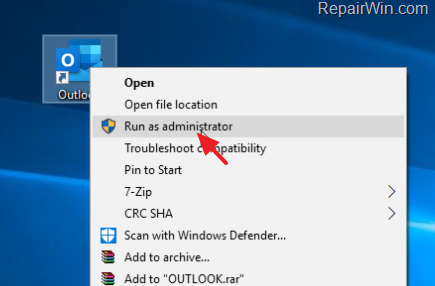
If you cannot remove or activate an Add-in a Microsoft Office application, because of error "The add-is installed for all users on this computer, and can only be connected or disconnected by an administrator", launch the corresponding application as Administrator and proceed to remove the Add-in without problems. To do that:
1. Right-click at the Office application, where you face the error mentioned above (e.g. Outlook), and select Run as Administrator. *
* Notes:
1. If you don't see the "Run Administrator" option, then hold down the SHIFT key and right-click at the Office app you face the error.
2. If you right-click at the Office app from the Windows 10 Start menu ![image_thumb[2]_thumb](https://www.repairwin.com/wp-content/uploads/2019/02/image_thumb2_thumb-1.png "image_thumb[2]_thumb") -> Programs, go to More > Run as Administrator.
-> Programs, go to More > Run as Administrator.
2. When asked to allow this app to make changes to your device choose Yes.

3. After opening the Office application, proceed to disable or enable the Add-in you want. This time the add-in will be removed without problem.
That’s it! Let me know if this guide has helped you by leaving your comment about your experience. Please like and share this guide to help others.
Frequently Asked Questions
Why can't I enable or disable an Outlook Add-in?
You might encounter an error stating 'The add-in is installed for all users on this computer, and can only be connected or disconnected by an administrator' because the add-in was installed for all users. This restriction requires administrative privileges to modify.
How do I fix the error when I can't manage an Add-in in Microsoft Office applications?
To fix the error, you need to run the Office application with administrative privileges. Right-click the application (e.g., Outlook) and select 'Run as Administrator.' If this option isn't visible, hold the SHIFT key and right-click again, or navigate through the Start menu > Programs > More > Run as Administrator. Once the application is open, you can enable or disable the Add-in without issues.
What should I do if I don't see the 'Run as Administrator' option?
If the 'Run as Administrator' option is missing, try holding the SHIFT key while right-clicking your Office application. Alternatively, access this option via the Start menu by going to Programs > More > Run as Administrator.
Can I modify an add-in for all users without administrative privileges?
No, you cannot enable or disable an add-in installed for all users without administrative privileges. You must run the application as an Administrator to make these changes.




May 16, 2022 @ 7:25 am
I had this problem, looked for a solution from MS. Most answers from "experts" do not help. Yours does. Thank you.
September 26, 2022 @ 5:22 pm
Excellent tip! Problem solved.
January 25, 2023 @ 7:48 pm
I've tried this a number of times. I log in as administrator, but it still won't allow me to remove the ad-in
January 26, 2023 @ 12:14 pm
Which Plugin is it?