
FIX: Cannot connect to file share because it's not secure and it requires the obsolete SMB1 protocol. (Solved)
If you try to connect to a network shared folder from a Windows 10 PC, and you receive the error "You can't connect to the file share because it's not secure. This share requires the obsolete SMB1 protocol, which is unsafe and could expose your system to attack. Your system requires SMB2 or higher. For more info on resolving this issue, see: https://go.microsoft.com/fwlink/?linkid=852747", then continue below to fix the problem.
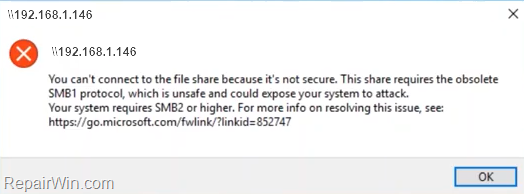
In Windows 10 v1709 and later versions, the Server Message Block version 1 (SMBv1) network protocol is not installed by default, and must be enabled manually if you want to access a shared folder on a workstation or server, that uses the SMBv1 protocol for file sharing.
This tutorial, contains instructions to solve the following errors when trying to connect to a shared folder in Windows 10:
-
You can't connect to the file share because it's not secure. This share requires the obsolete SMB1 protocol, which is unsafe…
-
The specified network name is no longer available
-
Unspecified error 0x80004005
-
The specified server cannot perform the requested operation.
How to FIX: Cannot Connect to File Share because SMBv1 Protocol is Missing (Windows 10)
1. Navigate to Control Panel -> Programs and features.
2. Click Turn Windows features on or off from the left.

3. Expand the 'SMB 1.0/CIFS File Sharing Support' option and check the SMB 1.0/CIFS Client option. Click OK when done.
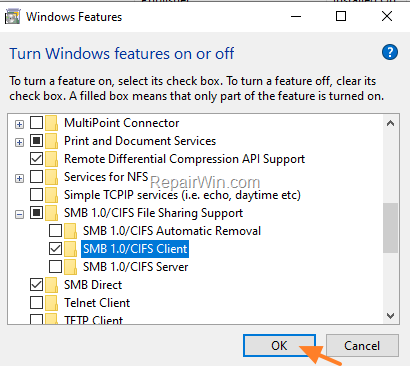
4. When the SMB 1.0/CIFS is installed and then click the Restart Now button to reboot your PC.
That’s all folks! Did it work for you?
Please leave a comment in the comment section below or even better: like and share this blog post in the social networks to help spread the word about this solution.
Frequently Asked Questions
What does it mean when I receive the error 'You can't connect to the file share because it's not secure' on Windows 10?
This error occurs because the shared folder requires the SMB1 protocol, which is considered obsolete and insecure. Windows 10 versions 1709 and later do not have SMBv1 installed by default due to security concerns.
How can I access a shared folder that requires SMBv1 on Windows 10?
To access a shared folder that requires SMBv1, you need to manually enable the SMB 1.0/CIFS File Sharing Support feature. Go to Control Panel -> Programs and features, then click 'Turn Windows features on or off'. Expand 'SMB 1.0/CIFS File Sharing Support', check the 'SMB 1.0/CIFS Client' option, and press OK. Finally, restart your PC.
Why is SMBv1 protocol not installed by default on newer versions of Windows 10?
SMBv1 is considered obsolete and insecure, as it makes systems more vulnerable to attacks. Therefore, starting with Windows 10 version 1709, SMBv1 is not installed by default to enhance security.
What should I do if enabling SMBv1 does not resolve the connection issue?
If enabling SMBv1 does not resolve the issue, ensure that the network settings are correct and that the share is accessible from other devices. It could also be helpful to verify the shared folder's permissions and consult additional support or resources.




June 3, 2021 @ 6:52 am
woah – yeah it worked thanks… simple easy solution thanks .. :)
July 19, 2022 @ 1:24 pm
Your Fvcking welcome bro <3
August 12, 2021 @ 9:20 pm
That worked. Thank you so much.