
FIX: Cannot Run Minecraft. Game Crashed – Java has stopped working (Solved)
If you cannot run Minecraft with errors "Game Crashed" and "Java Platform binary has stopped working", then continue to read below to fix the problem.

This tutorial contains instructions to resolve the following errors, after running the "Minecraft launcher" (Minecraft Java Edition):
- The Java Platform SE binary has stopped working.
- Minecraft Game Crashed. An unexcepted issue occurred and the game has crashed.
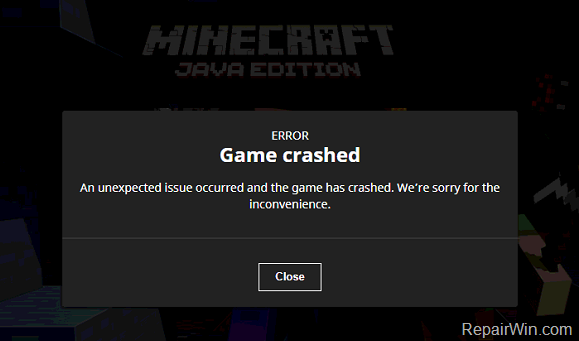
How to FIX: Minecraft Launcher Crashed – Java not Responding.
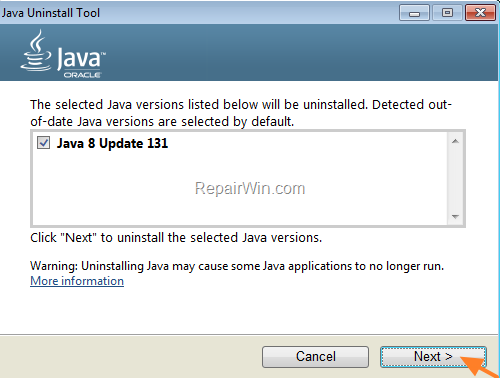
Step 1. Uninstall All Versions of Java.
1. Download and run the Java Uninstall Tool from the link below to remove all versions of Java from your computer.
- https://www.java.com/en/download/uninstalltool.jsp
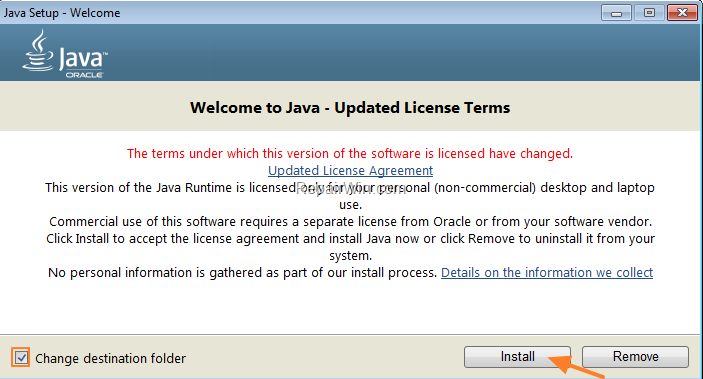
Step 2. Install the latest Java Version.
1. Download and install the latest Java version (Offline installer).
Step 3. Repair Minecraft Launcher.
1. Download the MINECRAFT: JAVA EDITION FOR WINDOWS
2. Run the downloaded file (MinecraftInstaller.exe) and click Next at the first screen.

3. At the next screen, click Repair and then wait until the Minecraft Launcher repair is completed.

4. When the repair in completed, open the 'Minecraft Launcher' and let the program to update all game's and Java components.
5. When the update is completed, you should run Minecraft without any problem. *
* Note: If you still have problems with Minecraft Java Edition, then proceed and update the Display Adapter's (GPU) drivers and try to launch Minecraft again. Alternately, if you own Windows 10 OS, you can run the Minecraft for Windows 10 version.
That's all folks! Did it work for you?
Please leave a comment in the comment section below or even better: like and share this blog post in the social networks to help spread the word about this problem.
Frequently Asked Questions
What should I do if Minecraft displays 'Java Platform SE binary has stopped working'?
First, uninstall all current Java versions using the Java Uninstall Tool. Then download and install the latest version of Java. Follow this by repairing the Minecraft Launcher using the installation file and check for updates.
How can I uninstall Java to fix Minecraft crashing issues?
Use the Java Uninstall Tool available at https://www.java.com/en/download/uninstalltool.jsp to remove all existing Java versions from your computer, then install the latest Java version available.
What steps should I follow to repair the Minecraft Launcher?
Download the MINECRAFT: JAVA EDITION FOR WINDOWS, run the installer, and choose the 'Repair' option. Once repaired, open the launcher to update all components. Ensure your display adapter's drivers are up-to-date if issues persist.
What if the repairs don't resolve the Minecraft crash issues?
If issues persist, update your Display Adapter's (GPU) drivers. Alternatively, if you have Windows 10, consider using the Minecraft for Windows 10 version.



