
FIX: We can't Install Office because of Office 16 Click to Run Extensibility Component Registration. (Solved)
If you cannot install Office because of the installed "Office 16 Click to Run Extensibility Component Registration", then continue reading this tutorial, which contains detailed instructions to resolve the following Office Setup problems:
Problem No1: When attempting to install a 32-bit version of Microsoft Office, you receive the error:
"We can't install the 32 bit version of Office because we found the following 64-bit programs on your PC:
Office 16 Click-to-Run Extensibility Component 64-bit Registration
Please uninstall all 64-bit Office programs, then retry installing the 32-bit Office. If you want to install 64-bit Office instead, please run the 64-bit setup."
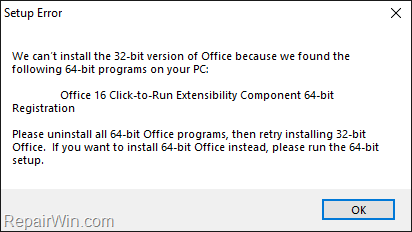
Problem No2: When attempting to install a 64-bit version of Microsoft Office, you receive the error:
"We can't install the 64 bit version of Office because we found the following 32-bit programs on your PC:
Office 16 Click-to-Run Extensibility Component 32-bit Registration
Please uninstall all 32-bit Office programs, then retry installing the 64-bit Office. If you want to install 32-bit Office instead, please run the 32-bit setup."
How to FIX: We can't install this version of Office because we found the following programs on your PC: Office 16 Click-to-Run Extensibility Component 32-bit Registration.
1. Press Windows  + R keys to open the run command box.
2. Type installer and press Enter to navigate to the "C:\Windows\Installer" folder.

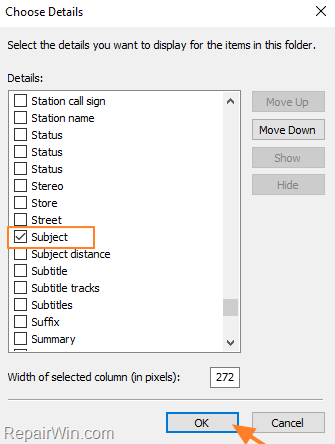
3. From the View menu, click Add columns and then click Choose columns

4. Check the Subject and click OK.
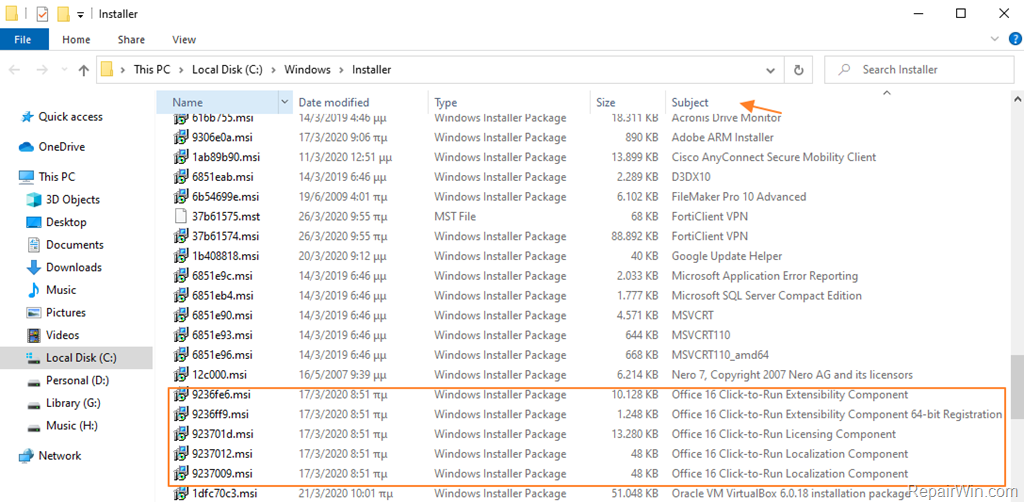
5. Sort the results by the Subject and then scroll down until you locate the "Office 16 Click-to-Run Extensibility Component" which is mentioned on the Office setup error message.
6. When you find it, right click on it and choose Uninstall.
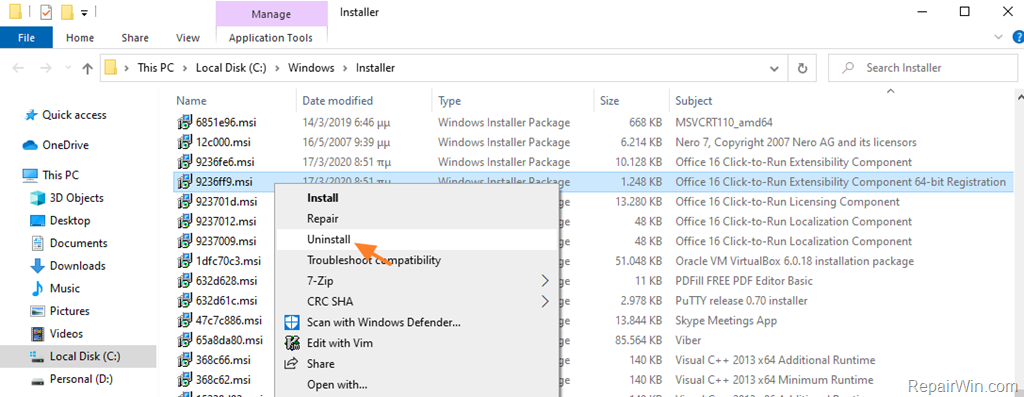
7. When the Uninstall is completed, then proceed to install Microsoft Office again. *
* Note: If you still receive the same error, then…
1. Proceed and uninstall all the "Office 16 Click-to-Run Components", and if the setup fails again…
2. Completely uninstall Microsoft Office from your PC, by using the instructions in this tutorial and then proceed to reinstall Office.
-
Related article: : FIX: Cannot Uninstall Office 365, 2016, 2013, 2010 or 2007.
That's all folks! Did it work for you?
Please leave a comment in the comment section below or even better: like and share this blog post in the social networks to help spread the word about this.
Frequently Asked Questions
Why can't I install a 32-bit version of Office on my PC?
If you receive an error message indicating the presence of 'Office 16 Click-to-Run Extensibility Component 64-bit Registration,' you must uninstall all 64-bit Office programs before installing the 32-bit Office version.
Why am I unable to install a 64-bit version of Office?
This error typically occurs if a 'Office 16 Click-to-Run Extensibility Component 32-bit Registration' is found on your system. You need to uninstall all 32-bit Office programs to proceed with the 64-bit installation.
How can I resolve the error related to 'Office 16 Click-to-Run Extensibility Component'?
You can resolve this by navigating to the 'C:\Windows\Installer' folder, sorting the files by the Subject column to locate 'Office 16 Click-to-Run Extensibility Component,' and uninstalling it. If issues persist, uninstall all related Click-to-Run components or completely uninstall Microsoft Office before attempting a reinstall.
What should I do if uninstalling individual components doesn't fix the Office installation error?
If uninstalling individual components doesn't solve the issue, completely uninstall all versions of Microsoft Office using the guide provided in the tutorial and then try reinstalling Office.





February 16, 2022 @ 5:16 am
Thankyou it helped, but how do I install it again after do the uninstall
February 24, 2022 @ 8:55 pm
help me a lot, thank you
March 6, 2022 @ 1:02 pm
Thank you so much !
July 8, 2022 @ 10:20 pm
Worked for me!!! Thank you.
May 19, 2023 @ 12:06 pm
Thank you it worked