
FIX: Outlook Data File Corruption error. (Solved)
The tutorial contains detailed instructions on how to repair the Outlook Data File Corruption in Outlook 2019, 2016, 2013, 2010 or 2007. The corruption of the Outlook Data File, can be caused for several reasons. (e.g. after a power outage, damaged hard drive, network connectivity problems, etc.), and when it happens prevents Outlook to start normally with error " Problems were detected with one of the Outlook Data Files currently in use. This process and all others using this file will shut down in x seconds. You'll need to relaunch Outlook to repair your file."
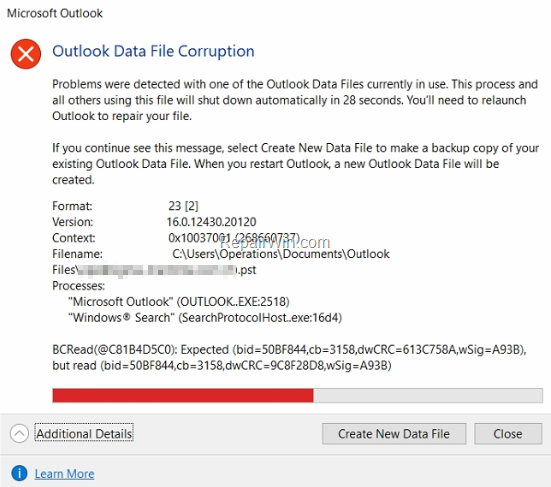
To repair the corrupted Outlook Data file and to resolve the the Outlook Data File corruption error, follow the steps below.
How to FIX: Outlook Data File Corruption.
1. Navigate to Windows Control Panel. To do that:
a. Type "control panel" at the Windows search box
b. Click Control Panel from the results.

2. Set the View by to Small icons to view all control panel items and then click Mail.

3. Click the Data Files button.
![image_thumb[4]](https://www.repairwin.com/wp-content/uploads/2020/03/image_thumb4.png "image_thumb[4]")
4. Notice the name and the location of the "Outlook.pst" data file and close all open windows. *
* Note: If you have an Exchange/IMAP account, then you'll see an .OST data file (e.g. "username@example.ost"). At this case, force Outlook and force Outlook to recreate the corrupted "Outlook .OST file, by doing the following:
1. Click Open File Location.
2. Rename the OST data for the account that is causing the issue (if you have more than one IMAP accounts).
3. Open Outlook to recreate the OST file…
![image_thumb[6]](https://www.repairwin.com/wp-content/uploads/2020/03/image_thumb6.png "image_thumb[6]")
5. Open Windows explorer and locate the scanpst.exe repair tool at this location: *
- C:\Program Files\Microsoft Office\%OfficeVersion%\SCANPST.EXE
* Note: Below are mentioned the location(s) of the "SCANPST.EXE" file according the installed Office version. If you cannot find the "scanpst.exe" at the above location(s), then look at:
-
- C:\Program Files (x86)\Microsoft Office\root\Office16.
Office 2019 & 2016 & Office 365:
Windows 32-bit > C:\Program Files\Microsoft Office\Office16
Windows 64-bit & Office 32-bit > C:\Program Files (x86)\Microsoft Office\Office16
Windows 64-bit & Office 64-bit > C:\Program Files\Microsoft Office\Office16
Click-to-Run Office 32-bit > C:\Program Files (x86)\Microsoft Office\root\Office16
Click-to-Run Office 64-bit > C:\Program Files\Microsoft Office 16\root\office16
Office 2013:
Windows 32-bit > C:\Program Files\Microsoft Office\Office15
Windows 64-bit & Office 32-bit > C:\Program Files (x86)\Microsoft Office\Office15
Windows 64-bit & Office 64-bit > C:\Program Files\Microsoft Office\Office15
Click-to-Run Office 32-bit > C:\Program Files (x86)\Microsoft Office\root\Office15
Click-to-Run Office 64-bit > C:\Program Files\Microsoft Office 15\root\office15
Office 2010:
Windows 32-bit > C:\Program Files\Microsoft Office\Office14
Windows 64-bit & Office 32-bit > C:\Program Files (x86)\Microsoft Office\Office14
Windows 64-bit & Office 64-bit > C:\Program Files\Microsoft Office\Office14
Office 2007:
Windows 32-bit > C:\Program Files\Microsoft Office\Office12
Windows 64-bit > C:\Program Files (x86)\Microsoft Office\Office12
7. Double-click to open the SCANPST.EXE
8. Click Browse.
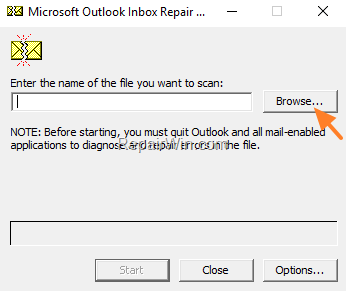
9. Locate and select the corrupted Outlook data file (e.g. Outlook.pst) and click OK.
10. Press the Scan button and be patient until the Inbox Repair Tool repairs the corrupted file. *
* Note: At final repair phase you will be asked if you want to create a backup. Answer "Yes" to continue the repair operation.
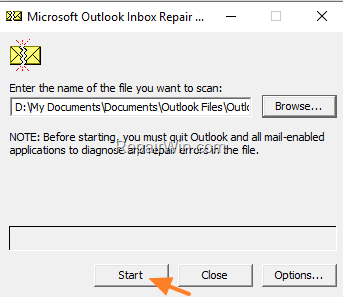
11. When the repair process is completed, open Outlook.
That's all folks! Did it work for you?
Please leave a comment in the comment section below or even better: like and share this blog post in the social networks to help spread the word about this solution.
Frequently Asked Questions
How do I start repairing a corrupted Outlook Data File?
To repair a corrupted Outlook Data File, begin by navigating to the Windows Control Panel. Type 'control panel' in the Windows search box and click on Control Panel from the results. Set the View by option to Small icons, then click on Mail.
Where can I find the SCANPST.EXE repair tool?
You can find the SCANPST.EXE repair tool within the Microsoft Office program files. The exact location depends on your Office version and Windows architecture. For example, for Office 2016 on Windows 64-bit with Office 64-bit, the path is C:\Program Files\Microsoft Office\Office16.
What should I do if I encounter an .OST file instead of a .PST file?
If you encounter an .OST file, it typically means you have an Exchange/IMAP account. In this case, force Outlook to recreate the corrupted .OST file by clicking 'Open File Location', renaming the OST file, and reopening Outlook to let it generate a new one.
What steps should be followed after finding the SCANPST.EXE tool?
Once you locate the SCANPST.EXE tool, double-click to open it, then click 'Browse' to locate and select your corrupted Outlook data file, usually an Outlook.pst file. Press the 'Scan' button to begin the repair and follow the prompts to possibly create a backup before completing the repair process.




November 25, 2022 @ 7:16 am
i applied this method but still i am facing the issue so kindly provide another one.
November 25, 2022 @ 10:46 am
1. Check the size of the Outlook PST file, and if it is over 50GB then apply the instructions on this article and then run the SCANPST tool again: FIX: Outlook.pst has reached its maximum size (Solved)
(If after repairing the PST file you still face the error, that means that you may have a problem with your hard drive).