
How to Move Thunderbird Profile to New location or Drive on your PC.
This tutorial contains step by step instructions on how you can move the Thunderbird profile folder, to another location on disk or to a different drive on Windows. By default, Thunderbird stores your Emails, Account Settings, Address book and Passwords at the following location on your computer:
- C:\Users\<username>\AppData\Roaming\Thunderbird\Profiles\<Profile name>.default

If you 're running out of space on your main drive C:\ and you own a secondary drive with enough free space, then you can move all the Thunderbird data from the current storage location (e.g. the default location), to another location or drive on your PC, by following the instructions below.
How to Move Thunderbird Emails & Address Book to Another Location on Windows 10/8/7 OS.
1. Close Thunderbird.
2. Press the Windows  + R keys to open the run command box.
3. Type the following command and press Enter:
- %appdata%\Thunderbird\Profiles

4. Right-click at the folder that ends with the ".default" extension (e.g. "repairwin.default"), and select Cut. *
* Note: If you can't see a folder with the ".default" extension, then the Thunderbird profile folder is stored somewhere else on your computer. To find out where the Thunderbird profile folder is stored:
1. Open Thunderbird.
2. From the menu, choose Help ->Troubleshooting Information.
3. At Profile Folder line, click Open folder and notice the location at explorer's bar.

5. Navigate to the new location, where your want to move the Thunderbird data, and select Paste.
6. Now, press again the Windows + R keys to open the run command box.
7. Type the following command and press Enter:
- %appdata%\Thunderbird\
8. Right click at profiles.ini file and select Edit.
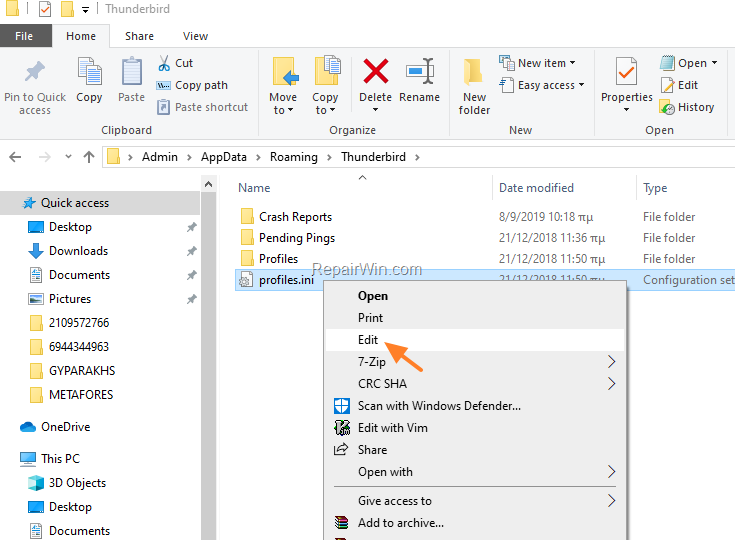
9a. Change the "IsRelative=1" to "IsRelative=0".
9b. At the "Path=" line below, type the exact path of the new location. *
* For example: If you have moved the Thunderbird profile folder "repairwin.default", inside the "My Documents" folder at drive D:\, then at the path you have to type:
- Path=D:\My Documents\repaiwin.default

10. Save the changes and close Notepad.
11. Open Thunderbird.
That's all! Did it work for you?
Please leave a comment in the comment section below or even better: like and share this blog post in the social networks to help spread the word about this solution.
Frequently Asked Questions
What is the default location for Thunderbird profile data on Windows?
By default, Thunderbird stores your Emails, Account Settings, Address book, and Passwords at the following location on your computer: C:\Users\<username>\AppData\Roaming\Thunderbird\Profiles\<Profile name>.default.
How do I open the Thunderbird profile folder?
To open the Thunderbird profile folder, press the Windows + R keys, type %appdata%\Thunderbird\Profiles in the run command box, and press Enter.
What should I do if I can’t find a folder with the '.default' extension?
If you can't see a folder with the '.default' extension, open Thunderbird, select Help -> Troubleshooting Information from the menu, and click 'Open folder' at the Profile Folder line to find the stored location.
How can I modify the profiles.ini file for a new location?
Navigate to %appdata%\Thunderbird\, right-click the profiles.ini file, and select Edit. Change 'IsRelative=1' to 'IsRelative=0' and update the 'Path=' line to the new location path.




October 14, 2021 @ 9:30 am
I am very grateful for this. Thank you