
How to Enable the System Restore Protection in Windows 10/8/7 OS.
This tutorial contains instructions on how to enable the System Protection on Windows 10, 8 & 7 OS. The System Restore Protection (commonly known as 'System Protection') is a Windows feature that allow you to restore your system to an earlier point in time, if Windows doesn't work properly after a significant change on system files (e.g. after a Windows Update, or after a virus attack.)
The System Restore tool, uses the Volume Shadow Copy service in order to take snapshots of the Windows system files and registry and saves them as Restore Points. These "Restore Points" can be used to restore the system to a previous working condition, if Windows fail to boot or if become unstable, without having to reinstall the operating system.
How to Turn On the System Restore Protection in Windows 10.
1. Open Windows explorer, right click at 'This PC" icon and choose Properties.
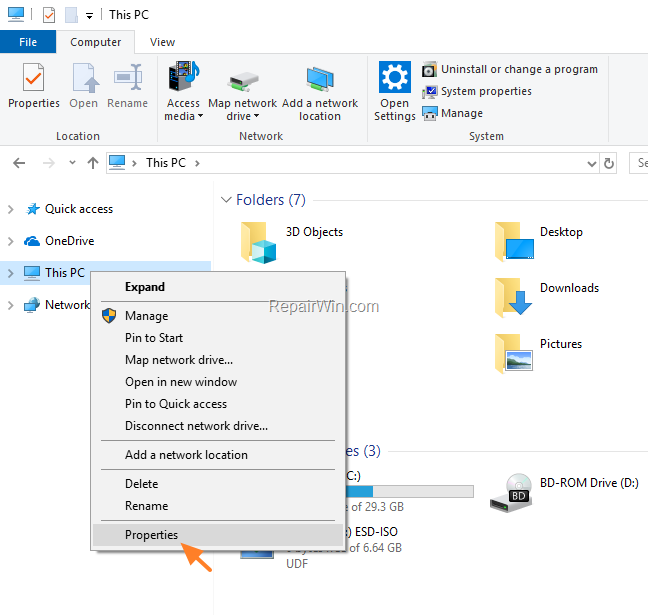
2. Choose System Protection at the left.

3. Highlight the Local Disk C: (System) and click Configure.

4. At System Protection options, select Turn on system protection and click OK. *
* Note: If the "System Protection: is already enabled, then you 're OK.

5. Finally, at the System Protection options, click Create to create a snapshot (Restore Point), of the current system state.

That’s all! Did it work for you?
Please leave a comment in the comment section below or even better: like and share this blog post in the social networks to help spread the word about this solution.
Frequently Asked Questions
What is System Protection in Windows?
System Protection, also known as System Restore Protection, is a Windows feature that allows you to restore your system to a previous point in time if the system becomes unstable or fails to boot after significant changes, like a Windows Update or a virus attack.
How does System Restore in Windows work?
System Restore uses the Volume Shadow Copy service to create snapshots of Windows system files and the registry. These snapshots, called Restore Points, allow you to restore the system to a previous working condition without reinstalling the operating system.
How do I enable System Protection in Windows 10?
To enable System Protection in Windows 10, open Windows Explorer, right-click on 'This PC,' and select 'Properties.' Choose 'System Protection,' highlight the Local Disk C: (System), click 'Configure,' and select 'Turn on system protection.' Finally, create a Restore Point by clicking 'Create.'
What should I do if System Protection is already enabled?
If System Protection is already enabled, there is no further action required. You can optionally create a Restore Point to ensure you have a current backup of your system's state.




May 5, 2020 @ 10:07 pm
I followed your process to turn on the systems protection on my windows 10 and saw that it was actually on for the C drive, but off for the D drive (Recovery). Your above post does not mention D drive, only C so will I still be able use this shadow explorer process to recover a previous version of Google Chrome? I followed the original process using the app data route and it said that there were no previous versions available.