
How to Change Outlook Password (Outlook 365, 2016, 2013, 2010 or 2007).
From time to time, there is the need to change your email password, in order to keep your emails secure or if you think that someone else has stolen or gained access to your email. At these cases, you should first change your password with your email provider and then to change/update the current password on Outlook email application.
So, if you need to update/change your password in Outlook 2016, 2013, 2010 or 2007 follow the steps in this guide.
How to Change/Update E-Mail Account Password in Outlook (All Versions)
Important: First of all, contact your email provider and ask him to change the current email password with a new one. If you're using a Outlook.com, Yahoo or GMAIL account, then you can change your password by yourself, after signing in to your account using your Web browser. After changing the password, then proceed to update/change the password in Outlook application, by using one of the following methods:
Method 1. Update/Change Email Account Password in Outlook Application.
1. In Outlook, click the File menu and choose Account Settings *
* If you're using Outlook 2007 or Outlook 2003, go to Tools > Accounts.
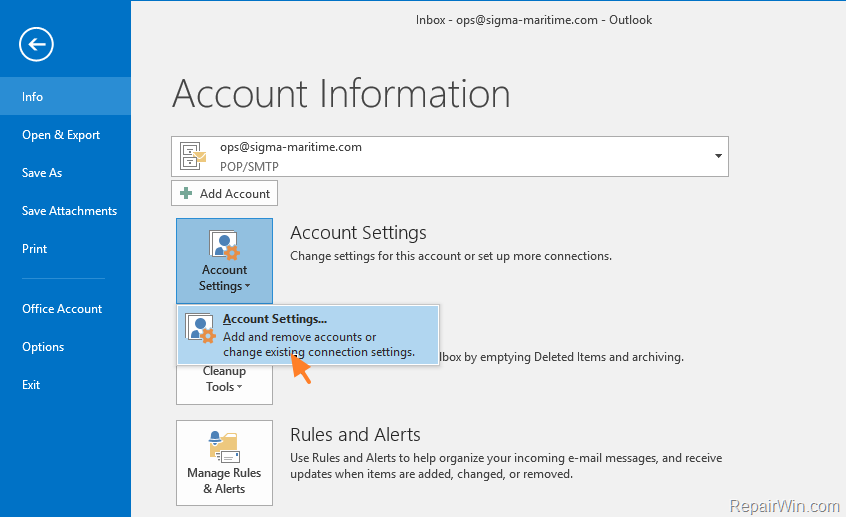
2. Highlight your account and click Change.

3. Type the new password on the 'Password' field and then click Next to save the changes. *
* Note for Outlook 2016 or Outlook 365 use: If you don't see the below screen, then use the steps in method-2 below to change the password.
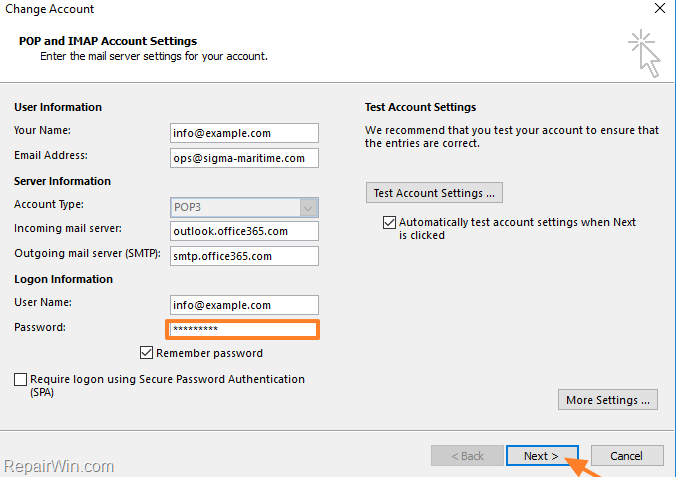
4. Click Finish and then close the 'Account Settings' window.
Method 2. Update/Change Email Account Password in "Mail Setup" App.
1. Navigate to Windows Control Panel.
2. Set the View By: to Small icons and then open the Mail app.

3. Click the E-Mail Accounts button.
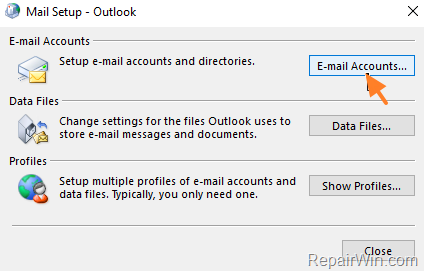
4. Highlight your email account and click Change.

5. Type the new password in the 'Password' field and then click Next to save the changes.
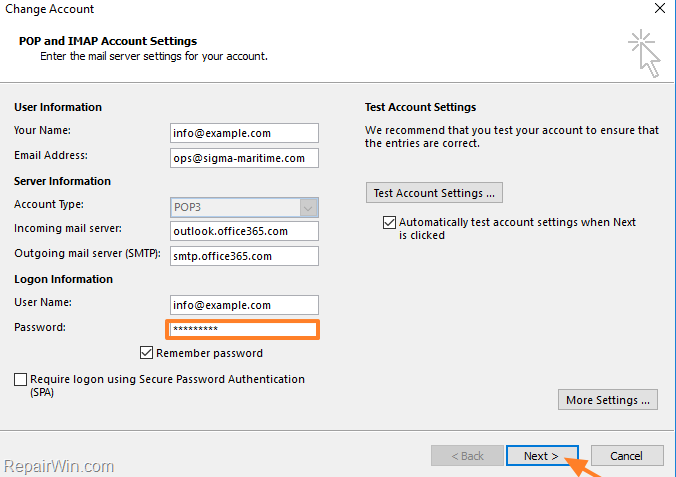
6. Click Finish and then close the 'Account Settings' window.
That’s all folks! Did it work for you?
Please leave a comment in the comment section below or even better: like and share this blog post in the social networks to help spread the word about this solution.
Frequently Asked Questions
Why is it important to update my email password in Outlook?
Updating your email password in Outlook is important to maintain the security of your emails, especially if you suspect unauthorized access.
What should I do before updating my email password in Outlook?
Before updating your email password in Outlook, you should first change your password with your email provider, either by contacting them or changing it via your web browser.
How can I change my email password in Outlook 2016?
In Outlook 2016, click the File menu, select Account Settings, highlight your account, click Change, enter the new password in the 'Password' field, then click Next to save the changes, and finally, click Finish.
What is the alternative method to update the email password in Outlook?
An alternative method is through the 'Mail Setup' app in the Windows Control Panel. Open the Mail app, click E-Mail Accounts, highlight your account, click Change, enter the new password, and click Next to save the changes.




July 12, 2019 @ 11:33 am
Thank you for your article it is very useful
September 20, 2019 @ 8:44 am
Thank you for your article it is very useful.