
How to Reinstall Microsoft Store in Windows 11/10: Comprehensive Guide
In this guide, you'll discover several effortless methods to reinstall the Microsoft Store app on Windows 10/11, ensuring you regain access to a vast library of digital content, including apps, games, and movies. The Microsoft Store is an indispensable platform for Windows users, but it may sometimes malfunction or go missing, necessitating reinstallation.
Comprehensive Methods to Reinstall Microsoft Store in Windows 10/11
Method 1: Reinstall Microsoft Store via PowerShell
The first approach to reinstall Microsoft Store on Windows 11/10 is through Windows PowerShell, a powerful command-line shell and scripting language.
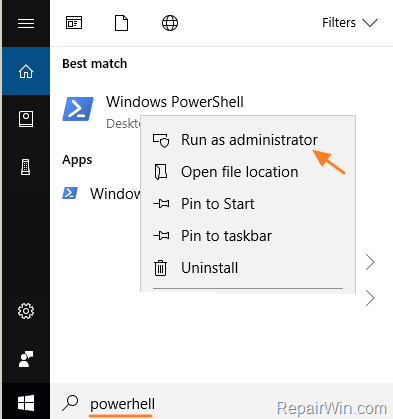
1. Open PowerShell as Administrator. Follow these steps:
a. In the "search box," type powershell.
b. Right-click the Windows PowerShell result and select Run as administrator.
Running PowerShell as an administrator grants you elevated privileges, allowing you to execute commands that can modify system settings and components.
2. In PowerShell, input the following command and press Enter to reinstall the Microsoft Store:
Get-AppXPackage *WindowsStore* -AllUsers | Foreach {Add-AppxPackage -DisableDevelopmentMode -Register "$($_.InstallLocation)\AppXManifest.xml"}
This command retrieves the package information for the Microsoft Store and reinstalls it by registering its manifest file, effectively restoring the app's functionality across all user profiles.

Method 2: Uninstall and Reinstall Microsoft Store Using the Xbox App for Windows PC
The second method involves completely removing and reinstalling the Microsoft Store using the Xbox app for Windows PC, a versatile solution for gamers and regular users alike.
1. Open PowerShell as Administrator and execute the command below to uninstall Microsoft Store:
get-appxpackage *WindowsStore* | remove-appxpackage
This command forcibly removes the Microsoft Store package from your system, preparing it for a fresh installation.
2. Next, visit the following link to download and install the Xbox app for Windows PC:
The Xbox app serves as an alternative platform that can detect and reinstall the missing Microsoft Store, ensuring seamless integration with your Windows environment.

3. Once the installation is complete, the Xbox app will launch and detect the absence of the Microsoft Store, prompting you to install it. Click Install now to proceed.
If the prompt does not appear, navigate to the Xbox app's Settings > General, and the app will prompt you to reinstall the missing Microsoft Store.

Additional Method: Using the Windows Settings App
Another verified method involves using the Windows Settings app to reset the Microsoft Store, which can fix minor glitches without a full reinstallation.
1. Open Settings by pressing Win + I.
2. Navigate to Apps > Apps & Features.
3. Locate Microsoft Store in the list, click on it, and select Advanced options.
4. Scroll down and click Reset. Confirm the action when prompted.
The reset operation clears the app's cache and restores its default settings, often resolving issues related to app performance and connectivity.
Summary
In summary, reinstalling the Microsoft Store on Windows 11/10 can be achieved through multiple methods: using PowerShell commands for a direct reinstallation, employing the Xbox app for comprehensive reinstallation, or resetting via Windows Settings for quick fixes. Each method offers a reliable way to restore full functionality to your Microsoft Store, keeping your digital ecosystem intact. Let us know if these solutions worked for you, and feel free to share this guide to assist others in need.
We hope this comprehensive guide has been helpful. Please leave your comments and share your experience with these methods.
SEO Tags: Reinstall Microsoft Store, Windows 11 Microsoft Store, Windows 10 Microsoft Store, PowerShell Reinstall Microsoft Store, Xbox App Microsoft Store, Fix Microsoft Store, Microsoft Store Reset, Microsoft Store Troubleshooting.
Frequently Asked Questions
What is the Microsoft Store used for on Windows 10/11?
Microsoft Store is the official distribution platform for Windows users that allows downloading, installing, and purchasing a wide variety of digital content such as apps, games, and movies.
How can I reinstall Microsoft Store using PowerShell on Windows 10/11?
To reinstall Microsoft Store using PowerShell, open PowerShell as Administrator and run the command: Get-AppXPackage *WindowsStore* -AllUsers | Foreach {Add-AppxPackage -DisableDevelopmentMode -Register "$($_.InstallLocation)\AppXManifest.xml"}.
Can I reinstall Microsoft Store using the Xbox app on Windows 10/11?
Yes, you can uninstall Microsoft Store using PowerShell with the command get-appxpackage *WindowsStore* | remove-appxpackage, then download and install the Xbox app for Windows PC. The Xbox app will detect the missing Microsoft Store app and prompt you to install it.
What should I do if the Xbox app doesn't prompt to install Microsoft Store?
If the Xbox app doesn't show the prompt, go to Settings > General within the Xbox app, and it should detect the absence of Microsoft Store and prompt you to install it.



