
How to Successfully Install OR Upgrade to Windows 11 25H2 on Unsupported Hardware.
If your computer does not meet the minimum system requirements for Windows 11 25H2, continue reading below to learn how to bypass the restrictions and install or upgrade to Windows 11 successfully on unsupported hardware.
Windows 11 25H2 is the latest feature update for Microsoft's operating system and includes several improvements to performance, security, AI integration, and overall system stability. However, like previous versions of Windows 11, Microsoft continues to impose strict hardware requirements, preventing many older but perfectly functional PCs from upgrading to the new version.
However, the good news is that there are still ways to bypass Microsoft's hardware compatibility checks and install Windows 11 25H2 anyway. Whether you want to perform an in-place upgrade from Windows 10, upgrade an older version of Windows 11, or perform a completely clean install, this guide walks you through all the available methods step by step.
In this tutorial, you will learn how to:
- Upgrade unsupported PCs to Windows 11 25H2.
- Install Windows 11 without TPM 2.0 or Secure Boot.
- Bypass CPU and RAM requirements to install Windows 11.
- Create a bootable Windows 11 25H2 USB installer for unsupported hardware.
- Perform a clean installation of Windows 11 on unsupported hardware.
- Install Windows 11 without a Microsoft account.
How to Install or Upgrade to Windows 11 25H2 on Unsupported Hardware
* Notes:
1. The methods below are compatible with most unsupported systems, including older Intel and AMD processors**, legacy BIOS systems, and virtual machines such as VMware and VirtualBox.
2. While these methods are generally safe, installing Windows 11 on unsupported hardware is not officially supported by Microsoft, and future updates or features may not always work as expected.
** Requirement: Windows 11 version 24H2 & 25H2 has an additional requirement: The CPU must support SSE4.2 instructions, which are not supported on processors made before 2010-2011. If you have a CPU made before 2010-2011, you will not be able to install Windows 11 25H2 because there is no way to bypass the SSE4.2 requirement.
To verify that your CPU supports SSE4.2 (Intel) or SSE4A (AMD) instructions, download and run CPU-z.

Part 1. How to Clean Install Windows 11 v25H2 on an Unsupported PC
The easiest and safest approach to fresh install Windows 11 25H2 on unsupported hardware is by using Rufus to bypass TPM, CPU, and Secure Boot requirements automatically.
Step 1. Download Windows 11 25H2 ISO File
* Note: If you have already downloaded the latest version of Windows 11 in an ISO file, skip to the next step.
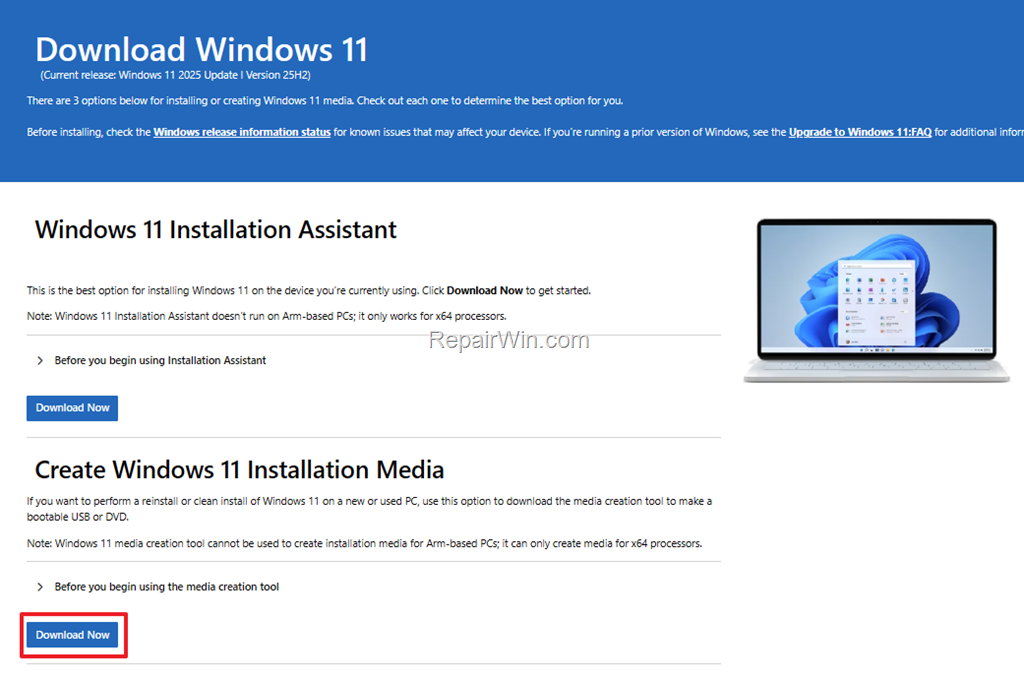
1. Navigate to the Windows 11 download page.
2. On the 'Create Windows 11 Installation Media' section, click Download Now to download the Windows 11 Media Creation Tool. (MediaCreationTool.exe)
2. Run the downloaded file "mediacreationtool.exe" and when prompted, Accept the license terms.
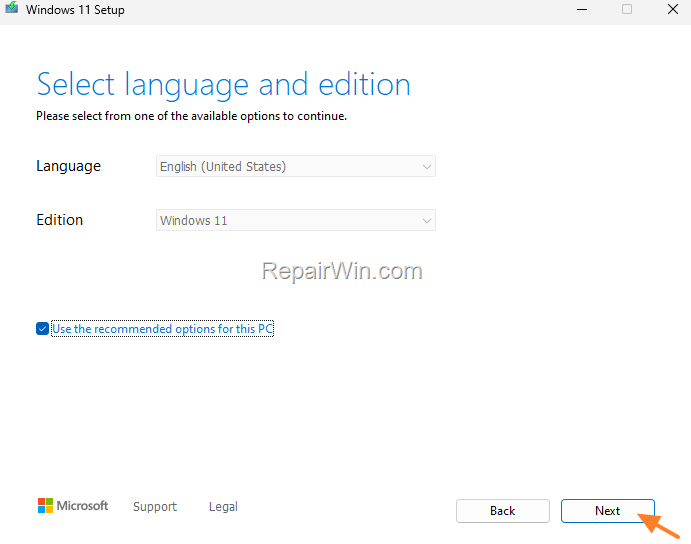
3. At Windows 11 edition and language options, click Next. This step ensures that you download the correct language and edition for your needs.
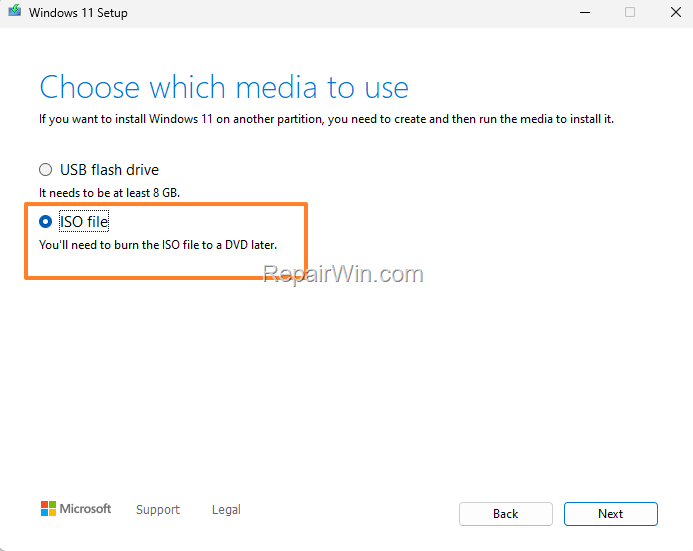
4. Choose ISO File and click Next. This selection will download the ISO file, which can be used for installation on multiple devices.
5. Save the Windows.ISO file to disk (e.g., to the 'Downloads' folder).

6. When the download of the "Windows.iso" is completed, close the Media Creation Tool and proceed to the next step.
Step 2. Create a Windows 11 25H2 USB Media with RUFUS USB Creator
1. Download the latest version of RUFUS USB creator.
2. Plug an EMPTY USB flash drive into your computer. Ensure the USB drive has no important data as it will be formatted.
3. Run the "rufus-x.exe" file you downloaded.
4. Choose the empty USB drive under "Device". This selection specifies the target device for the installation media.
5. Click Select and then open the Windows.iso file you downloaded in step 1.

6. After selecting the "Windows.iso" file, click START. This begins the process of creating the bootable USB drive.

7. At Windows User Experience options, check the following option and click OK:
- Remove requirement for 4GB+ RAM, Secure Boot, and TPM 2.0
* Notes: Here you can also select the following options:
- Remove requirement for an online Microsoft Account: if you want to run Windows 11 with a local account.
- Create a local account with username…: If you want to specify a standard user account for all new installations (This is helpful if you want to install many PCs with the same account).
- Set regional options to the same values as this user's.
- Disable data collection to skip privacy questions.
- Disable BitLocker automatic device encryption.
These options allow you to customize the installation process according to your preferences and bypass unnecessary requirements.

8. Read the security warning carefully, and if you don't have files you need on the USB, click OK to proceed. This warning is to ensure you are aware that the USB will be formatted.

9. When the Windows 11 Installation media is created, close RUFUS and boot from the created USB disk on any computer with unsupported hardware to install Windows 11 25H2.
Part 2. How to Upgrade Windows 11 to Version 25H2 on an Unsupported PC
* Note: Before proceeding, it is strongly recommended to back up your important files and create a system image backup.
Scenario 1. Upgrade to Windows 11 25H2 from the Previous Version: 24H2
In case you're running the 24H2 version of Windows 11, you can easily update your unsupported system to version 25H2 by running the Windows 11 version 25H2 enablement package (KB5054156).
To upgrade Windows 11 24H2 to 25H2 using the enablement package:
- Go to Settings > Windows Update & install all the available Windows Updates.
- Download and install the Windows 11 25H2 Enablement Package (direct link) to upgrade your system to v25H2.
- Note: If you're unable to upgrade to Windows 11 25H2 using the enablement package, read the instructions on scenario 2 below.
Scenario 2. Upgrade to Windows 11 25H2 from Versions: 23H2 or 22H2
If you're running Windows 11 22H2 or 23H2 versions, then download the latest Windows 11 ISO file using the instructions in step-1 above and proceed as follows to upgrade your system to version 25H2:
1. Double-click on the Windows.iso file to mount/open it. This action will make the ISO file accessible as a virtual drive.

2. Now notice in the File Explorer navigation pane with which drive letter the ISO is mounted (e.g., with the letter "E:" in this example). This drive letter is crucial for executing the installation command.

3. Now press the Windows + R keys to open the RUN command box, type the following command, and press Enter:
X:setup.exe /product server
* Note: Replace "X" in the above command with the drive letter of the mounted ISO file. This command initiates the installation process by tricking the system into treating it as a server installation.

4. At the "Install Windows Server" screen, choose Next.
* Note: Don't worry because it says "Install Windows Server". The Windows 11 25H2 will be installed. This method bypasses certain hardware checks that are enforced during a standard Windows 11 installation.

5. When prompted, accept the license terms to continue.
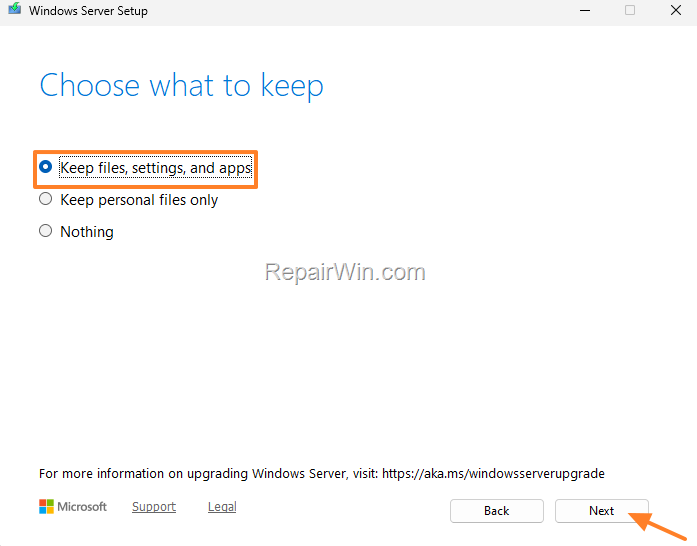
6. Now, ensure that the "Keep files, settings, and apps"* option is checked and click Next.
* This option ensures that your existing data and applications are preserved during the upgrade.
7. Finally, click Install to upgrade your system to Windows 11 25H2.
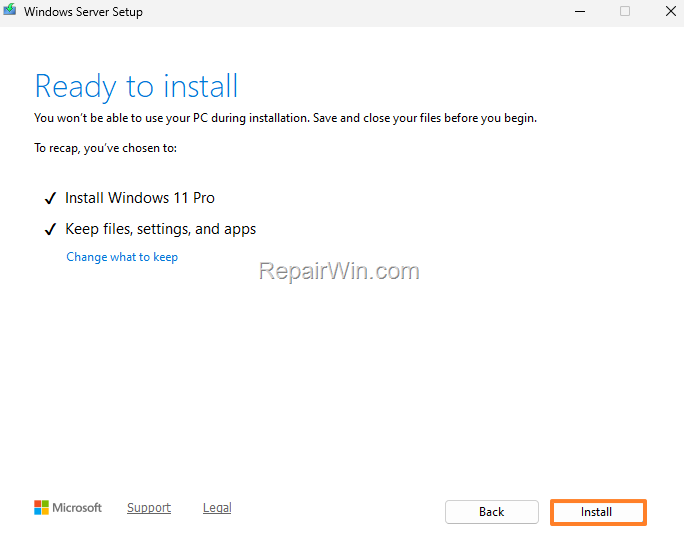
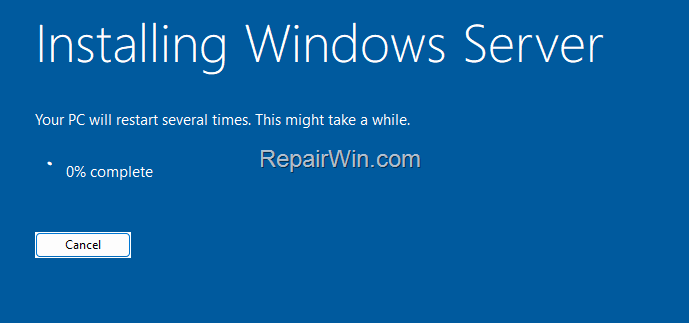
8. The installation will begin. Wait for it to complete and you're good to go!
Summary
Although Windows 11 25H2 officially requires modern hardware, you can still install or upgrade unsupported PCs using the methods above. By utilizing tools like Rufus, and enablement packages you can bypass hardware restrictions and enjoy the latest Windows 11 features on older systems. Always ensure to back up your data before proceeding with these installations to prevent data loss.
Frequently Asked Questions
What are the main improvements in Windows 11 25H2?
Windows 11 25H2 includes several improvements such as enhanced performance, improved security, AI integration, and overall system stability.
Can I install Windows 11 25H2 on unsupported hardware?
Yes, it is possible to install Windows 11 25H2 on unsupported hardware by bypassing Microsoft's hardware compatibility checks using methods such as creating a bootable USB installer with Rufus to bypass TPM, CPU, and Secure Boot requirements.
What is required to bypass the hardware restrictions for installing Windows 11 25H2?
To bypass hardware restrictions, you can use software like Rufus to create a bootable USB for installation. However, your CPU must support SSE4.2 instructions if made before 2010-2011.
What limitations might I face after installing Windows 11 on unsupported hardware?
While installing on unsupported hardware, future updates or features may not work as expected since it's not officially supported by Microsoft.



