How to Resolve Slow Search Issues in Windows 11: A Comprehensive 2026 Guide
Is Windows 11 Search lagging and slow to return results? You’re not alone. Since early 2026, many users have reported that the Start Menu Search can freeze for several seconds before responding and showing results.
The slow response times in the Windows 11 Search may be caused by several factors, including Web Search Suggestions, the 'SearchHost.exe' process, the Windows Search Index, corrupted system packages, and more.
In this guide, you will find the most common and functional solutions to fix delays in Search from the Start menu in Windows 11, according to my experience.
Method 1. Disable Web Search Suggestions (Registry Tweak)
The number one reason for search lag is that Windows 11 tries to find answers to your query online before searching your local files. By forcing Search to stay local, you eliminate the lag. This registry tweak modifies the behavior of the search function, ensuring that it prioritizes local file searches over web queries.
- Press
Win + R, typeregedit, and hit Enter. - On the left pane, navigate to:
HKEY_CURRENT_USER\Software\Policies\Microsoft\Windows
- Right-click on the Windows key and choose New > Key. Rename the new key to Explorer and press Enter.
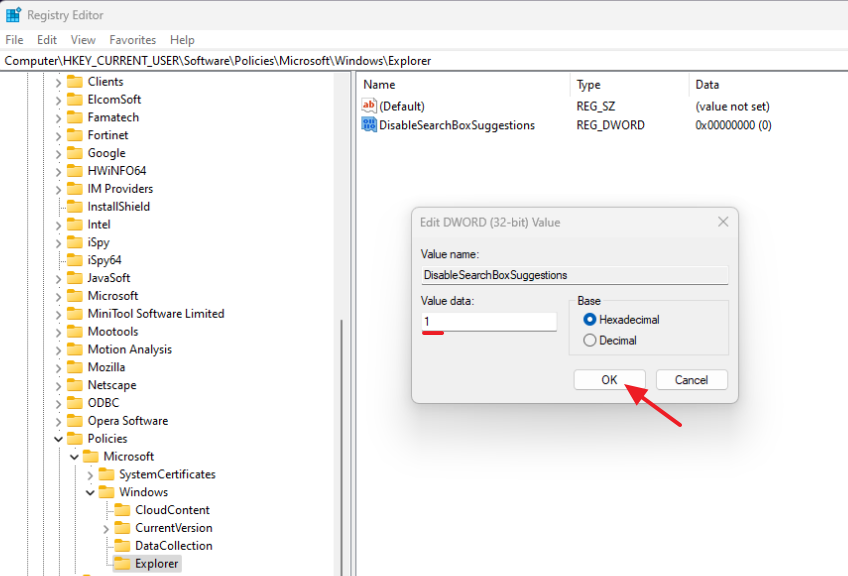
- Right-click on the Explorer key and choose New > DWORD (32-bit) Value. Rename the new value to DisableSearchBoxSuggestions and press Enter.
- Finally, double-click the DisableSearchBoxSuggestions DWORD and set the value from 0 to 1. Then, click OK.
- Close the Registry editor and restart your PC.
Method 2. Restart the SearchHost.exe Process
If the search bar is completely frozen or won't open, the "SearchHost.exe" process could be causing the problem. This process is part of the Windows Search infrastructure and can sometimes become unresponsive, leading to search delays.
- Press
Ctrl + Shift + Escto open Task Manager. This utility provides a detailed view of running applications and processes. - Click the Details tab to see the list of all running processes.
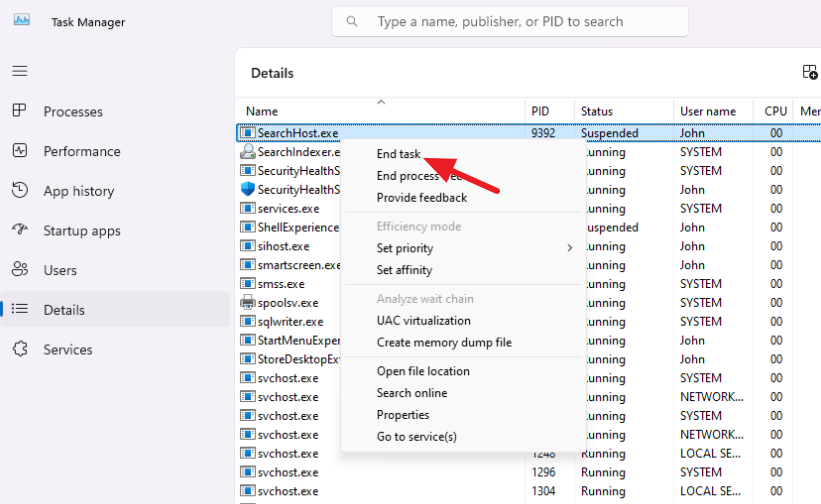
- Locate SearchHost.exe, which is usually responsible for slow search performance in Windows.
- Right-click it and select End Task.
Method 3. Rebuild Your Search Index
If you can see the search UI but it can't find your files, your index database might be corrupted. Rebuilding it can restore search functionality. This process involves re-indexing all files and folders, which can resolve issues related to missing or outdated search entries.
- Open the Start Menu and type
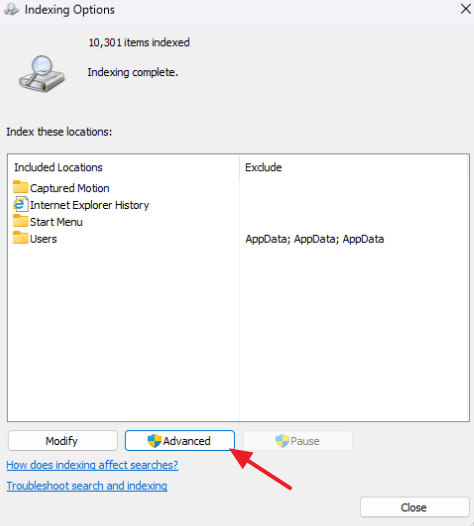
Indexing Options. - Click Advanced.
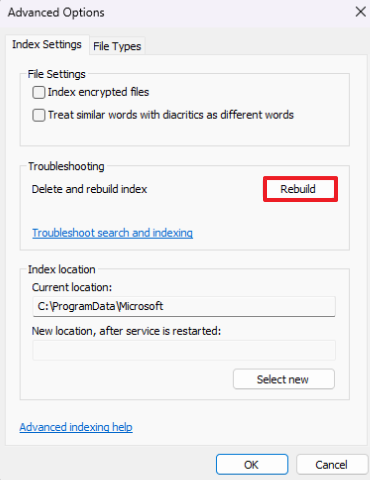
- Under the 'Troubleshooting' section, click Rebuild and then click OK. Now wait for the indexing rebuild to complete. (This process can take some time).
Method 4. Reinstall AMD GPU Driver
Note: This solution applies to users with AMD GPUs.
The Windows 11 search delay issue usually occurs in users with AMD graphics cards due to a conflict between the display driver and the Windows operating system. Reinstalling the GPU driver can resolve these conflicts by ensuring that the latest compatible drivers are in use.
- Download and run the AMD Cleanup Utility.
- When prompted, click Yes, and then click OK to restart the computer in Safe Mode and remove the installed AMD graphics and audio drivers/software on the system.
- After the driver removal, restart the computer to boot to Windows normally.
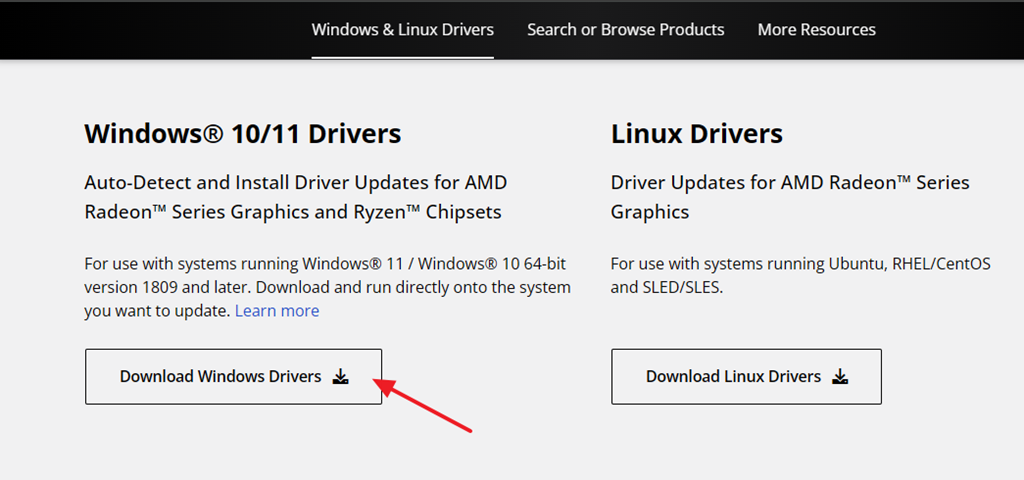
- Navigate to the AMD Drivers Download page and download the AMD Auto-Detect and Install tool.
- Finally, double-click on the 'AMD Auto-detect and Install tool' to install the latest AMD drivers and recommended software for your system.
- After installation, restart your PC.
Method 5. Reset 'Client.WebExperience' & 'Client.CBS'
In Windows 11, "MicrosoftWindows.Client.WebExperience" and "MicrosoftWindows.Client.CBS" are core system components responsible for web-based features and system servicing. Resetting these components can resolve issues caused by corrupted settings, which may impact the performance of the Start Menu and Windows Search.
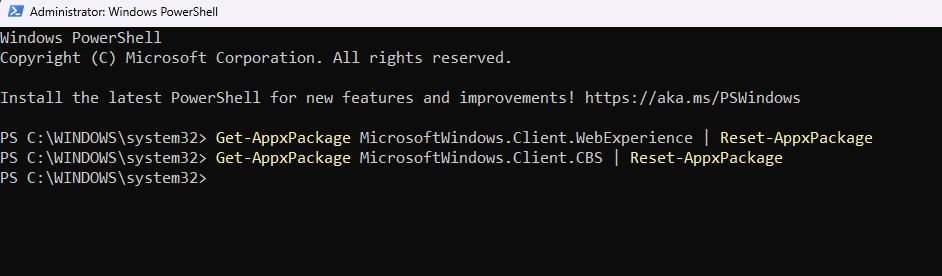
- Open PowerShell as Administrator and issue these commands:
Get-AppxPackage MicrosoftWindows.Client.WebExperience | Reset-AppxPackageGet-AppxPackage MicrosoftWindows.Client.CBS | Reset-AppxPackage
- Restart the computer.
Method 6. Reset 'Get Started' App (Windows Feature Experience Pack)
The Get Started app (aka "Windows Feature Experience Pack") in Windows 11 is a system component (application) designed to help users learn the new features of the operating system. Since in some cases this component can cause delays in the Start menu and Search, resetting its cached data can help resolve them.
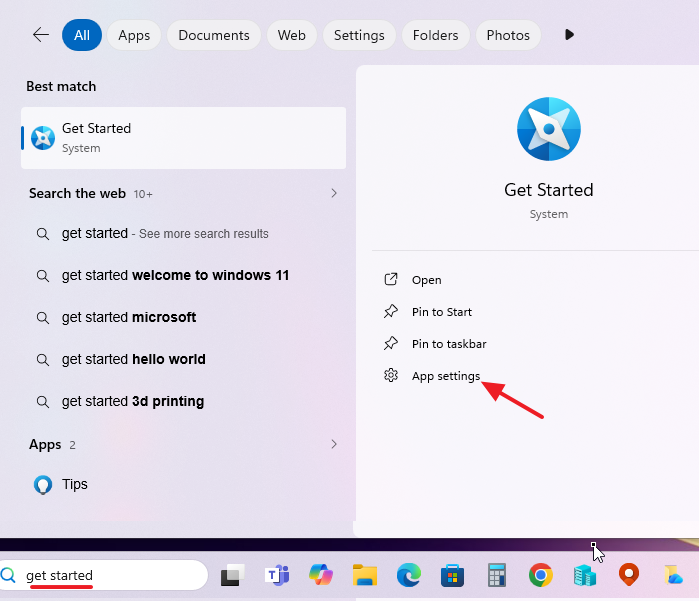
- Search for "Get Started" in the start menu and open App Settings.
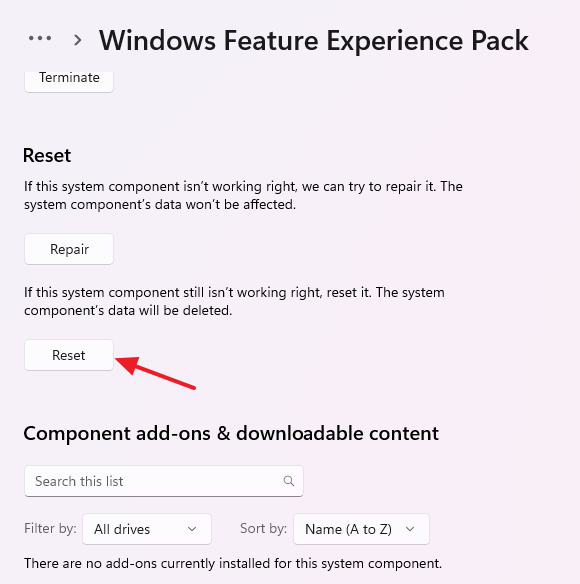
- Click the Reset button to delete the system component's data.
- Restart your computer and then try searching again.
Method 7. Update Windows 11
Keeping your Windows 11 installation up-to-date is crucial for optimal performance. Microsoft regularly releases updates that address known bugs and improve system stability. An outdated system can lead to various performance issues, including slow search functionality.
- Open Settings by pressing
Win + I. - Navigate to Update & Security and click on Check for updates.
- If updates are available, install them and restart your computer.
Summary
Resolving slow search issues in Windows 11 involves a combination of registry tweaks, process management, driver updates, and system component resets. By following the methods outlined in this guide, you can significantly enhance the performance of the Windows Search feature. Always ensure your system is up-to-date and optimized for the best user experience.
Frequently Asked Questions
What causes Windows 11 Search to lag or freeze?
The slow response times in Windows 11 Search may be due to Web Search Suggestions, the 'SearchHost.exe' process, the Windows Search Index, corrupted system packages, and other factors.
How do you disable Web Search Suggestions in Windows 11?
To disable Web Search Suggestions, press Win + R, type regedit, and hit Enter. Navigate to HKEY_CURRENT_USER\Software\Policies\Microsoft\Windows. Right-click on the Windows key, choose New > Key, rename it to Explorer. Then, create a new DWORD (32-bit) Value, name it DisableSearchBoxSuggestions, and set its value to 1. Restart your PC afterward.
What should you do if the search bar in Windows 11 is completely frozen?
If the search bar is frozen, restart the 'SearchHost.exe' process via Task Manager. Open Task Manager with Ctrl + Shift + Esc, navigate to the Details tab, find SearchHost.exe, right-click it, and select End Task.
What's a solution for users with AMD GPUs experiencing Windows 11 search delays?
Reinstalling the AMD GPU driver can resolve search delays for users with AMD graphics cards. Use the AMD Cleanup Utility to remove existing drivers, then download and install the latest drivers using the AMD Auto-Detect and Install tool. Finally, restart your PC.