
FIX: Set Time Zone Automatically is Greyed Out on Windows 10/11. (Solved)
When the "Set time zone automatically" option in Windows 10/11 is grayed out, your device cannot adjust its time zone based on your current location. This automated feature is invaluable for users who frequently travel or relocate, as it uses your computer's internet connection to accurately determine your geographical location and adjusts the system's time zone accordingly. If you find this setting disabled and unable to change it, follow the steps below to restore its functionality.

How to Enable the "Set Time Zone Automatically" Setting on Windows 11/10
Method 1. Enable Location Services in Settings
The "Set time zone automatically" setting in Windows 10/11 becomes unavailable when location services are disabled. Let's turn these services on to resolve the issue.
To turn on location services in Windows 10:
1. Navigate to Start > Settings > Privacy and select Location from the menu on the left side.

2. Under the section Allow access to location on this device, click the Change button and toggle the switch to On.

3. Ensure the "Allow apps to access your location" option is also set to On.

4. Proceed to Date and Time settings, where the "Set time zone automatically" feature should now be accessible.

To turn on location services in Windows 11:
1. Go to Start > Settings > Privacy & Security, then select Location under the 'App Permissions' section on the right pane.

2. In the Location settings, enable the following options:
– Location Services
– Let apps access your location

3. Now access Date & Time settings and turn the "Set time zone automatically" switch to On.

Method 2. Enable "Set Time Zone Automatically" Option via Registry
Another way to enable Windows to automatically adjust the time zone involves using the Registry Editor.
1. Press Windows + R to open the Run command dialog.
2. Type regedit and hit Enter to open the Registry Editor.

3. Navigate to the following path:
HKEY_LOCAL_MACHINE\SYSTEM\CurrentControlSet\Services\tzautoupdate
4. In the right pane, double-click on Start REG_DWORD value, set Value data to 3, and click OK.

5. Now visit the location:
HKEY_LOCAL_MACHINE\SOFTWARE\Microsoft\Windows\CurrentVersion\CapabilityAccessManager\ConsentStore\location\
In the right pane, modify the Value REG_SZ to "Allow", then click OK.

6. Again, navigate to:
HKEY_LOCAL_MACHINE\SOFTWARE\Policies\Microsoft\Windows
7. Right-click on the Windows key and select New > Key from the menu.

8. Rename the newly created key to "AppPrivacy" and hit Enter.
9. Right-click on AppPrivacy and choose New > DWORD (32-bit) Value.

10. Name this new value "LetAppsAccessLocation". Double-click on it, assign Value data as 1, and click OK.

11. Close the Registry Editor, then restart your computer for changes to take effect.
Method 3. Enable "Set Time Zone Automatically" in Group Policy
If the above solutions don't work, adjusting the Group Policy settings could be the solution.
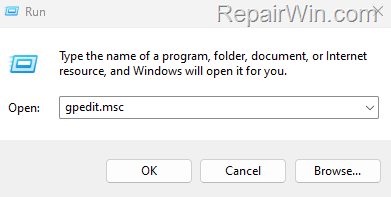
1. Press Windows + R to open the Run dialog.
2. Type gpedit.msc and press Enter to open the Group Policy Editor.
3. Navigate through to:
Computer Configuration > Administrative Templates > Windows Components > Location and Sensors > Windows Location Provider
4. In the right pane, double-click on Turn off Windows Location Provider.

5. Set this policy to Not Configured or Disabled and select Apply > OK.

6. Navigate to:
Computer Configuration > Administrative Templates > App Privacy.
7. Open Let Windows apps access location policy.

8. Set this policy to Enabled, and in the dropdown below, choose Force Allow. Click Apply > OK.

That's all folks! Did these solutions work for you? Please leave a comment in the comment section below or share this post on social networks to help spread the word.
Summary
In summary, resolving the "Set time zone automatically" being grayed out in Windows 10/11 involves enabling location services, adjusting registry settings, or modifying group policy settings. Start by verifying your location services are active in the system settings. If issues persist, delve into the registry or group policy editor to alter the settings, ensuring your device can access location information. These steps should restore the functionality, allowing your computer to adjust the time zone automatically, ensuring accurate timekeeping no matter where you are.
Frequently Asked Questions
Why is the 'Set time zone automatically' option grayed out in Windows 10/11?
The 'Set time zone automatically' option is grayed out because the location services are inactivated on your computer. Windows uses location services to determine your geographical location and adjust the time zone accordingly.
How can I enable the 'Set time zone automatically' feature in Windows 10?
To enable this feature in Windows 10, go to Start > Settings > Privacy. Then, choose Location on the left pane. Click 'Change' under 'Allow access to location on this device,' and turn it on. Also toggle on 'Allow apps to access your location.' After this, go to Date and Time settings to activate the 'Set time zone automatically' feature.
What steps should I follow in the Registry Editor to enable automatic time zone setting?
Open the Registry Editor by pressing Windows + R keys, typing 'regedit,' and hitting Enter. Navigate to HKEY_LOCAL_MACHINE\SYSTEM\CurrentControlSet\Services\tzautoupdate, and set the 'Start' REG_DWORD value to '3'. Then go to HKEY_LOCAL_MACHINE\SOFTWARE\Microsoft\Windows\CurrentVersion\CapabilityAccessManager\ConsentStore\location\, and set the Value REG_SZ to 'Allow'. Additional steps involve creating and configuring keys under the HKEY_LOCAL_MACHINE\SOFTWARE\Policies\Microsoft\Windows path to enable location access.
Can I use Group Policy to enable the automatic time zone setting?
Yes, open the Group Policy Editor by pressing Windows + R, typing 'gpedit.msc,' and pressing Enter. Navigate to Computer Configuration > Administrative Templates > Windows Components > Location and Sensors > Windows Location Provider. Set the 'Turn off Windows Location Provider' policy to 'Not Configured' or 'Disabled'. Additionally, tweak settings in Computer Configuration > Administrative Templates > App Privacy.



