
FIX: A VPN connection to the remote computer could not be established. You might need to change the network settings for this connection. (Solved)
This guide provides comprehensive solutions to resolve the VPN error “A connection to the remote computer could not be established. You might need to change the network settings for this connection.” This error typically stems from issues with the WAN Miniport interface drivers. Follow the detailed instructions below to fix this problem.

FIX: "A Connection to the remote computer could not be established" when you try to establish a VPN connection in Windows 10/11.
Method 1. Remove and Reinstall All WAN Miniport Drivers.
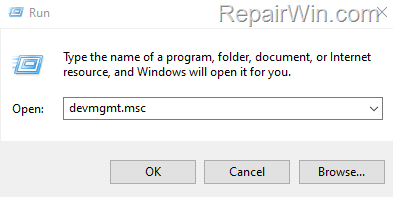
1. Press Windows  + R keys to open the Run command box.
2. Type devmgmt.msc and press Enter to open Device Manager. This utility allows you to manage the hardware devices installed on your computer.
3. In Device Manager, expand Network Adapters, then right-click and Uninstall all WAN Miniport adapters. This action removes the drivers for these interfaces, which are often the root cause of VPN connection issues:
-
-
- WAN Miniport (IP)
- WAN Miniport (IPv6)
- WAN Miniport (GRE)
- WAN Miniport (L2TP)
- WAN Miniport (Network Monitor)
- WAN Miniport (PPPOE)
- WAN Miniport (PPTP)
- WAN Miniport (SSTP)
-

4. After removing all the WAN Miniport drivers, right-click on the computer name at the top and select Scan for hardware changes. This action prompts Windows to automatically detect and reinstall the necessary WAN Miniport drivers.

5. Try to connect to the VPN again. If the problem persists, proceed to Method 2.
Method 2. Modify VPN Connection Settings.
To resolve the VPN error, adjust the VPN connection settings as follows:
1. Press Windows + R keys to open the Run command box.
2. Type ncpa.cpl to open Network Connections. This window displays all available network interfaces.

3. Right-click on your VPN connection and select Properties. This action allows you to modify the configuration of your VPN connection.

4. In the General tab, ensure that the correct VPN address is specified. This address is crucial for establishing a successful connection.

5. Navigate to the Security tab and perform the following steps:
-
-
- Verify that the correct VPN protocol and encryption settings are selected. These settings are vital for ensuring secure and compatible VPN connections.
- Under Allow these protocols, select only the Challenge Handshake Authentication Protocol (CHAP) and Microsoft CHAP Version 2 (MS-CHAP v2). These protocols provide a balance of compatibility and security.
- Click OK to apply the changes.
-

6. Attempt to connect to the VPN.
Method 3. Reset IP Settings.
Resetting the IP configuration can resolve network-related issues that might be affecting your VPN connection:
1. Open Command Prompt as Administrator and execute the following commands in order. These commands will release your current IP configuration, flush the DNS cache, and renew the IP address:
-
-
ipconfig /releaseipconfig /flushdnsipconfig /renew
-

2. Restart your computer and try connecting to the VPN again.
Method 4. Update Network Adapter Drivers.
Outdated network adapter drivers can also cause VPN connection issues. Ensure your network adapter drivers are up-to-date:
- Open Device Manager by pressing Windows + X and selecting it from the menu.
- Expand Network Adapters, right-click your network adapter, and select Update driver.
- Choose Search automatically for updated driver software. This option will allow Windows to find and install the latest drivers available.
- Once updated, restart your computer and attempt to reconnect to the VPN.
Method 5. Disable IPv6.
Some VPNs have compatibility issues with IPv6. Disabling IPv6 might resolve the connection problem:
- Open
ncpa.cplto view Network Connections. - Right-click your active network connection and select Properties.
- Uncheck Internet Protocol Version 6 (TCP/IPv6) and click OK.
- Restart your computer and try reconnecting to the VPN.
Summary
Resolving the VPN connection error involves several steps, including reinstalling WAN Miniport drivers, modifying VPN settings, resetting IP configurations, updating network drivers, and potentially disabling IPv6. Each method targets different potential causes, ensuring a comprehensive approach to troubleshooting this common issue.
Did these solutions work for you? Share your experience in the comments below or help others by sharing this guide on social media.
Frequently Asked Questions
What causes the VPN error 'A connection to the remote computer could not be established'?
This VPN error generally appears due to issues with WAN Miniport interface drivers, requiring adjustments in network settings.
How can I fix VPN connection issues on Windows 10/11?
You can try fixing VPN connection issues by removing and reinstalling WAN Miniport drivers, modifying VPN connection settings, or resetting IP settings.
How do I remove and reinstall WAN Miniport drivers?
Open Device Manager by pressing Windows + R and typing 'devmgmt.msc'. Expand 'Network Adapters', uninstall all WAN Miniport adapters, then right-click the computer name and select 'Scan for hardware changes' to reinstall them.
What should I check in the VPN connection's Security tab?
Ensure the correct VPN protocol and encryption settings are selected. Under 'Allow these protocols', select only CHAP and MS-CHAP v2, then click 'OK'.



