
How to FIX: Viber Crashes and Won't Open on Windows 11 (Solved)
Several users report that they can't open Viber on Windows 11 because Viber is crashing immediately after opening it, with no indication of the cause of the problem. In other cases, the strange thing is that while Viber works normally after uninstalling and reinstalling it, after restarting or shutting down the computer, Viber stops working and won't open again.
Viber may not open and close on Windows 10/11 for various reasons, such as software conflicts, corrupted files, or outdated graphics drivers. If you are unable to open the Viber app on Windows 11 because it keeps crashing, this guide will provide you with the most reliable methods to fix the problem.
How to Resolve Viber Crashes and Launch Issues on Windows 11.
Method 1. Change the Compatibility Mode to Windows 7 or Windows Vista
One of the common workarounds to solve the Viber crashing issue on Windows 10/11 is to run Viber in compatibility mode for Windows 7 or Windows Vista. This method forces the application to operate under an environment that mimics older versions of Windows, which can resolve compatibility issues that may cause the application to crash.
1. Right-click on Viber app and choose Properties.

2. At the Compatibility tab, check the option Run this program in compatibility mode for and select Windows 7 below. Then click Apply > OK

3. Now try to open Viber again. If Viber does not open, perform the same steps but this time choose Windows Vista in Compatibility Mode.
Method 2. Set Power of Graphics Adapter to High Performance
* Note: This method usually works on laptops with a discrete graphics adapter.
Viber sometimes does not work properly on laptops where the graphics adapter's power is not set at high performance. By setting the graphics adapter to high performance, you ensure that the application has the necessary resources to function correctly, which can prevent crashes related to insufficient graphics power.
1. Press Windows  + R keys to open the Run command box.
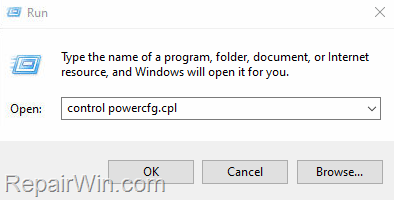
2. Type control powercfg.cpl and press OK (or Enter) to open the Power Options settings.
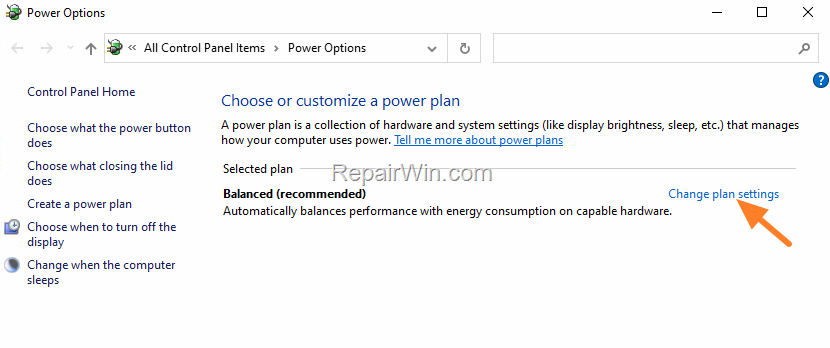
3. In Power Options, click Change Plan settings.
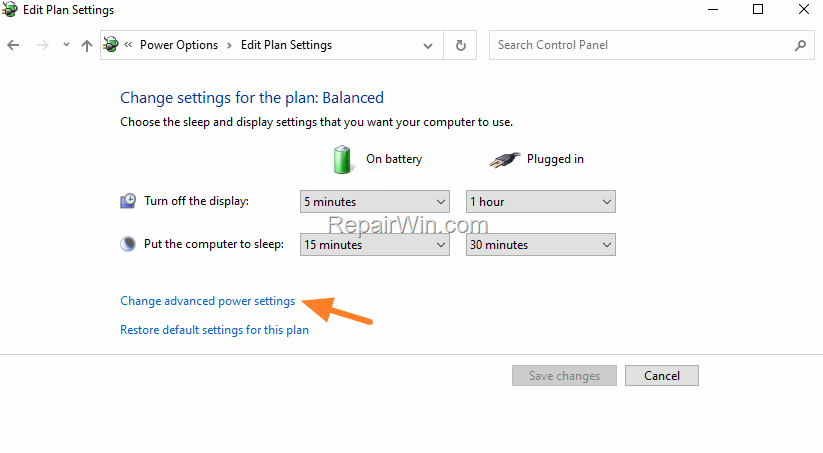
4. Then click Change advanced power settings.
5. In Power Options, scroll down, expand Switchable Dynamics Graphics and under Global Settings set both On Battery & Plugged in to Maximize performance.
6. When done, click Apply > OK and then try to start the application.

Method 3. Install an Older Version of Viber
Another method to fix Viber not opening and crashing problems is to install a previous version of the Viber app. This approach can be effective if a recent update introduced bugs that affect the app's compatibility with your system.
* Caution: This method requires downloading an older version of Viber from a third-party website because Viber's official website does not offer older versions. Proceed at your own risk.
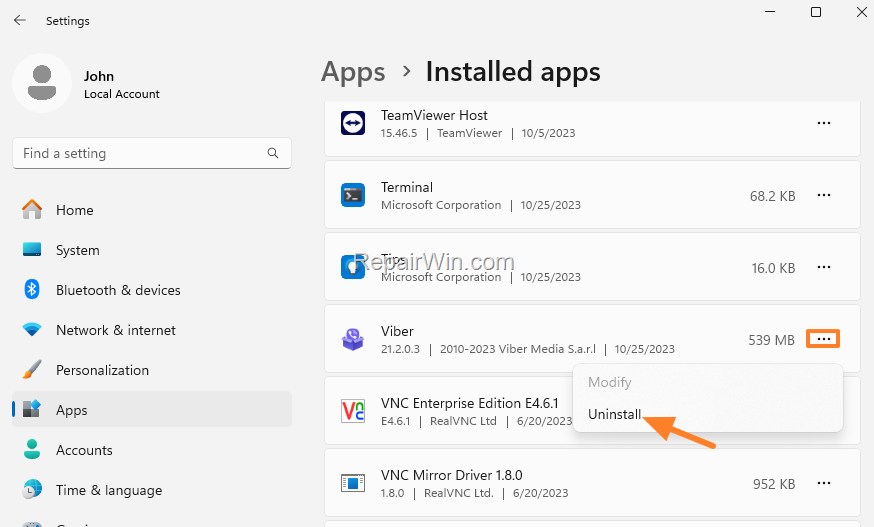
1. Go to Start > Settings > Apps and click Installed apps on the right.

2. Locate Viber in the list of installed apps, click on the three dots  next to it, and click Uninstall. (Click Uninstall again to remove the program).
3. After uninstalling Viber, search the net and download version 20.7.0.1 of Viber from any third-party site that offers it for download (e.g., "downzen.com", "filehippo.com", etc.).
4. When the download is completed, scan the downloaded file with your antivirus program to ensure it is clean from viruses.
5. Then open the downloaded file to install the older version of Viber.
* Caution: During installation, avoid installing any additional program that comes with the installer.

6. Finally, open Viber and scan the QR code with your phone.
7. After launching Viber, restart your computer and see if the issue is resolved.
Method 4. Fix Viber Problems by Updating the Graphics Drivers
If after applying the above steps, you are still unable to open Viber on Windows 11, proceed and update the display drivers as instructed below. Outdated or corrupted graphics drivers can cause applications to crash, as they may not support the latest software features or have unresolved bugs.
1. Press Windows  + R keys to open the run command box.
2. Type: devmgmt.msc & click OK to open the Device Manager.

3. In Device Manager, double-click to expand the Display Adapters.
4. Right-click on the installed display adapter(s) and select Uninstall device. *
* Note: For laptops with two display adapters, uninstall both the display adapters.

5. At the next window, check the option "Delete the driver software for this device" and then click Uninstall to completely remove the graphics drivers.

6. Restart your PC and go to Windows Update & Check for Updates. Then, let Windows download and reinstall the latest Windows drivers for your graphics adapter(s) and then check if the problem is fixed.
* Note: If Windows doesn't automatically find the required drivers for your Graphics card, or if the problem is not fixed after installing the latest Windows drivers, download and install the latest display drivers from the Graphics adapter manufacturer's website.
- NVIDIA drivers
- AMD drivers
- Intel drivers
Method 5. Repair Corrupted System Files
Corrupted system files can cause applications to malfunction. Use the System File Checker (SFC) and Deployment Imaging Service and Management Tool (DISM) to repair these files.
- Open Command Prompt as Administrator by searching for cmd, right-clicking it, and selecting Run as administrator.
- Type
sfc /scannowand press Enter. This command will scan and repair corrupted system files. - After the SFC scan completes, type
DISM /Online /Cleanup-Image /RestoreHealthand press Enter. This command will use Windows Update to provide files that are required to fix corruptions. - Restart your computer and check if the issue persists.
Summary
In conclusion, if Viber crashes or fails to open on Windows 11, you can try several methods to resolve the issue. Running Viber in compatibility mode, setting your graphics adapter to high performance, installing an older version of Viber, updating your graphics drivers, and repairing corrupted system files are all viable solutions. By following these steps, you should be able to restore Viber to full functionality.
If these solutions do not resolve the issue, consider reaching out to Viber support for further assistance.
Frequently Asked Questions
Why is Viber crashing on Windows 11?
Viber may crash on Windows 11 due to software glitches, corrupted files, or outdated graphics drivers.
How can I fix Viber crashing immediately on Windows 11?
There are several methods you can try: running Viber in compatibility mode for Windows 7 or Vista, setting the graphics adapter to high performance, installing an older version of Viber, or updating your graphics drivers.
How do I run Viber in compatibility mode on Windows 11?
Right-click on the Viber app, choose 'Properties', go to the 'Compatibility' tab, check 'Run this program in compatibility mode for', and select Windows 7 or Windows Vista. Click 'Apply' and 'OK', then reopen Viber to see if the issue is resolved.
Is it safe to install an older version of Viber to fix crashes?
While installing an older version can solve the issue, it involves downloading from third-party websites. Ensure you scan any downloaded files with antivirus software to avoid malware.



