
FIX: Shared Folder is not Accessible. User has not been granted the requested logon type at this computer. (Solved)
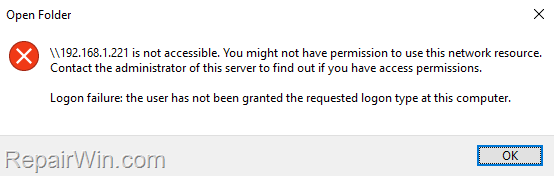
If you are unable to access shared resources on another computer within your network due to the error "Logon failure: the user has not been granted the requested logon type at this computer", continue reading to resolve this issue effectively.
The connection failure message "The user has not been granted the requested logon type" typically occurs for the following reasons:
- The user lacks the necessary permissions to access the shared folder.
- The user is not authorized to access the computer hosting the shared folder from the network.
- Related Article: Cannot Login to Windows: User has not been granted the requested logon type at this computer.
How to Fix Logon failure: 'User Has Not Been Granted the Requested Logon Type at This Computer' on Windows 10/11 Pro & Windows Servers
* Notes:
1. The instructions provided below are applicable only to Windows 10/11 Pro versions and Windows Server 2016/2019.
2. These steps should be performed on the machine that is sharing the folder/files.
Step 1. Check the Share Permissions
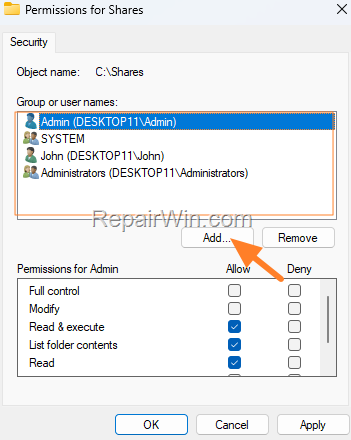
1. Right-click on the shared folder, select Properties, and navigate to the Security tab.
2. Ensure that the user encountering the error is listed in the user list and has the appropriate permissions for the shared folder. If the user is not listed, click Add to include them and specify their permissions. This step ensures that the user has the necessary access rights, which are crucial for interacting with the shared resources.
Step 2. Allow User to Access the Computer from Network
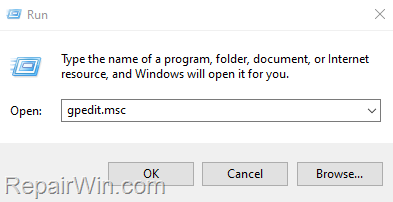
1. Press Windows  + R keys to open the Run command box.
2. Type gpedit.msc and press Enter to open the Group Policy Editor. This tool allows you to configure and manage Windows settings at a granular level.
3. In the Policy Editor, navigate to the following location:
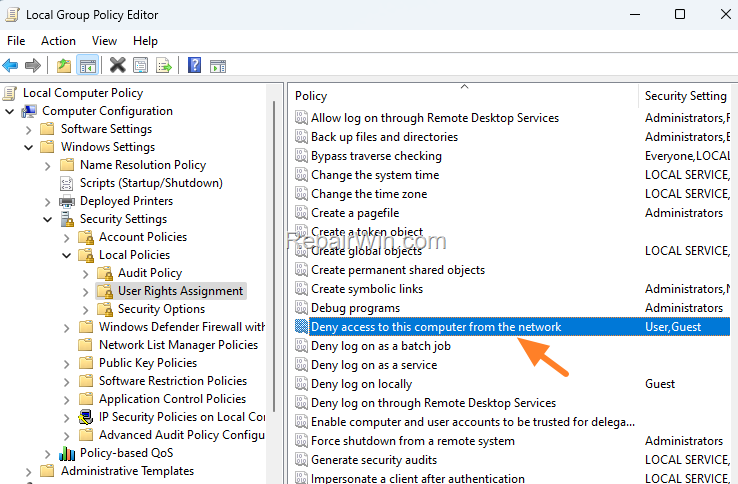
Local Computer Policy\Computer Configuration\Windows Settings\Security Settings\Local Policies\User Rights Assignment
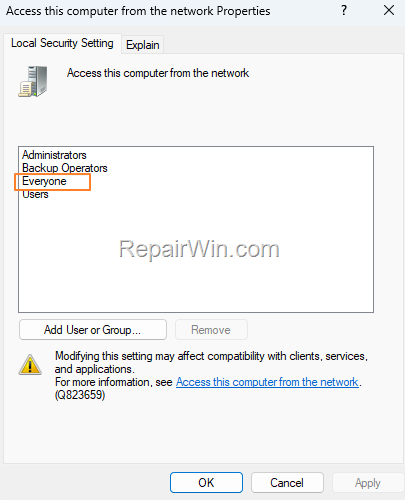
4a. On the right, open the Access this computer from the network policy.
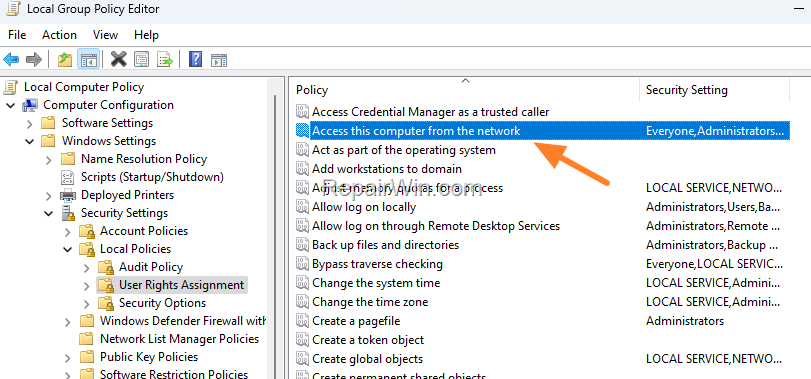
4b. Ensure that Everyone is included in the list and click OK. If "Everyone" is missing, click Add User or Group, type "Everyone" in the box, and click OK twice to apply the change. This step allows all network users to access the computer, which is essential for shared folder access.
5a. Then open the Deny access to this computer from the network policy.
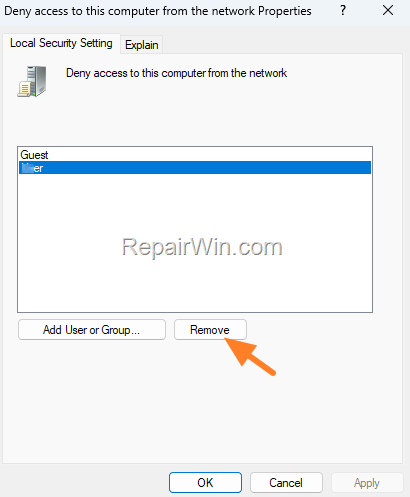
5b. Select and Remove the user experiencing the error "the user has not been granted the requested logon type" and/or "Everyone" from this list, then click OK. Leave only the Guest account, which is the default setting. This step ensures that no unauthorized users are denied access, which could prevent legitimate access attempts.
6. Close the Policy Editor and restart the computer, or execute the gpupdate /force command in an elevated command prompt to apply the policy changes immediately. This step refreshes the policy settings, ensuring that all changes take effect.
7. After completing these steps, attempt to access the shared folder from the remote computer again.
Additional Solutions
Method 3: Verify Network Discovery and File Sharing Settings
Ensure that Network Discovery and File Sharing are enabled on both the computer hosting the shared folder and the accessing computer. These settings are crucial for the visibility of shared resources across the network.
- Open the Control Panel and navigate to
Network and Sharing Center. - Click on Change advanced sharing settings.
- Expand the current network profile and ensure that Turn on network discovery and Turn on file and printer sharing are selected.
Method 4: Check Firewall Settings
Firewalls can sometimes block network access. Ensure that your firewall settings allow file and printer sharing:
- Open Windows Security and go to
Firewall & network protection. - Select Allow an app through firewall.
- Ensure that File and Printer Sharing is checked for the appropriate network type (Private, Public, or Domain).
Summary
To resolve the "User has not been granted the requested logon type" error, ensure the user has appropriate permissions and is included in the necessary network access policies. Additionally, verify that network discovery and file sharing settings are enabled, and ensure firewall settings permit file sharing. These steps will help restore access to shared resources efficiently.
Frequently Asked Questions
What causes the error 'Logon failure: the user has not been granted the requested logon type at this computer'?
The error occurs because the user either lacks permissions to access the shared folder or is not allowed to access the computer with the shared folder from the network.
How can I check and modify share permissions for a shared folder?
Right-click on the shared folder, select Properties, then navigate to the Security settings tab. Ensure the user experiencing the error is listed and has permissions. If not, click the Add button to include the user and specify permissions.
How do I allow a user to access the computer from the network?
Open the Group Policy Editor by pressing Windows + R, typing gpedit.msc, and navigating to Local Computer Policy > Computer Configuration > Windows Settings > Security Settings > Local Policies > User Rights Assignment. Ensure 'Everyone' is added in the 'Access this computer from the network' policy, and remove the problematic user from the 'Deny access to this computer from the network' policy.
What should I do after modifying the Group Policy settings?
Close the Policy Editor, then either restart the computer or use the 'gpupdate /force' command in an Admin command prompt to apply the changes. Afterwards, attempt to access the shared folder again from the remote computer.



