
How to Restore Default Local Security Policy Settings in Windows 11/10.
In this comprehensive guide, you'll learn how to reset the Local Security Policy settings to their default configuration on Windows 11 and Windows 10. This process is essential for users and system administrators who need to rectify any misconfigurations that may have been made inadvertently.
The Local Security Policy, accessed via secpol.msc, is a built-in Windows tool that allows users to customize security settings on Windows 10 and 11 Professional editions. It is particularly useful in environments where a computer is not part of a domain, enabling the customization of various security settings such as password policies, user rights assignments, and audit policies.
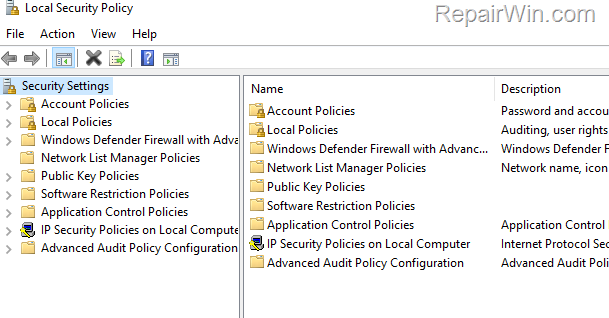
If you've made incorrect modifications to the default Local Security Policy settings and are experiencing issues, follow the instructions below to restore them to their original values.
How to Reset Local Security Policy to Default Settings on Windows 11/10/8/7/Vista
* Note: The instructions below apply only to Windows 11/10/8/7/Vista Professional editions.
Step-by-Step Instructions
1. Open Command Prompt as Administrator. To do this:
- Press the Windows
+ R keys to open the 'Run' command box.
- Type CMD and then press CTRL + SHIFT + ENTER to open Command Prompt with administrative privileges. This ensures that you have the necessary permissions to execute system-level commands.


2. In the elevated Command Prompt, copy and paste the following command and press Enter:
secedit /configure /cfg %windir%\inf\defltbase.inf /db defltbase.sdb /verbose
This command reinstates the default security settings by applying the configuration from defltbase.inf, which is the default security template provided by Windows. The /verbose flag ensures that detailed output is provided during the execution.
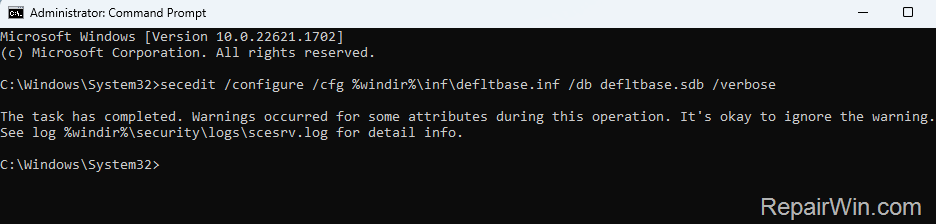
3. Close the Command Prompt window and restart your computer to apply the changes. Restarting ensures that all system processes are refreshed and the new security settings are fully implemented.
Summary
Resetting the Local Security Policy to its default settings can resolve issues caused by incorrect configurations. By using the Command Prompt, Group Policy Editor, or System Restore, you can effectively restore your system's security settings to their intended state. Always ensure you have administrative privileges when performing these actions and consider creating a backup of your current settings before proceeding.
We hope this guide has been helpful. If you have any questions or feedback, please leave a comment below.
Don't forget to share this article with others who might benefit from it!
Frequently Asked Questions
What is the Local Security Policy tool used for?
The Local Security Policy (secpol.msc) is a Windows built-in tool used to customize security settings on Windows 10/11 Pro devices, especially on computers not part of a domain. It helps manage settings like password policies, user rights assignments, and audit policies.
How can I reset the Local Security Policy to its default settings?
To reset the Local Security Policy to default settings, open Command Prompt as an Administrator by pressing Windows + R, typing CMD, and pressing CTRL + SHIFT + ENTER. Then, execute the command: 'secedit /configure /cfg %windir%\inf\defltbase.inf /db defltbase.sdb /verbose'. Finally, restart your computer to apply the changes.
Do these reset instructions apply to all Windows versions?
No, these instructions apply specifically to Windows 11/10/8/7/Vista Professional editions. They are not applicable for Home editions or other versions.
Is it necessary to restart the computer after resetting the Local Security Policy?
Yes, you need to restart your computer after executing the reset command in order to apply the changes.



