
How to Access a Printer's Web Page via WSD Port on Windows.
If you want to learn how you can access a WSD printer's web page/portal, continue reading below.
The Web Services for Devices (WSD) protocol enables network devices to be automatically discovered and installed without the need for manual configuration. This protocol is supported by many modern devices, including printers, scanners, and cameras, facilitating easy discovery and connection to them when connected to a network.
By default, when adding a network printer to Windows 11/10/7, it is installed through its WSD port and not with its TCP/IP address. However, this means that if you do not know the printer's IP address, there is no way to access the printer's web portal from your browser to view the printer's status or manage your printer.
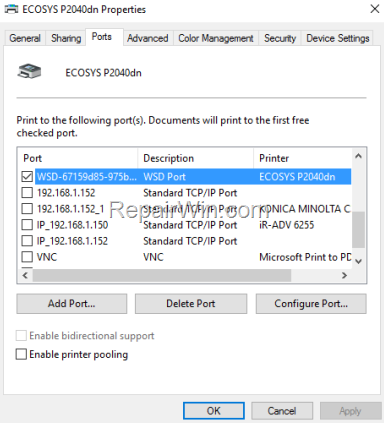
In this guide, you'll learn how to find the IP address of a network printer connected to a computer via a WSD port and how to access its web portal via the WSD port.
How to Open the Web Page of a Network Printer Connected via the WSD Port
* Note: These instructions work only in Windows Pro & Server Editions (e.g., Windows 11/10/8/7 Professional & Windows Server 2016, 2019, etc.).
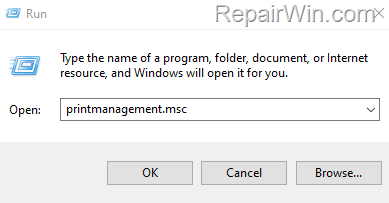
1. Press Windows  + R keys to open the Run command box.
2. Type printmanagement.msc and press Enter (OK). This action opens the Print Management console, which is a Microsoft Management Console (MMC) snap-in that provides a centralized interface for managing printers across a network.
3. In the Print Management console, go to Custom Filters > All Printers from the left pane. This section displays all printers installed on your network, allowing you to manage them efficiently.

4. From the Action menu, select Show extended view. This option provides additional details about each printer, including its status and properties.
* Alternatively: Right-click at an empty space on the right pane and select Show Extended View.

5. Now select your WSD Printer and then click at the Printer Web Page tab next to Jobs to see the Web interface of your WSD printer and its IP address. This interface allows you to manage printer settings and monitor its status remotely.
* Note: If prompted for the printer administrator username and password, enter them to gain access.

6. After finding the IP address of the connected printer with WSD, enter the IP Address in your browser to manage the printer through its web page. This step allows you to access the printer's configuration settings and perform administrative tasks such as firmware updates or network configuration.
Additional Methods to Access a Printer's Web Page
Method 1: Using the Printer's Control Panel
Many modern printers have a built-in control panel with a display screen. Navigate through the menu options to find network settings, where the IP address is often listed. This method is particularly useful if you cannot access the printer through the computer.
Method 2: Find Printer's IP by Accessing the Router's Web Interface
Log in to your router’s web interface and go to the connected devices section. Here, you can find a list of all the devices connected to your network, including printers, along with their respective IP addresses. Note down your printer’s IP address, then type it into your web browser’s address bar and press Enter to access your printer’s web page.
Summary
Accessing a printer's web page through a WSD port involves using the Print Management console to locate the printer's IP address. This guide also explored additional methods such as using the printer's control panel and accessing the router's web interface to find the printer's IP address. These techniques provide comprehensive solutions for managing network printers efficiently.
We hope this guide has been helpful. If you have any questions or feedback, please leave a comment below. Don't forget to share this article with others who might benefit from it!
Frequently Asked Questions
What is the WSD protocol used for?
The WSD (Web Services for Devices) protocol allows network devices like printers, scanners, and cameras to be automatically discovered and installed on a network without manual configuration.
Can I access the web portal of my WSD printer without knowing its IP address?
No, to access the web portal of your WSD printer, you need to find its IP address first. The printer is typically installed through a WSD port without using its TCP/IP address, so knowing the IP is necessary for web portal access.
How can I find the IP address of a network printer connected via a WSD port on Windows?
To find the IP address, press Windows + R, type 'printmanagement.msc', and press Enter. Go to Custom Filters > All Printers, select 'Show Extended View' from the menu, and then select your WSD printer. The Printer Web Page tab will display the IP address.



