
How to Bypass "Windows Protected Your PC" Warning on Windows 10/11.
If you've downloaded and installed a legitimate application from the Internet, but you can't open it because of the "Windows protected your PC" warning, continue reading below to resolve the issue effectively.
In Windows 10/11, the built-in security program "Windows Defender Security" includes a feature called "SmartScreen" to protect your computer from potentially malicious programs and websites. This feature acts as a safeguard, preventing unrecognized apps from running and possibly causing harm to your system.
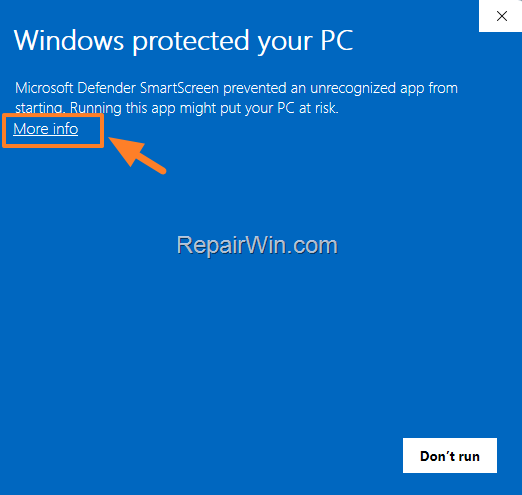
If you attempt to run an application and SmartScreen flags it as potentially harmful, you will receive the message: "Windows protected your PC. Microsoft Defender SmartScreen prevented an unrecognized app from starting. Running this app might put your PC at risk." This is a proactive measure to add another layer of security in conjunction with antivirus and firewall protection, ensuring your computer remains safe from malicious software and websites.
However, there are instances where Windows Defender SmartScreen mistakenly blocks a legitimate and safe application, which can be frustrating. Below, you'll find several methods to bypass the "Windows protected your PC" warning in Windows 10/11.
How to Bypass or Remove the "Windows Protected Your PC" Warning on Windows 10/11
* Important: Only apply the following steps if you are confident that the application you are trying to run is legitimate and secure.
Method 1. Choose to Run the Application Anyway
The first method to bypass the SmartScreen warning is to proceed with running the application despite the warning. This is achieved by following these steps:
1. At the warning message, click on "More info" to expand the options and reveal additional details about the application and its publisher.
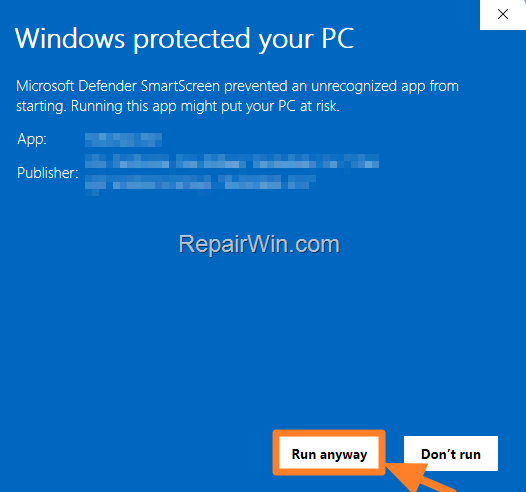
2. Then, click Run anyway to execute the application. This action overrides the SmartScreen warning, allowing the app to run on your system.
Method 2. Disable SmartScreen Filter for a Trusted App
The second method involves unblocking the program's executable file to prevent SmartScreen from blocking it in the future. Follow these steps:
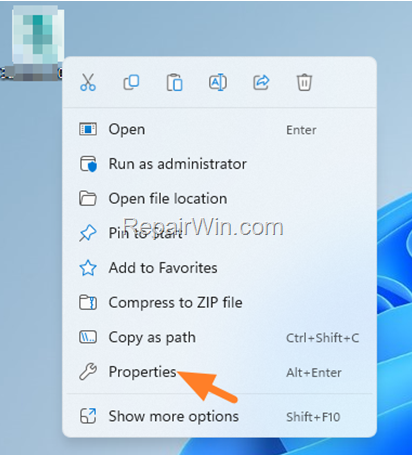
1. Right-click on the program and choose Properties to access the file's properties dialog.
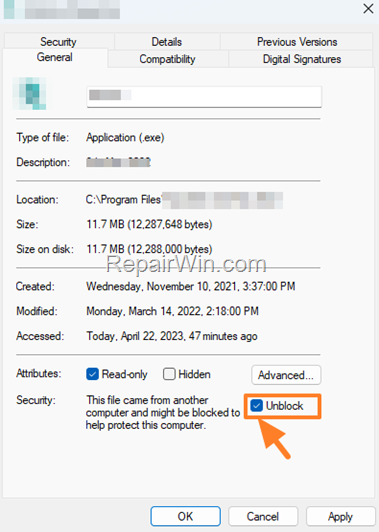
3. In the General tab, check the Unblock checkbox and click OK. This action marks the file as safe, preventing SmartScreen from flagging it as a threat.
4. Try opening the program again. The issue should now be resolved.
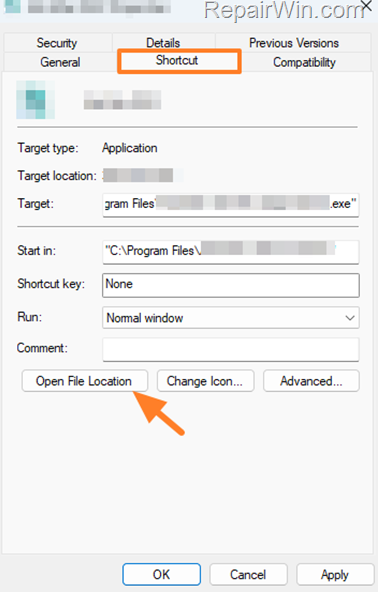
* Note: If the "Unblock" option is not visible, you may be modifying the properties of a shortcut instead of the actual file. Click the "Open File Location" button to locate the original executable file and then unblock it.
Method 3. Completely Disable Windows Defender SmartScreen
The third method involves disabling the SmartScreen feature entirely for all applications and files. This method should be used with caution as it reduces the security level of your system. To proceed:
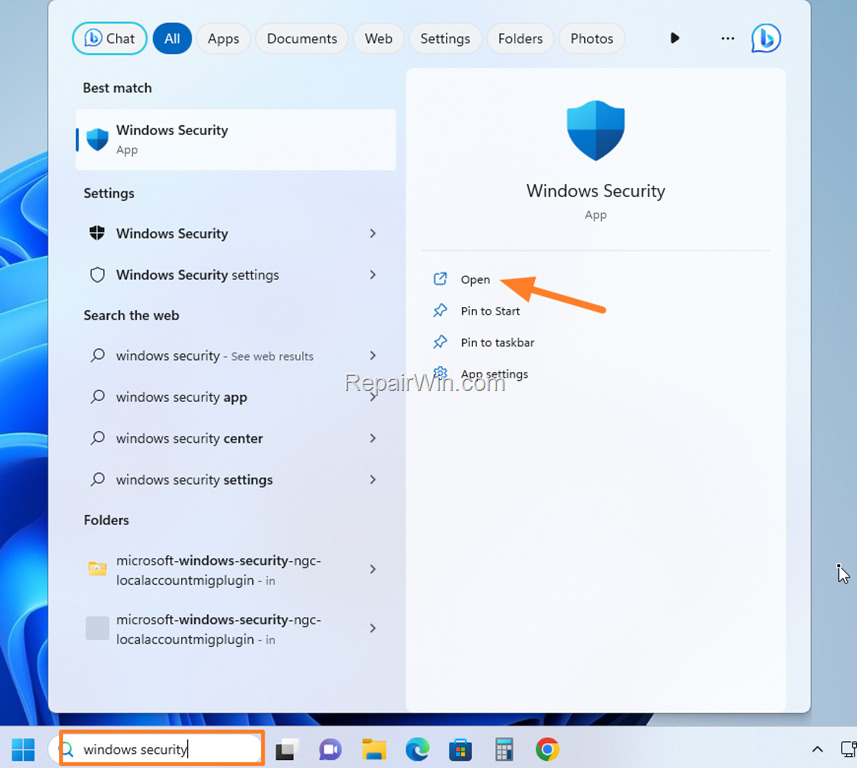
1. Type "windows security" in the search bar and open the Windows Security app.
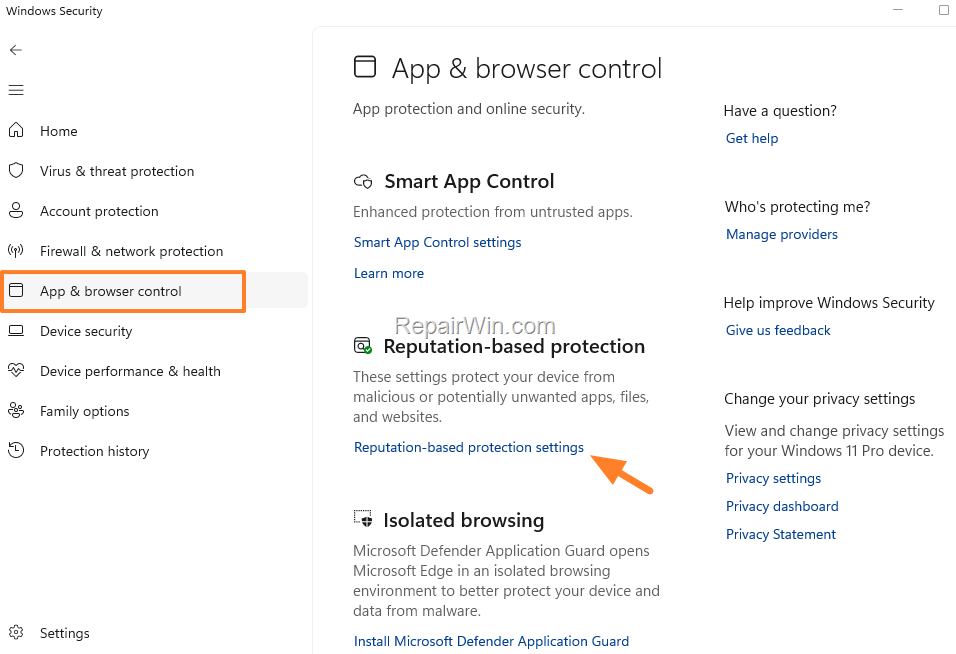
2. Select App & browser control on the left pane and then click Reputation-based protection settings on the right.
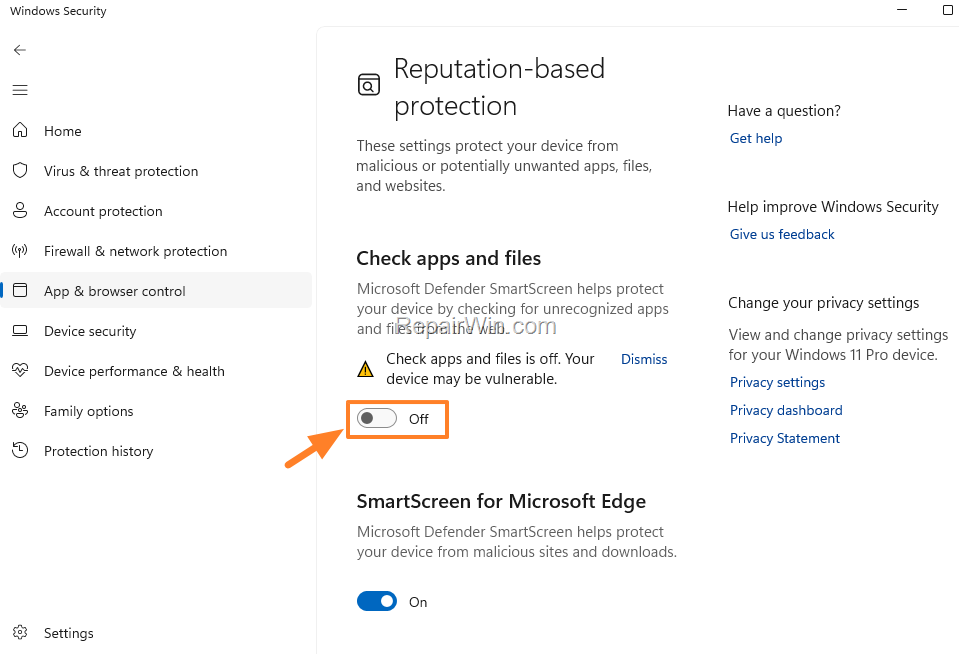
3. Set the Check apps and files switch to Off to prevent SmartScreen from checking and blocking unrecognized apps and files.
Summary
In summary, Windows Defender SmartScreen is a vital security feature designed to protect your system from potentially harmful applications. However, if it erroneously blocks a legitimate app, you can bypass the warning using methods like running the application anyway, unblocking the app's executable file, disabling SmartScreen entirely, or using the Group Policy Editor. Always ensure that the applications you choose to run are from trusted sources to maintain the security of your system.
That's all folks! Did it work for you? Please leave a comment in the comment section below or, even better, like and share this blog post on social networks to help spread the word about this solution.
Frequently Asked Questions
Why does the 'Windows protected your PC' message appear?
The 'Windows protected your PC' message appears because of a feature called 'SmartScreen' in Windows Defender Security, which is designed to protect your computer from potentially malicious programs and websites.
What should I consider before bypassing the SmartScreen warning?
Before bypassing the SmartScreen warning, ensure that the application you are trying to run is legitimate and secure to avoid risking your computer’s safety.
How can I run a blocked application anyway?
To run a blocked application, click on 'More info' in the warning message, and then select 'Run anyway' to proceed with opening the application.
How do I disable SmartScreen for a specific program?
To disable SmartScreen for a specific program, right-click the program, choose 'Properties', check 'Unblock' on the General tab, and click 'OK'. If the 'Unblock' option is missing, ensure you are modifying the original program file and not a shortcut.



