FIX: Remote Access rasgreeng.dll failed to initialize (Event 20063)
If the VPN Server incoming connections doesn't work, because the Remote Access protocols rasgreeng.dll & IKEv2 failed to initialize, continue reading below to fix the problem.
Problem in details. After setting up Windows 10 as a VPN server, clients cannot connect to the VPN server because after entering the credentials, the connection is dropped without any obvious reason. When this happens, the following two errors are logged on the VPN server.
- Remote Access Connection Manager failed to start because the Protocol engine [rasgreeng.dll] failed to initialize. The specified module could not be found. (Event ID: 20063)
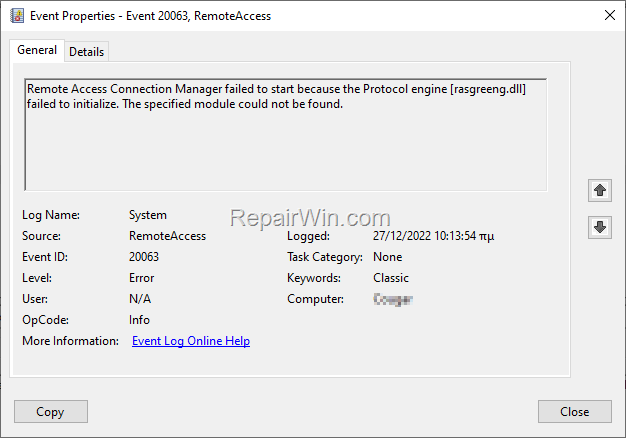
-
Remote Access Connection Manager failed to start because the Protocol engine [IKEv2] failed to initialize. The request is not supported.(Event ID: 20063)

How to FIX: Remote Access Connection Manager failed to start: rasgreeng.dll & IKEv2 failed to initialize on Windows 10 (Event ID 20063).
To fix the Event ID 20063 in Remote Access Connection Manager, perform the below steps:
1. On the VPN Server, open the Windows Services control panel: To do that:
-
- Press Windows
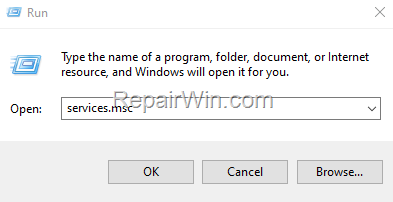
 + R keys to open the run command box.
 - In the Search box, type: services.msc & click OK.
- Press Windows

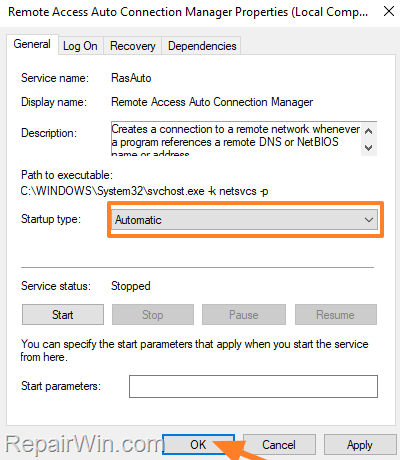
2. In Services, double click to open the Remote Access Auto Connection Manager service.

3. Set the Startup type to Automatic and click Apply.

4. Then Start the service and click OK or restart the PC.

5. Try to connect to the VPN server from the clients. The problem should be resolved.*
* Note: If the problem is not fixed, apply the following steps.
1. Ensure that the following services on the VPN server are up and running:
-
DCOM Server Process Launcher (DcomLaunch)
-
Plug and Play (PlugPlay)
-
Remote Access Connection Manager (RasMan)
-
Remote Procedure Call (RPC) (RpcSs)
-
RPC Endpoint Mapper (RpcEptMapper)
-
Secure Socket Tunneling Protocol Service (SstpSvc)
-
Telephony (TapiSrv)
2. Repair the Windows system files, by running the following commands (in order) in Admin Command Prompt and then reboot your PC:
-
DISM /Online /Cleanup-Image /StartComponentCleanup
- DISM.exe /Online /Cleanup-image /Restorehealth
- sfc /scannow
That’s all folks! Did it work for you?
Please leave a comment in the comment section below or even better: like and share this blog post in the social networks to help spread the word about this solution.
Frequently Asked Questions
What should I do if Remote Access Connection Manager fails to start because rasgreeng.dll and IKEv2 failed to initialize?
To resolve this issue, open the Windows Services control panel by pressing Windows + R, typing 'services.msc,' and clicking OK. Then, set the 'Remote Access Auto Connection Manager' service's Startup type to 'Automatic' and start the service. If the problem persists, ensure the related services are running and repair Windows system files using DISM and SFC commands.
How can I access the Windows Services control panel to address VPN connection issues?
You can access the Windows Services control panel by pressing Windows + R, typing 'services.msc,' and clicking OK. This will allow you to manage services such as 'Remote Access Auto Connection Manager' and others related to VPN functionality.
What should I do if clients cannot connect to my VPN server on Windows 10?
First, ensure that the 'Remote Access Auto Connection Manager' service is set to 'Automatic' and started. Then, verify that essential services like DCOM Server Process Launcher and Remote Procedure Call are running. If the issue persists, repair system files using DISM and SFC commands.
Which commands can help repair Windows system files when there are VPN server issues?
To repair Windows system files, run the following commands in an Admin Command Prompt: 'DISM /Online /Cleanup-Image /StartComponentCleanup', 'DISM.exe /Online /Cleanup-image /Restorehealth', and 'sfc /scannow'. Reboot your PC afterward.