
How to Delete Cookies from a Specific Site in Chrome.
If you have problems accessing a certain website (URL), Google Chrome gives you the option to delete the cookies of that specific website instead of deleting all the cookies stored in the browser.
Sometimes there is a need to clear cookies from a particular website in Chrome, especially when we have problems accessing it, due to incorrect information and settings that our browser has stored for that website. To perform this task, follow one of the methods below.
How to Remove Cookies for a Certain Website in Google Chrome.
Method 1. Remove Cookies for a Site from Padlock options.
The easiest method to delete the cookies from a specific website in Chrome on Windows or in Android, is to use the Padlock icon option.
1. Navigate to the website that your want to clear its cookies.
2. Click on the padlock icon at the left of the site address and then click Cookies.

3. Select one by one all the listed cookies and click Remove.

4. Restart Chrome and check if the problem is fixed.
Method 2. Delete Cookies for the Specific Site using Chrome Settings.
1. Click on Chrome's menu ![image_thumb[10]](https://www.repairwin.com/wp-content/uploads/2022/11/image_thumb10.png "image_thumb[10]") icon at the upper right corner) and choose Settings.
icon at the upper right corner) and choose Settings.
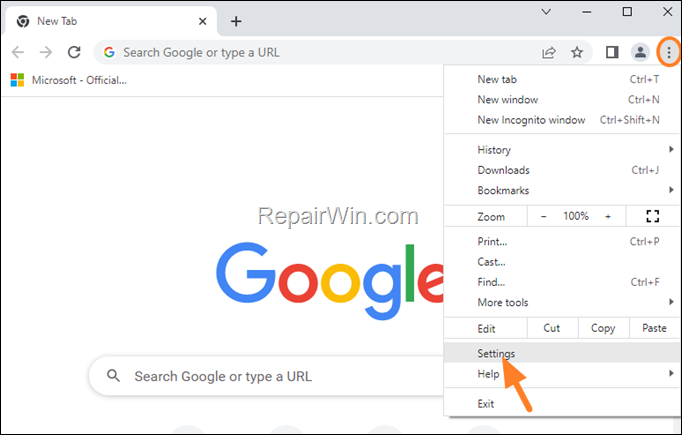
2. At Privacy and security section, click Cookies and other site data.

3. Then under the General settings, choose See all site data and permissions.

4. At the search box, type the name of the site showing the "ERR TOO MANY REDIRECTS" error and then press the Delete icon to clear its cookies.

5. Restart Chrome and then check if the error persists.
Method 3. Delete Cookies and All Data stored for a Specific Site in Chrome.
If you still having problems to access a certain website, proceed and remove all the cookies and all the stored information (e.g. passwords), stored by Chrome for that specific site. To do that:
1. Go to the website you want to delete all the data stored about it in Chrome.
2. Click on the padlock icon at the left of the site address and then click Site Settings.
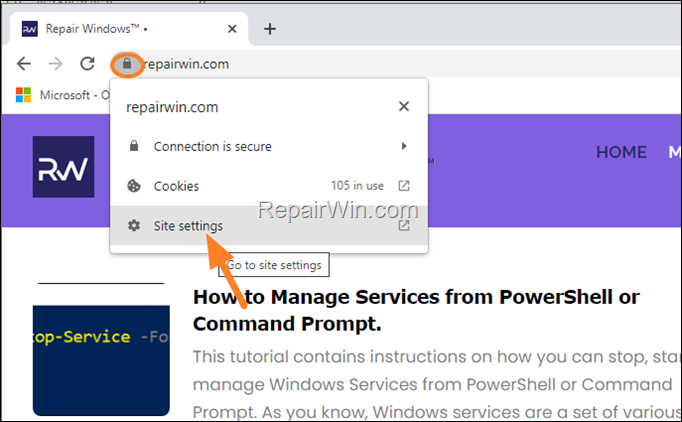
3. A new tab will open showing you the stored information of the site.
4. Now first close the first tab (with the site you want to delete all its data from), then click Clear Data.

5 . Click Clear again to delete all the cookies stored by that site and to sign-out of the site.

7. (Optionally) Click Reset Permissions to reset the permissions on that site.
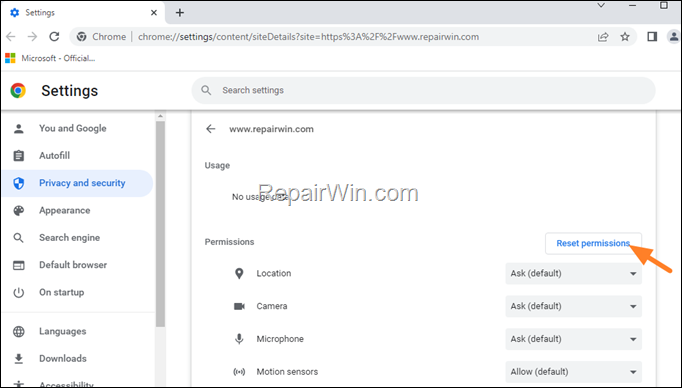
6. Restart Google Chrome and check if the error persists.
That's all folks! Did it work for you?
Please leave a comment in the comment section below or even better: like and share this blog post in the social networks to help spread the word about this solution.
Frequently Asked Questions
How do I clear cookies for a specific website in Chrome?
To clear cookies for a specific website, you can use either the padlock icon or Chrome settings. Click the padlock icon next to the site address and select 'Cookies'. Remove the cookies one by one. Alternatively, go to Settings > Privacy and security > Cookies and other site data, and then use the search function to find and delete the site's cookies.
What is the quickest way to delete cookies for a site in Chrome on Windows or Android?
The quickest way is to navigate to the desired website, click the padlock icon at the left of the site address, select 'Cookies', and then remove them one by one. Afterward, restart Chrome to see if your issue is resolved.
Can I delete all data stored by Chrome for a specific site, including cookies and passwords?
Yes, you can delete all stored data by clicking the padlock icon, selecting 'Site Settings', closing the first tab, and then selecting 'Clear Data'. Confirm by clicking 'Clear' again to remove all information, including cookies and sign-out details. Consider resetting the site's permissions afterward.



