
How to Find out How Long your PC is Up and Running in Windows.
Sometimes, for troubleshooting or other reasons you may need to find out how long your computer is up and running. For example, if you are experiencing restarting or shutdown problems on your computer for no apparent reason, and you have made a fix, then it is essential to know how long time your computer has been running.
In this article you will find several methods to find out how many hours your computer is powered on.
How to Check How Long your Computer Has Been Running in Windows.
Method 1. View Computer's Up Time in Task Manager.
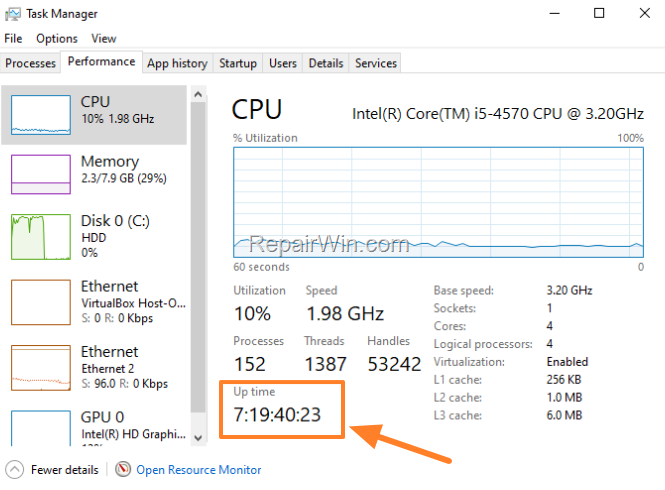
The easiest method to view for long your computer is On, is by looking at Performance tab in Windows Task Manager. To do that:
1. Press CTRL + SHIFT + ESC keys to open Task Manager.
2. Select the Performance tab to find out the computer uptime.
Method 2. See How Long your Computer is UP and Running in Network Connection Status.
1. Press Windows  + R keys to open the Run command box.
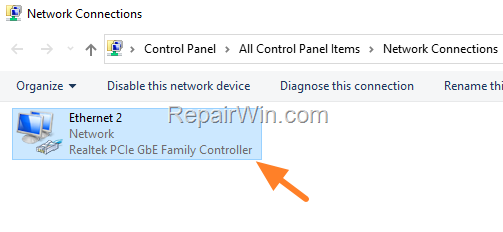
2. Type control ncpa.cpl and press Enter.

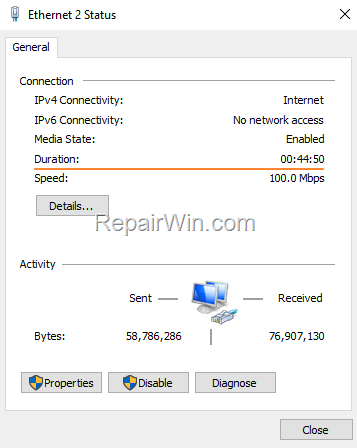
3. Double click at the active Network Adapter.
4. See at Duration to find out the uptime of your PC.
Method 3. Find Out the Last Boot/Reboot Time from Command Prompt.*
The second method to check how long your computer has been running is by executing one of the following commands in command prompt:
* Note: These commands will show you the last time your computer was started/restarted so you can find out how long it has been running according to the current time.
-
systeminfo | find "System Boot Time"
e.g. The Last boot/reboot of the PC was on Sep 21, 2022 at 3:43:29 PM

-
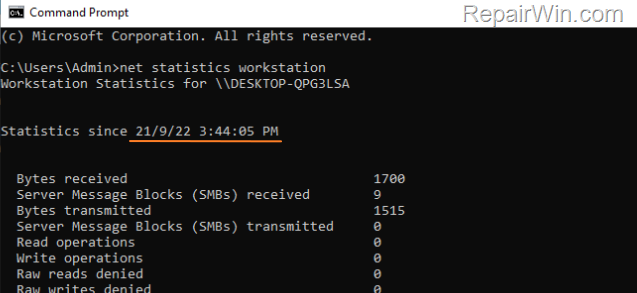
net statistics workstation
e.g. Last boot/reboot of the PC was on Sep 21, 2022 at 3:44:05 PM
-
wmic path Win32_OperatingSystem get LastBootUpTime
e.g. Last start time of the PC, was in the year 2022, of the month 09 (September), on the 21st day at:15:43:29 and 5000 milliseconds, GMT +180 (3 hours ahead of GMT).

Method 4. Check Windows Uptime from PowerShell.
The last method to view your computer's running in time, is by using PowerShell. To do that:
1. Open PowerShell as Administrator. To do that:
-
- Click the Start menu and type powershell in the search box
- Click Run as administrator.

2. In PowerShell, type the following command:
-
(get-date) – (gcim Win32_OperatingSystem).LastBootUpTime

That’s all folks! Did it work for you?
Please leave a comment in the comment section below or even better: like and share this blog post in the social networks to help spread the word about this solution.
Frequently Asked Questions
How can I check my computer's uptime using Task Manager?
To view your computer's uptime using Task Manager, press CTRL + SHIFT + ESC to open Task Manager and select the Performance tab. The uptime will be displayed there.
What steps should I follow to find the computer uptime via Network Connection Status?
To find your computer's uptime through Network Connection Status: 1. Press Windows + R to open Run command. 2. Type 'control ncpa.cpl' and press Enter. 3. Double-click the active Network Adapter. 4. Check the Duration to see how long your PC has been running.
Which command lines will show the last boot/reboot time from Command Prompt?
You can use the following command lines in Command Prompt to view the last boot/reboot time: 'systeminfo | find "System Boot Time"', 'net statistics workstation', or 'wmic path Win32_OperatingSystem get LastBootUpTime'.
How do I check my computer's uptime using PowerShell?
To find your computer's uptime using PowerShell, open PowerShell as Administrator, and type the command: '(get-date) - (gcim Win32_OperatingSystem).LastBootUpTime'. This will display the time your computer has been running.



