
How to Make Chrome Download PDF files instead of Opening them.
If you want to make Chrome to download a PDF file instead of opening it, continue reading below.
Google Chrome has a built-in PDF viewer, so when you click on a PDF document on a website you don't need to have an additional PDF viewer to read or print it. Also for all PDF files opened with Chrome you are given the option to download or save the file.
Although the PDF viewing capability of Chrome is very useful, some users prefer to open PDF files with another PDF viewer app and not with Chrome. For all these users I wrote this tutorial with detailed instructions on how to force Chrome to download PDF files and not open them.
How to Force Chrome to Download PDF instead of Opening.
Method 1. Quick steps to make Chrome to save PDF files instead of open.
1. Copy and paste the following address in Chrome's address bar:
- chrome://settings/content/pdfDocuments
2. Select Download PDFs in order Chrome to save the PDF files instead of opening them.

Method 2. Force Chrome to Download PDF Files instead of Opening (Detailed steps).
1. From the Chrome 3-dots menu, click Settings.

2. In Privacy and security open Site Settings.

3. Scroll down and open the Additional content settings.
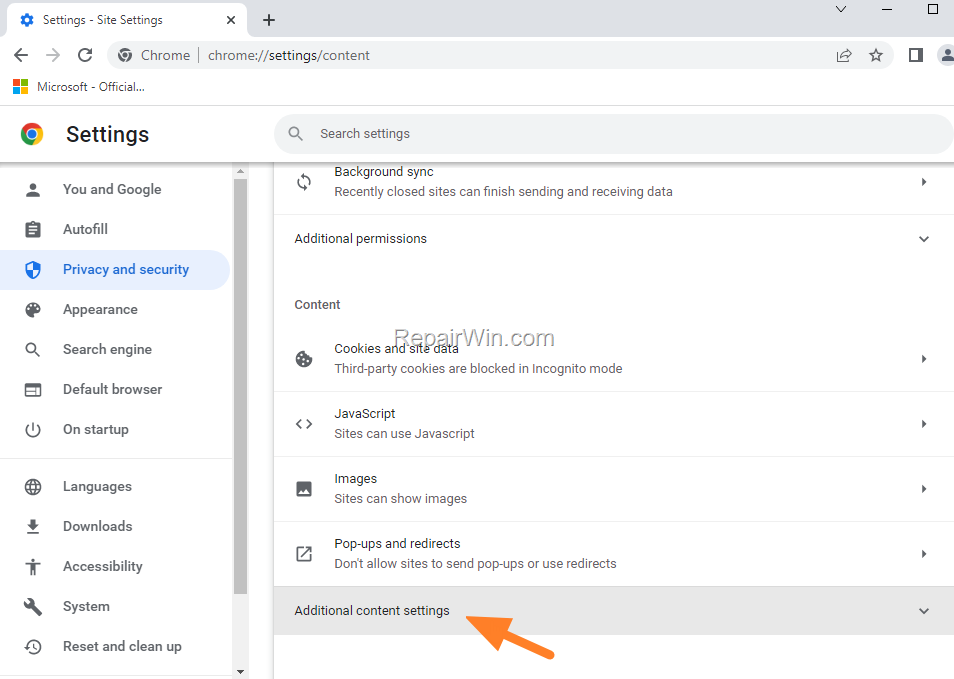
4. Open PDF Documents.
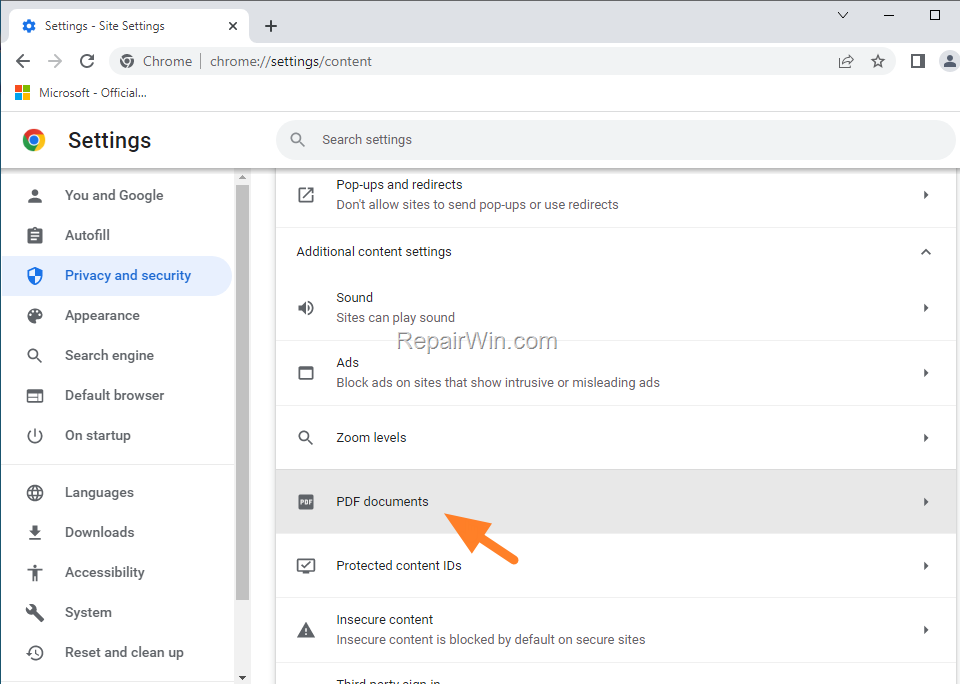
5. Choose Download PDFs and you're done! Form now on Chrome will download the PDF files and not opening them.

That's all folks!
Please leave a comment in the comment section below or even better: like and share this blog post in the social networks to help spread the word about this solution.
Frequently Asked Questions
How can I make Chrome download PDFs instead of opening them?
To make Chrome download PDFs instead of opening them, open Chrome and paste 'chrome://settings/content/pdfDocuments' into the address bar. Then, select 'Download PDFs'. Chrome will now download PDF files instead of opening them.
Why does Chrome open PDFs automatically?
Chrome has a built-in PDF viewer that allows users to read or print PDF documents without needing additional software. This feature is designed for convenience, but it can be disabled if users prefer to download PDFs instead.
What if I want a more detailed guide to change Chrome's PDF settings?
You can use the following steps for a detailed guide: 1. From the Chrome menu, click on 'Settings'. 2. In 'Privacy and security', open 'Site Settings'. 3. Scroll down and open 'Additional content settings'. 4. Open 'PDF Documents'. 5. Choose 'Download PDFs'. This will ensure Chrome downloads PDF files instead of opening them.



