
How to Delete Edge History, Cache, Cookies & Passwords.
Like any web browser, Microsoft Edge stores your browsing history in order to make your experience easier when returning to the same website, such as typing information into web forms, such as your credentials (username and password).
As you understand, since all this sensitive personal data is stored on your device, it can help to compromise your privacy especially if you share your device with other users.
If you want to maintain your privacy after browsing the web with Edge, then in this tutorial you will learn how to delete your history, passwords, cache and cookies.
To Clear History & Passwords in Edge (Quick Steps):
1. Press Ctrl + Shift + Delete to open the Clear browsing data window.
2. At Time Range choose All Time.
3. Check all checkboxes to clear all your browsing data, and click Clear now.
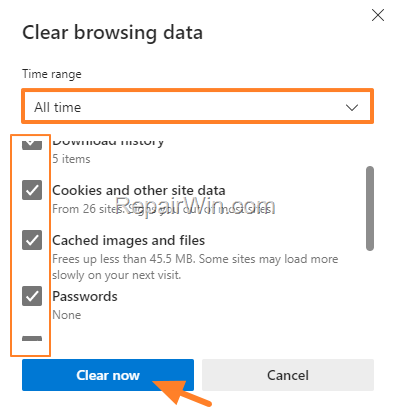
How to Clear Microsoft Edge Search History, Passwords, Cache & Cookies (Detailed Steps).
To remove your browsing activity and passwords in Edge:*
* Note: Please note that using the instructions below will only delete the Edge browsing activity from your device. To view and remove your browsing data saved in the Microsoft cloud, navigate to your Microsoft account's privacy dashboard. (Data that you delete on the privacy dashboard won’t be deleted from your device.
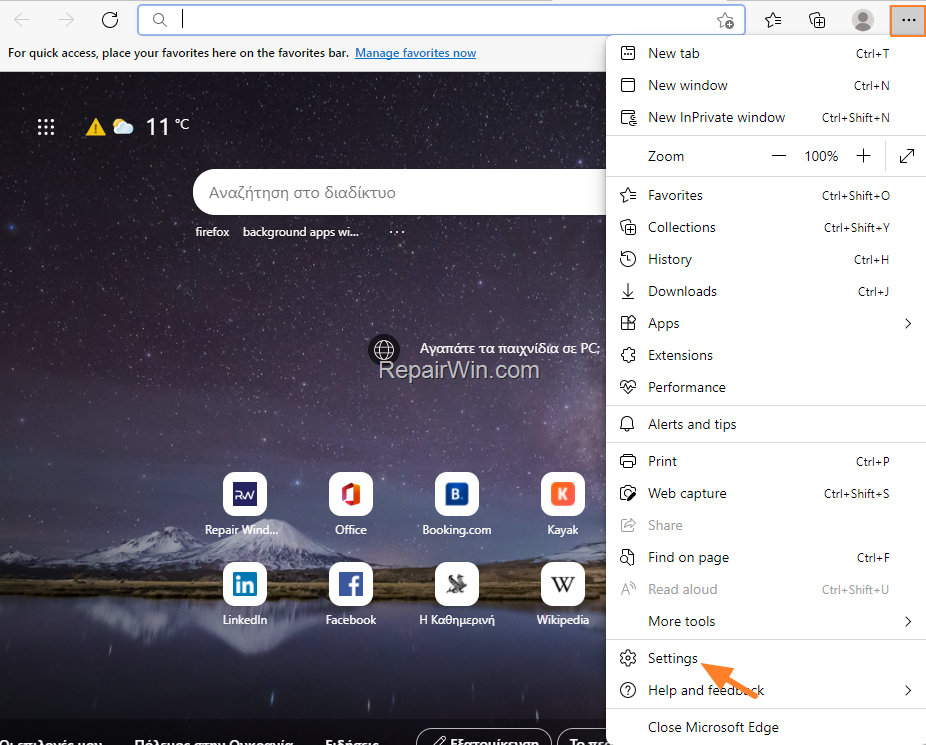
1. From the 3-dots menu  select Settings.
2. Select the Privacy, search, and services options tab on the left and then click Choose what to clear next to Clear browsing data now.

2. At Clear browsing data window, the default options are to clear the browsing history, download history, cookies and cached images and files. If you want to remove only that type of information. select a Time Range and hit Clear now.
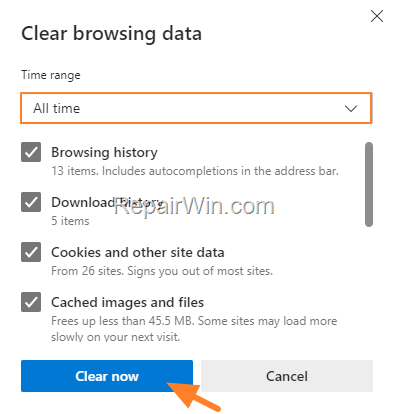
3. If you want to delete all your browsing activity in Edge, including the saved usernames & passwords and all other sensitive info that you've entered into forms, such as your email, credit card, or your shipping address, scroll down and select all the available checkboxes. At next, choose All Time and hit Clear now. Finally, close and reopen Edge and you're done! *
* Important: Please note that after deleting all saved passwords and login data on websites in Edge, you will not be able to log in to online sites and services (e.g. Facebook, Gmail, Internet Banking, etc.), without re-entering your credentials (username and password). Therefore, before you delete your saved credentials, make sure you know them.

How to Automatically Clear Edge Browsing History, Cookies and Passwords on exit.
If you want to delete all your browsing activity when closing Microsoft Edge:
1. From the 3-dots menu  select Settings and then at Privacy, search, and services options tab, click Choose what to clear every time you close the browser under Clear browsing data.
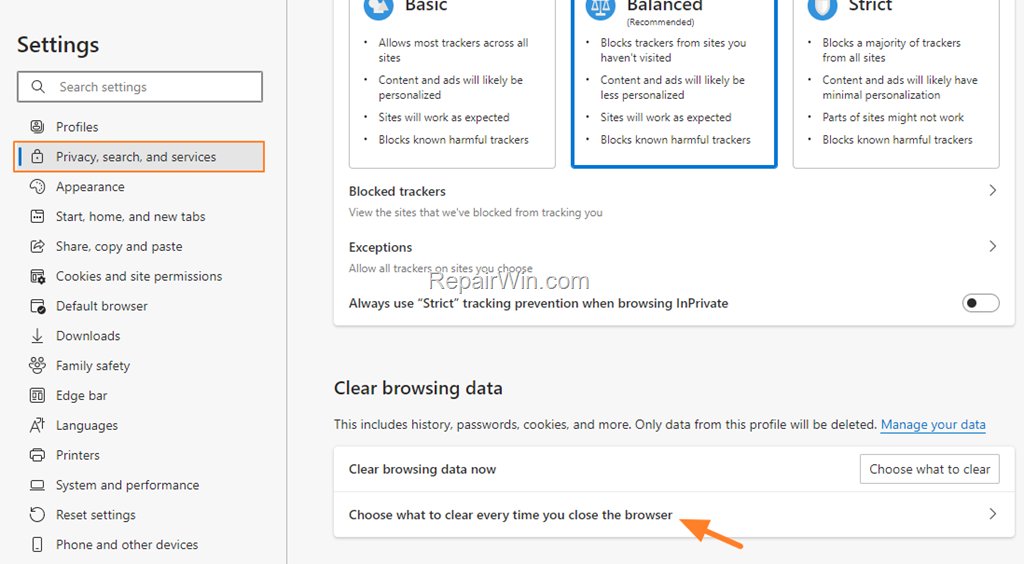
2. Choose what to delete each time you close your Edge browser by setting the corresponding option to On, then close and reopen Edge. *
* Note: Although this is a nice method to maintain your privacy, I suggest to always clear your browsing activity manually, as described above.

How to Prevent Edge to Save your Browsing History.
If you always want to keep your Edge browsing activity intact, always browse privately in incognito mode. To do that:
1. Launch Edge and press Ctrl + Shift + N, or from the 3-dots menu  choose New InPrivate window.

That's all folks! Did it work for you?
Please leave a comment in the comment section below or even better: like and share this blog post in the social networks to help spread the word about this.
Frequently Asked Questions
How do I manually clear browsing data in Microsoft Edge?
Press Ctrl + Shift + Delete to open the Clear browsing data window, select 'All Time' in Time Range, check all checkboxes to clear browsing data, and click 'Clear now'.
Does clearing browsing history in Edge affect my online accounts?
Yes, deleting saved passwords and login data means you will need to re-enter credentials for online sites, so ensure you know your usernames and passwords before clearing.
Can browsing data be cleared automatically in Microsoft Edge?
Yes, navigate to Settings > Privacy, search, and services options, and set 'Choose what to clear every time you close the browser' to On for the desired options.
How can I prevent Edge from saving browsing history?
Use Incognito Mode by launching Edge and pressing Ctrl + Shift + N or selecting 'New InPrivate window' from the 3-dots menu.



