
How to Delete Firefox History, Cache, Cookies & Passwords.
Firefox, like other browsers, keeps a history of the websites you visited and also stores some data and information of them in its cache and cookies.to optimize the page loading the next time you visit the same website(s).
In fact, Firefox's stored data about your Internet activity helps you browse the Internet faster, but on the other hand it can take up a lot of disk space or compromise your privacy, especially if you share your computer with others. So, deleting Firefox search history from time to time is a good practice to maintain your privacy and security or to solve Firefox problems.
In this guide you will learn how to clear your browsing data (history, cookies, cache) and how to remove all your stored passwords and sensitive information from all or particular websites you have visited in Mozilla Firefox browser.
How to Clear History in Firefox (Quick Steps):
1. Press Ctrl + Shift + Delete to open the Clear Recent History window.
2. Choose the Time range you want to clear your browsing activity.
3. Select which information you want to delete by selecting the corresponding checkbox and when done, click the Clear now button.

How to Clear Mozilla Firefox Search History, Passwords, Cache & Cookies (Detailed Steps).
How to Delete Browsing History, Cache and Cookies in Firefox.
To remove your browsing history, cache, cookies in Firefox web browser:
1. Launch Firefox and press Ctrl + Shift + Delete, or from the 3-dash menu  go to History > Clear recent history…
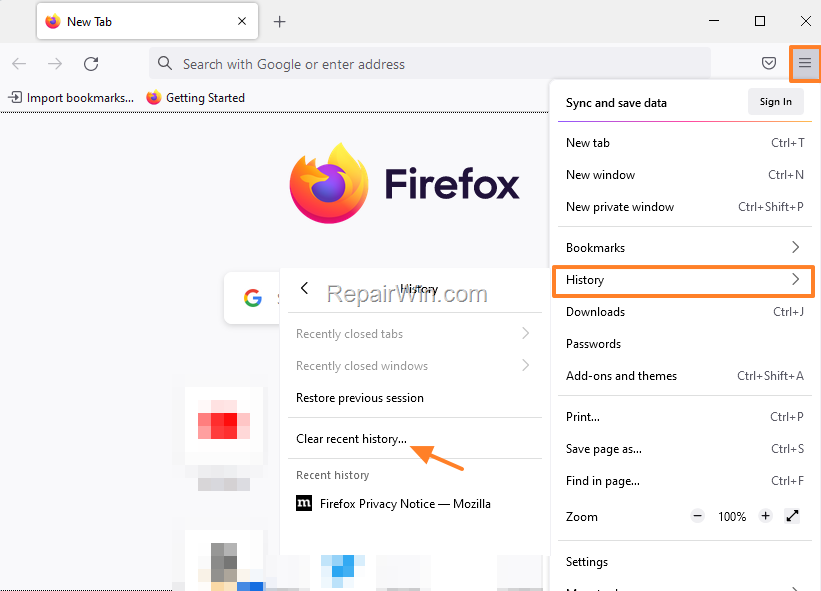
2. In Clear Recent History window:
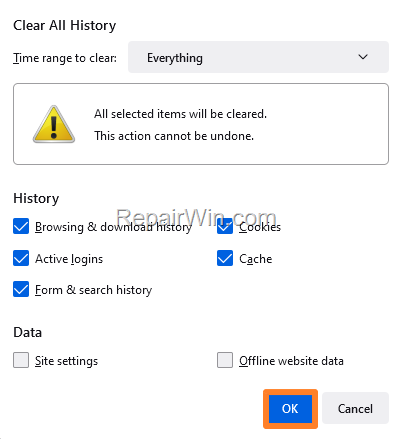
a. Select the 'Time range to clear' your browsing data. You can choose Last hour, Last two hours, Today and Everything.
b. Below, Firefox's default options are to delete your browsing & download history, Active logins, Form & search history, Cookies and Cache. Use the check boxes to select what information you want to clear from Firefox's history and click OK. When done, restart Firefox. and continue your work.
How to Delete Firefox Passwords.
To delete the saved usernames and passwords in Firefox:
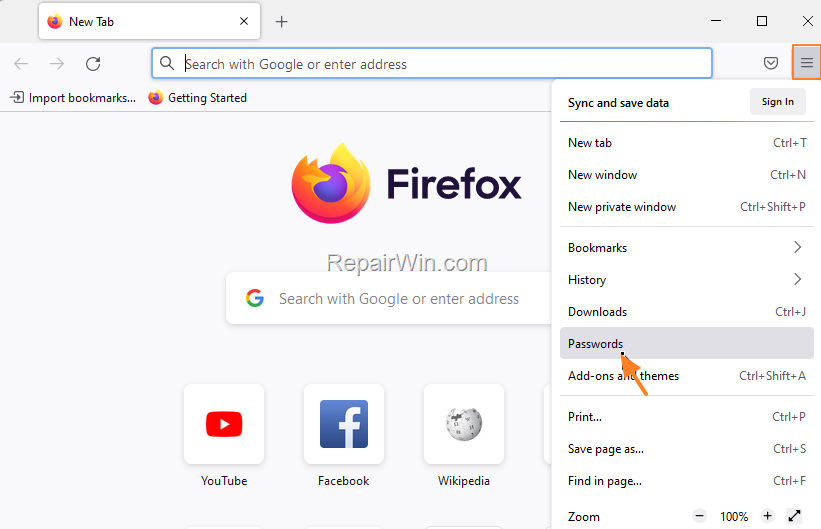
1. From the 3-dash menu  select Passwords.
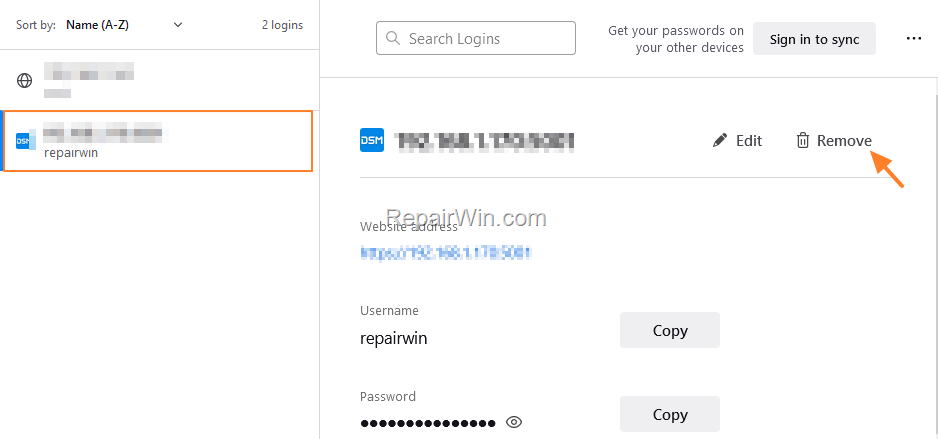
2. To delete the stored Firefox credentials for a specific website, select that site on the left pane and at the right, click Remove.
3. To remove all the Firefox saved credentials (usernames & passwords) for all the websites you have logged in to:
a. Click the tree dots menu at the top-right and select Remove All Logins.
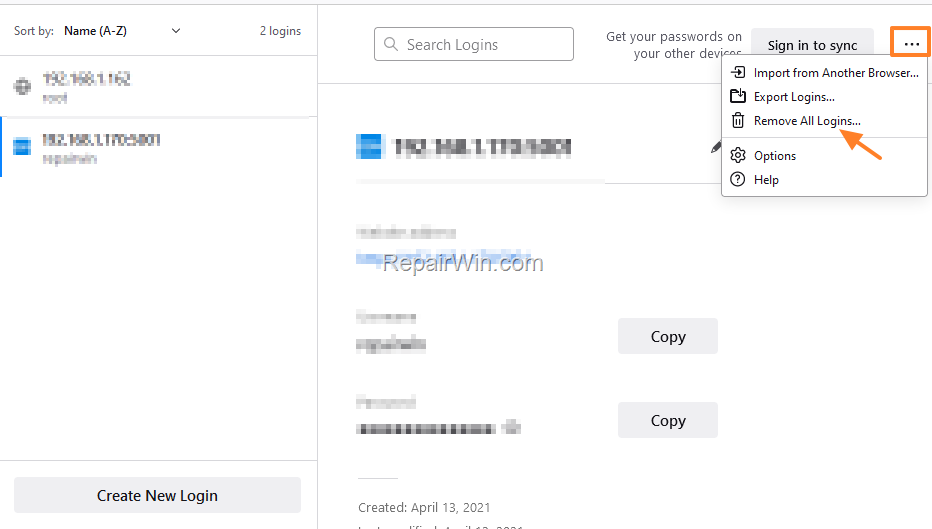
b. Check Yes, remove these logins and click Removal All.

How to Automatically Clear Firefox Browsing History, Cookies and Passwords on exit.
If you want to delete all your browsing activity when closing Mozilla Firefox:
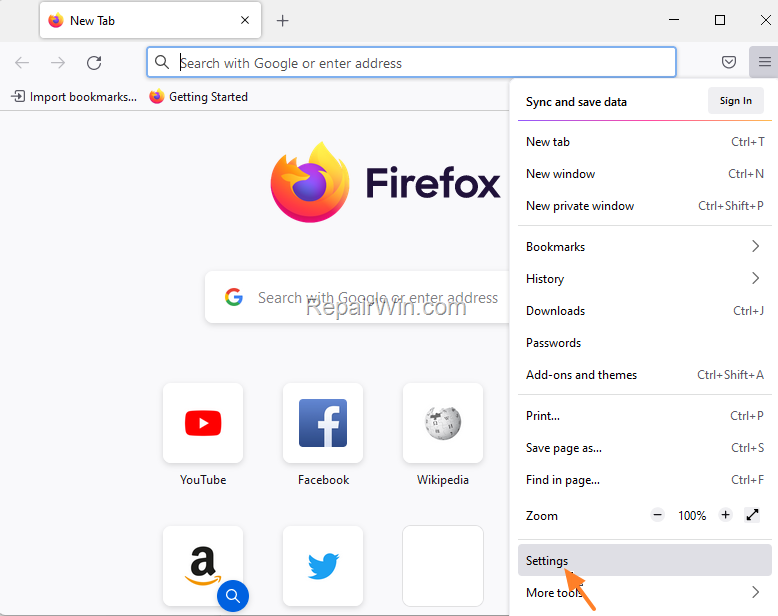
1. From the 3-dash menu  select Settings.
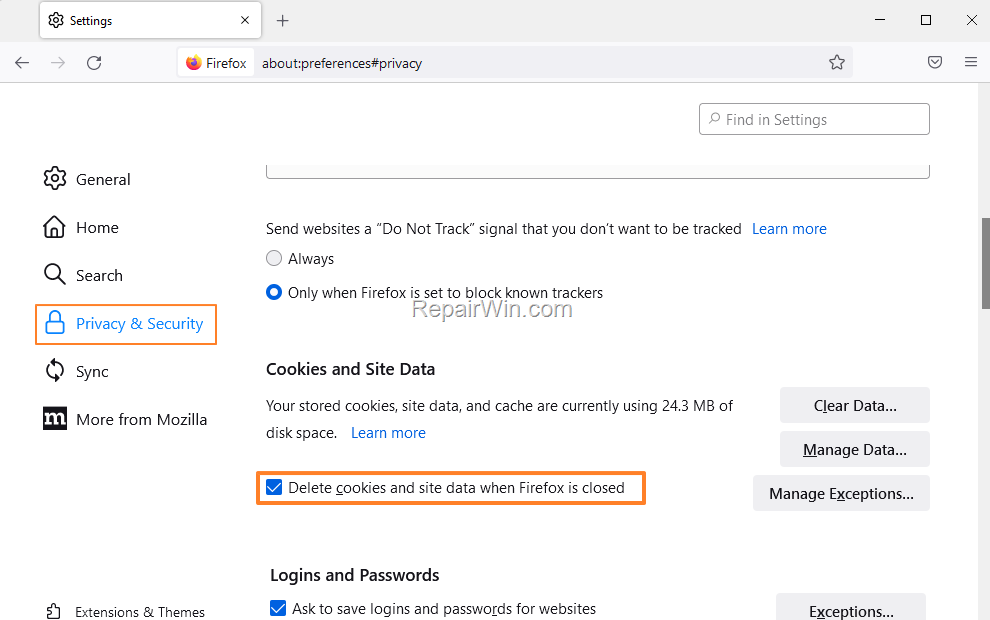
2. At Privacy & Security options scroll down and check Delete cookies and site data when Firefox is closed.When done, close and reopen Chrome. *
* Note: Although this is a nice method to maintain your privacy, I suggest to always clear your browsing activity and passwords manually, as described above.
How to Prevent Firefox to Save your Browsing History.
If you always want to keep your Firefox browsing activity intact, always browse privately in private mode. To do that:
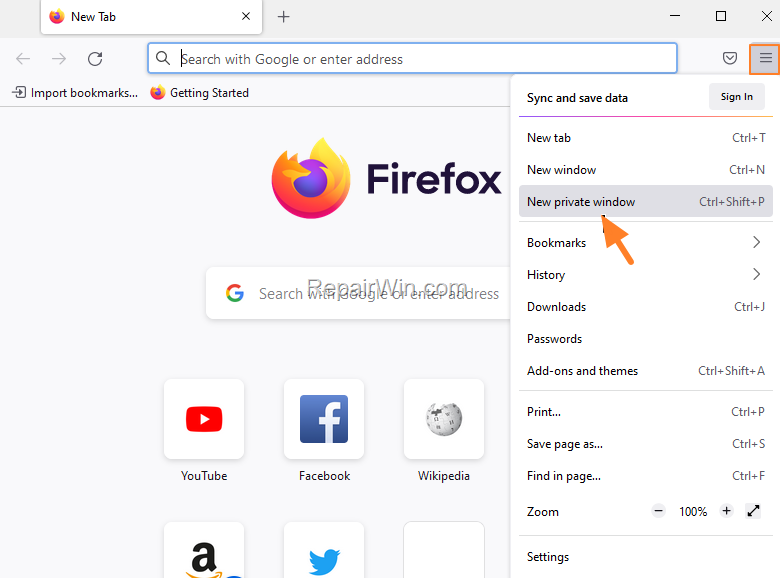
1. Launch Firefox and press Ctrl + Shift + P, or from the 3-dash menu  choose New private window.
That's all folks! Did it work for you?
Please leave a comment in the comment section below or even better: like and share this blog post in the social networks to help spread the word about this.
Frequently Asked Questions
How do I quickly clear my browsing history in Firefox?
Press Ctrl + Shift + Delete to open the Clear Recent History window, choose the time range you want to clear, select the desired checkboxes, and click Clear now.
What steps should I follow to clear cookies, cache, and browsing history in Firefox?
Launch Firefox and press Ctrl + Shift + Delete, or navigate from the 3-dash menu to History > Clear recent history. In the window, choose the time range, select the types of data you wish to clear, and click OK.
How can I delete saved passwords in Firefox?
To delete saved credentials, go to the 3-dash menu, select Passwords, choose the site on the left pane to delete specific credentials, and click Remove. For all stored credentials, click the three dots menu, select Remove All Logins, confirm by checking Yes, remove these logins, and click Removal All.
Is there a way to automatically clear browsing data on exit in Firefox?
Yes, go to the 3-dash menu, select Settings, scroll to Privacy & Security, and check Delete cookies and site data when Firefox is closed. However, manually clearing your data is also recommended.



