
How to Reset Bitdefender Uninstall Password if you forget it.
If you try to remove or reinstall Bitdefender Security program and you can not, because you do not know the uninstall password, keep reading below. In this guide you'll learn two different methods to uninstall Bitdefender Endpoint Security if you don't know the Uninstall Password.
Bitdefender Endpoint Security is protected by a password to prevent the modification of Bitdefender settings or the removal of the protection program without the consent of the computer owner.
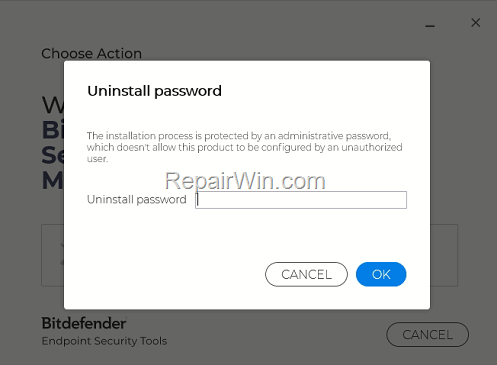
But what if you are the legal owner of the computer and you have forgotten the BitDefender password to uninstall it or modify its settings? Don't worry! In this guide you'll learn two different methods to uninstall Bitdefender if you don't know the Uninstall Password.
How to Remove Bitdefender or Reset Bitdefender Password without knowing the Password.
If you want to reset Bitdefender password or want to reinstall Bitdefender and you have forgotten the password, follow the methods below:
Method 1. Reset Bitdefender Uninstall Password.
The official method to remove Bitdefender password without knowing it, is to reset it by using the "password reset utility" provided by Bitdefender. *
* Note: Keep in mind that this method doesn't work at all cases, but try it first.
1. Download Bitdefender reset password tool.
2. Restart Windows in Safe Mode. To do that:
1. Press the Windows
+ R keys to open the run command box.
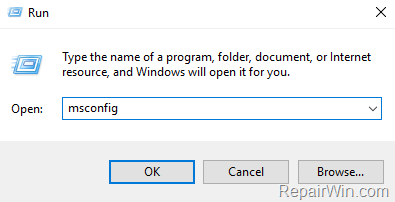
2. Type msconfig and press Enter.
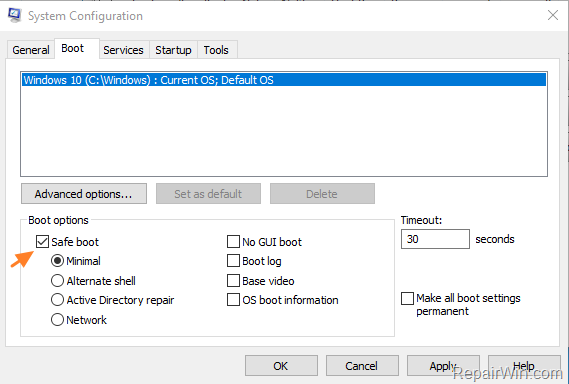
3. At Boot tab select the Safe Boot option, then click OK and restart your computer.

3. In Safe Mode, right-click at the file you downloaded (reset_password.exe) and select Run as Administrator.

4. A command prompt windows will open. Wait for the process to finish and press any key.

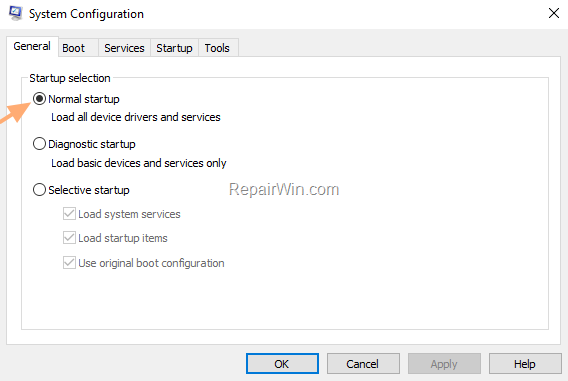
5. Run the 'msconfig' tool again and at the General tab, check the Normal startup and click OK. Then, click Restart to start Windows normally.
6. After booting to Windows, proceed and Uninstall Bitdefender. If you prompted again for the uninstall password apply the steps in Method-2 below.
Method 2. Remove Bitdefender Password in Registry.
The second method to to reset the Bitdefender password, is to delete the existing password from registry:
1. Start Windows in Safe Mode. (see step-2 in method-1 above).
2. In Safe Mode, press the Windows + R keys simultaneously on your keyboard to open a Run dialog box.
3. Type regedit and hit Enter.

4. In Registry Editor, navigate to this key:
- HKEY_LOCAL_MACHINE\SOFTWARE\Microsoft\Windows\CurrentVersion\Uninstall\Endpoint Security
5a. At the right, double-click at the Key REG_SZ value to open it.

5b. Delete the value in Value data box and click OK.

6. Close Registry Editor.
7. Start Windows Normally. (see step-5 in method-1 above).
8. Proceed to remove Bitdefender without being asked for the uninstall password.

That’s all folks! Did it work for you?
Please leave a comment in the comment section below or even better: like and share this blog post in the social networks to help spread the word about this solution.




July 19, 2022 @ 4:52 pm
Thank's so much.
I got it with second step.
U saved my day.
Regards from Brazil!
August 24, 2022 @ 1:51 pm
Method 2 success. Genius. Thank you
September 1, 2022 @ 8:12 am
Method 2 worked fine for me.
thanks thanks thanks …. etc
September 30, 2022 @ 12:27 pm
Just go for method 2. it seems general that method 1 it's just not working 😅 thanks for the help
November 22, 2022 @ 3:42 pm
Dear Friend, you are a savior, i had trouble removing this from one of our client systems, but was not able to , used the Registry hack, it worked. had to remove the key from Safemode.
Thanks
Regards, Abdul
United Arab Emirates
July 29, 2023 @ 3:19 pm
Worked for me. Thank you. This saved me a lot of time figuring out how to. I don't have to call BitDefender support.
November 2, 2023 @ 4:50 pm
Absolutely brilliant. Worked a treat!